
Digital Certificates
Upload the digital certificates Brinta uses to sign and transmit documents, and check which companies are covered.
Company Management › Secrets Manager › Digital Certificates
The page has two tabs: Certificates and Coverage.
Certificates tab
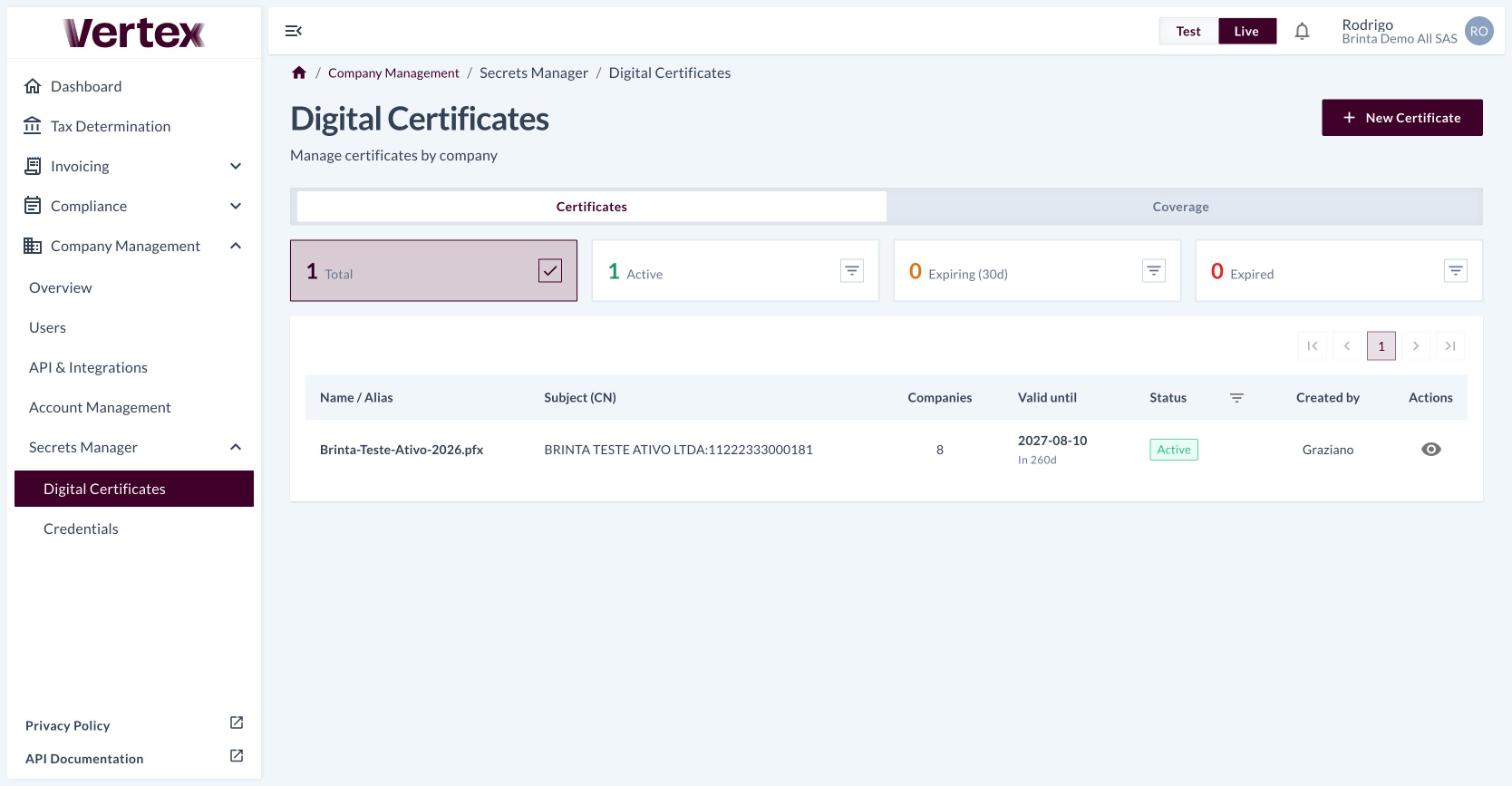
Lists the certificates you uploaded. The counters at the top (Total, Active, Expiring (30d), Expired) also work as filters.
| Column | Description |
|---|---|
| Name / Alias | The certificate's name |
| Subject (CN) | The holder the certificate was issued to |
| Companies | How many companies use this certificate |
| Valid until | Expiration date, and the days left |
| Status | For example Active |
| Created by | Who uploaded it |
The eye icon opens the certificate's details.
Upload a certificate
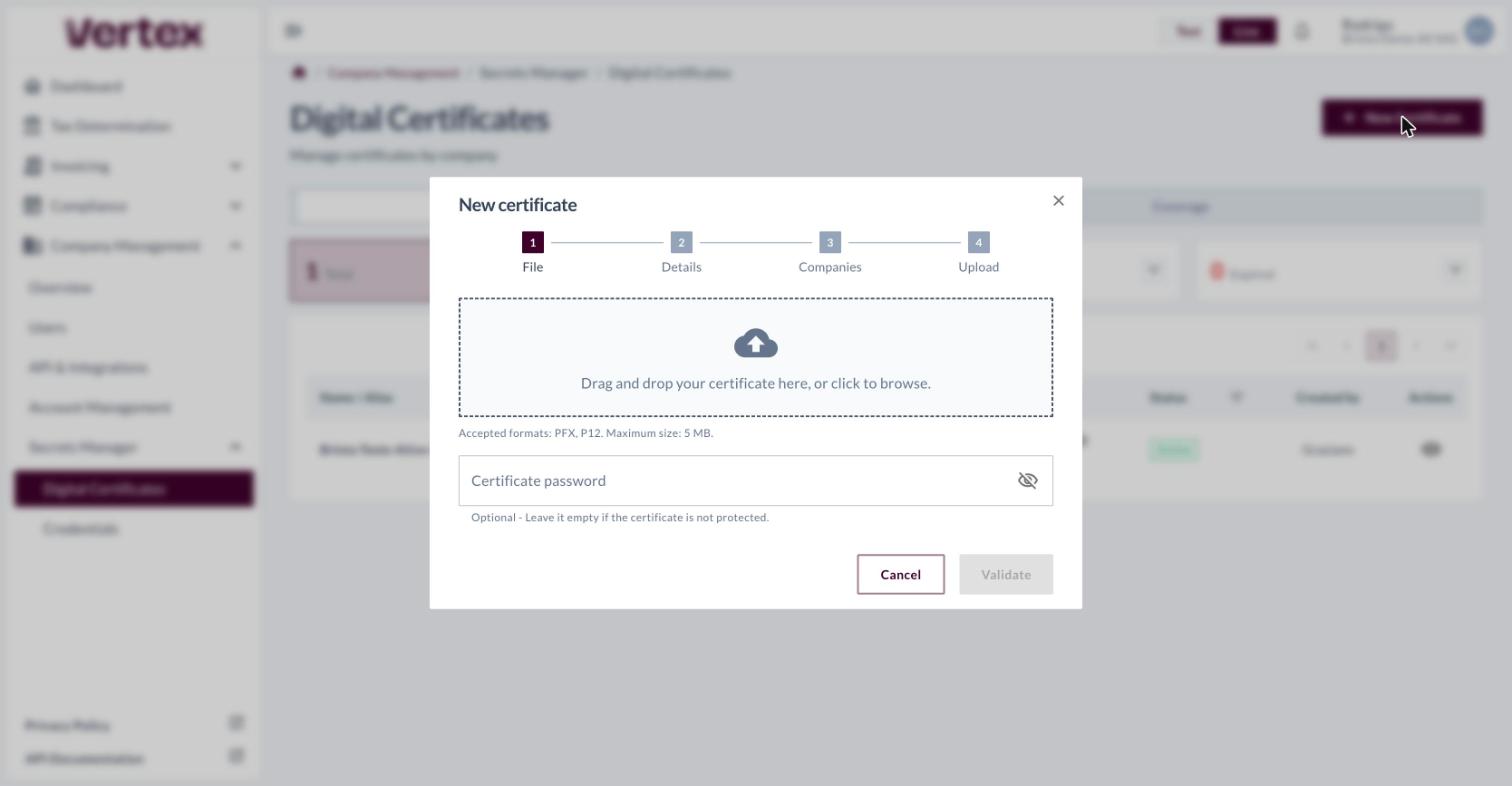
Click New Certificate. The form has four steps.
| Step | What you do |
|---|---|
| Drag and drop the certificate, or click to browse. Enter the Certificate password if the file is protected, then click Validate |
| Review the certificate's details |
| Choose the companies this certificate covers |
| Confirm and upload |
Accepted formats: PFX and P12. Maximum size: 5 MB. The password is optional: leave it empty if the certificate is not protected.
Coverage tab
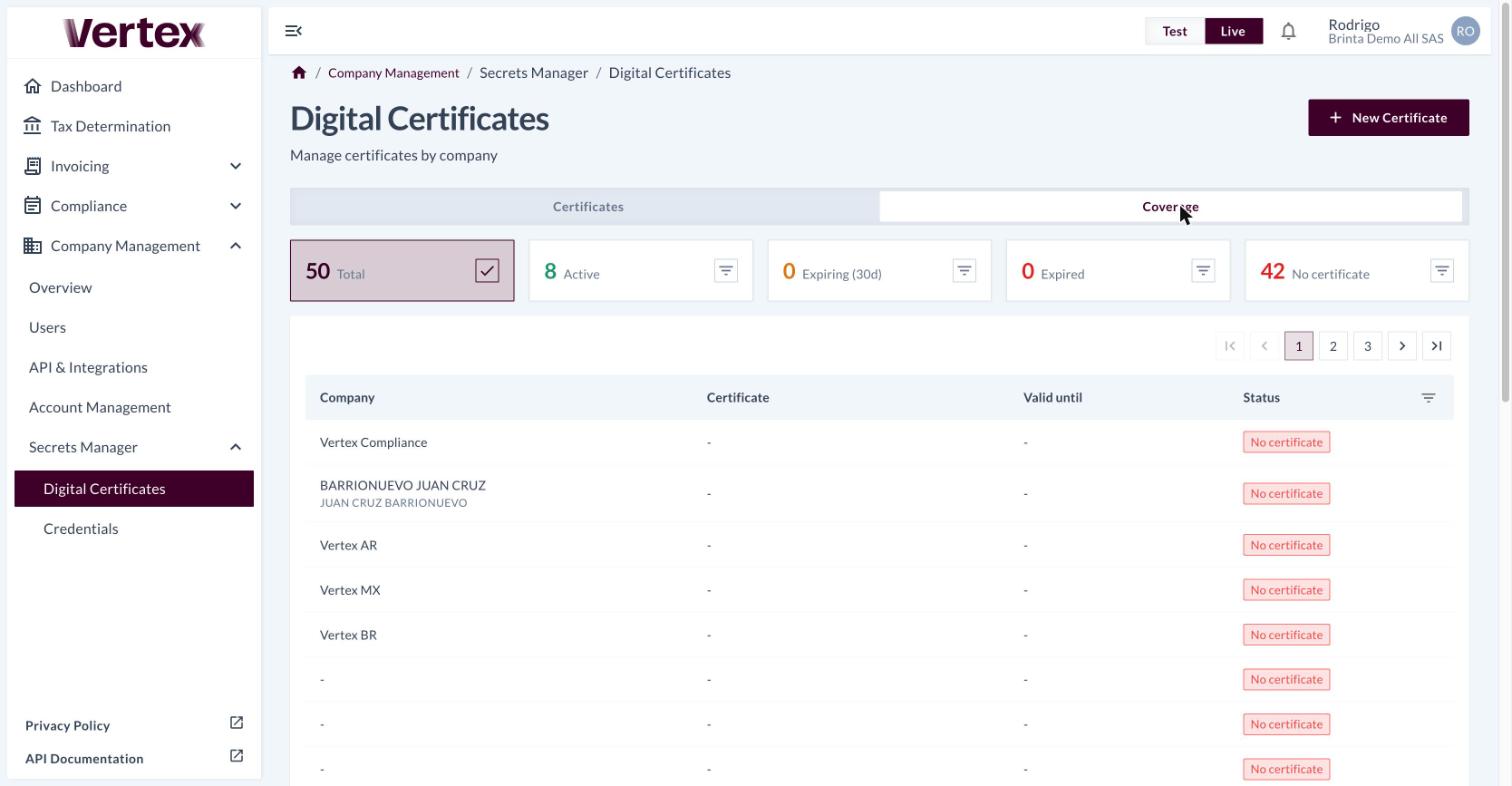
Shows every company in your structure and whether it has a certificate: the certificate's name, its expiration date and its status. Companies without one show No certificate.
The counters at the top (Total, Active, Expiring (30d), Expired, No certificate) filter the list. Use Expiring (30d) to see what to renew next.
Who can do this
Owner, Admin and Operator & Transmitter. See Roles & Permissions.
Updated about 5 hours ago