
[CO] CSV - Multiple Items Invoices Creation by Uploading CSV Files
This guide explains how to create one or more invoices with multiple items at once using the Bulk Upload feature in Brinta.
Step 1 – Select Bulk Upload and Country
Create the csv file following the instructions below:
- Use the official template corresponding to the country from which you are issuing the invoice. The templates are available here or on the screen where you will upload your file.
- Complete the file using one row per item.
- If you need to issue an invoice with multiple items, ensure that all related rows contain the same value in the “Invoice External Id” field. This will allow the system to group those rows under a single invoice.
- For each row belonging to the same invoice, the buyer information and invoice details must be identical. The only fields that should vary between rows are the item-specific fields, such as item name, item amount, VAT amount, and other item-level data.

Step 2 – Access Invoice Creation
- Go to Invoicing → Outgoing
- Click Create Invoice (top-right corner)
Step 3 – Select Bulk Upload and Country
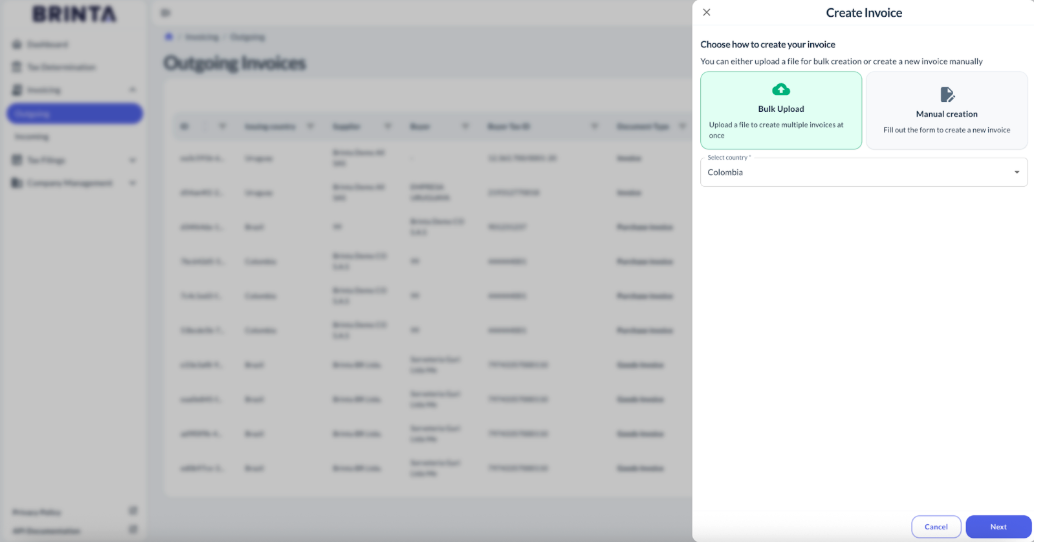
- Select Bulk Upload
- Select Country (Example: Colombia)
- Click Next
⚠️ This step is identical to manual invoice creation, except that Bulk Upload is selected instead of Manual creation.
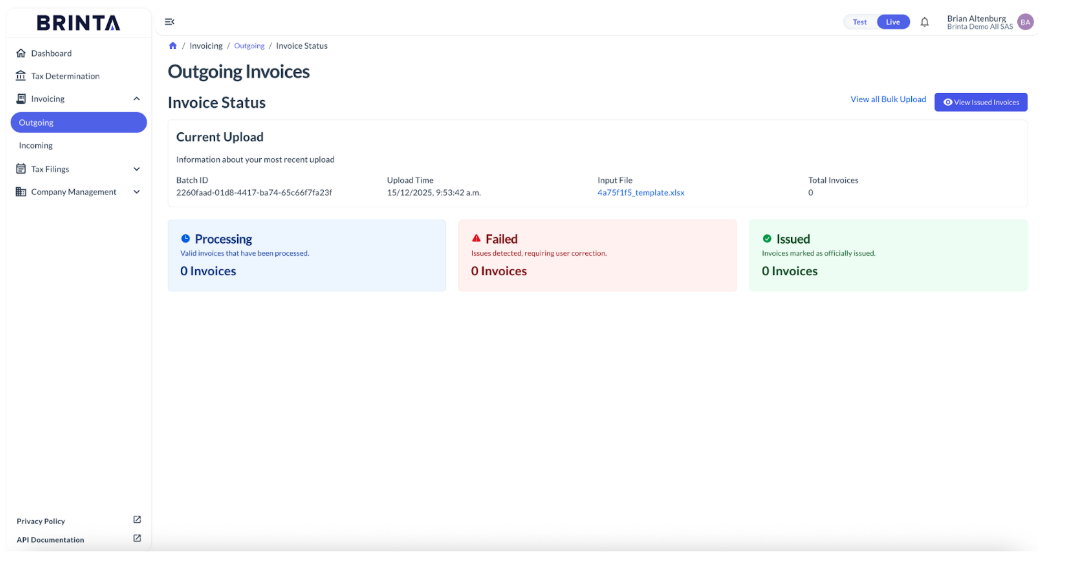
Step 3 – Upload Template File
Updated 10 days ago
Did this page help you?