
Company Management
What Company Management is, how to manage companies and subsidiaries, users with dashboard access, API integrations, and chart-of-accounts mapping.
Company Management is the section where the client's company structure is managed: its subsidiaries, who has access to the dashboard, API integrations, and the chart-of-accounts mapping against each obligation's tax concepts.
It's organized into 5 sub-sections, listed in the sidebar: Overview, Users, API & Integrations, Account Management, and Security Manager.
Overview: which companies are connected
Compliance › Company Management › Overview
At the top you see the Current company: the root company you're operating from. Below, Linked companies lists every subsidiary linked to it, with its role within the structure. The Create Company button lets you set up a new one.
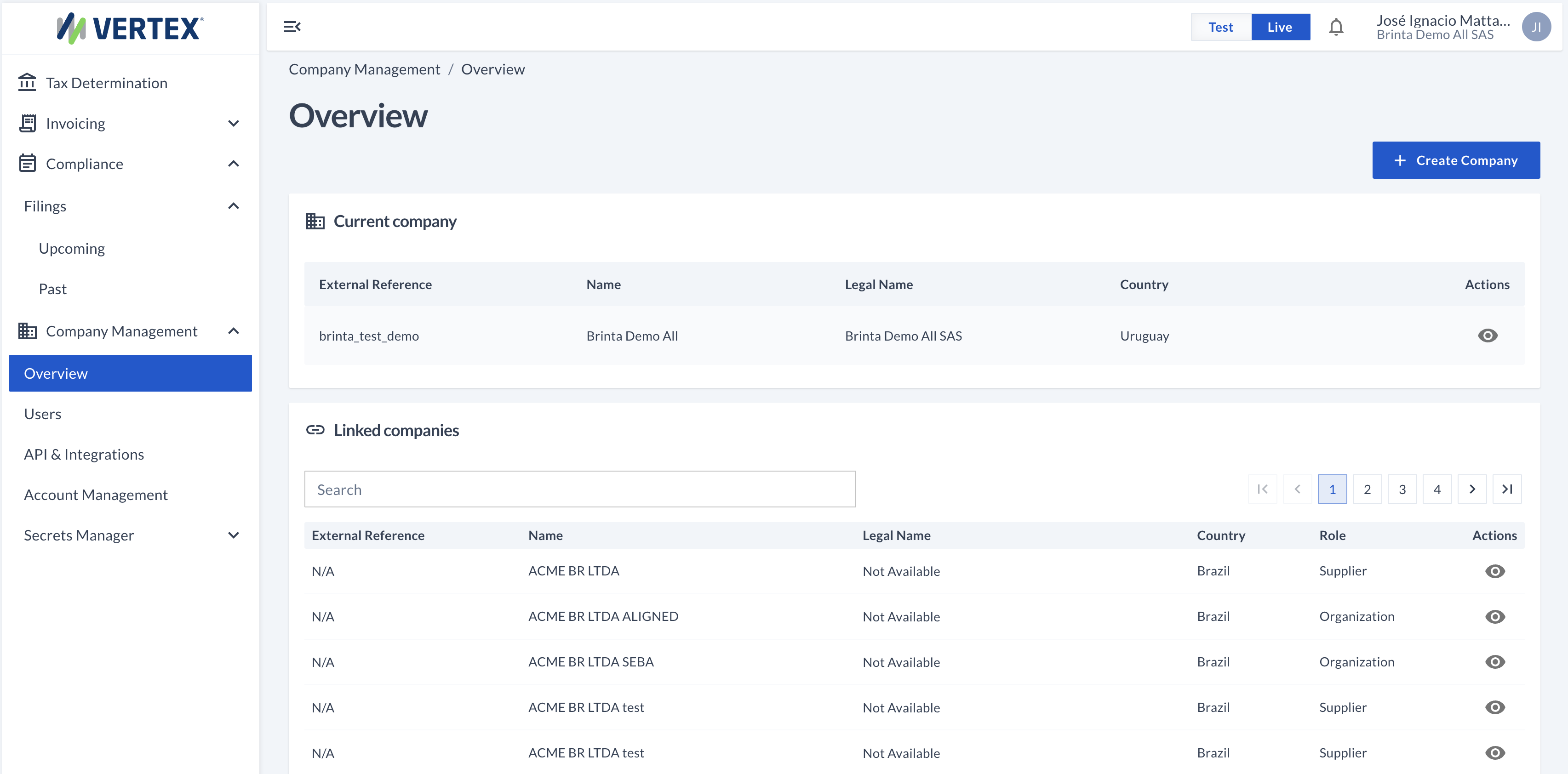
Current company + Linked companies — the eye icon on each row opens the detail view
A company's detail view
The eye icon, on any row, opens that company's detail view in 3 tabs: Details, Tax Registrations, and Linked companies.
Details holds the company's data — general information, contact, and legal and physical address — grouped into cards. The Edit button enables them for editing.
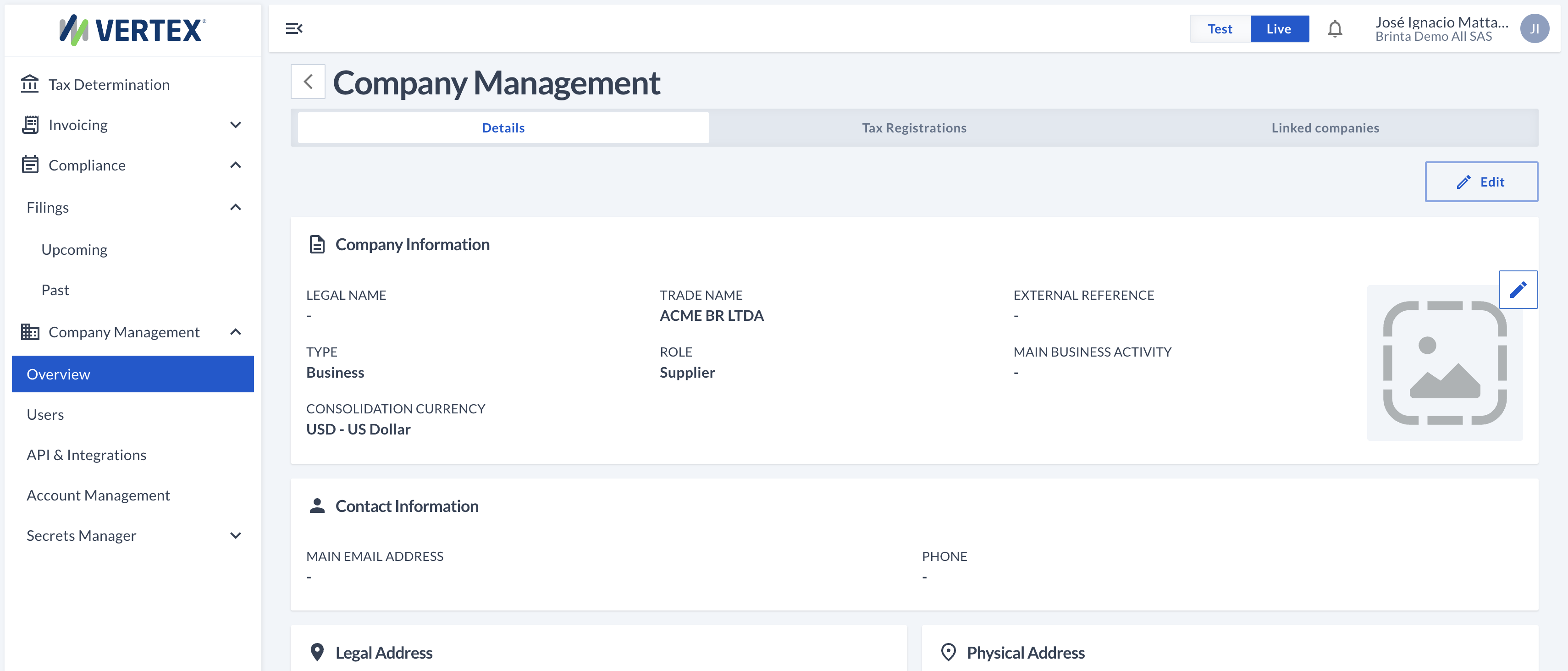
In edit mode you can correct any data — legal name, contact, addresses — and add a physical address if it's missing
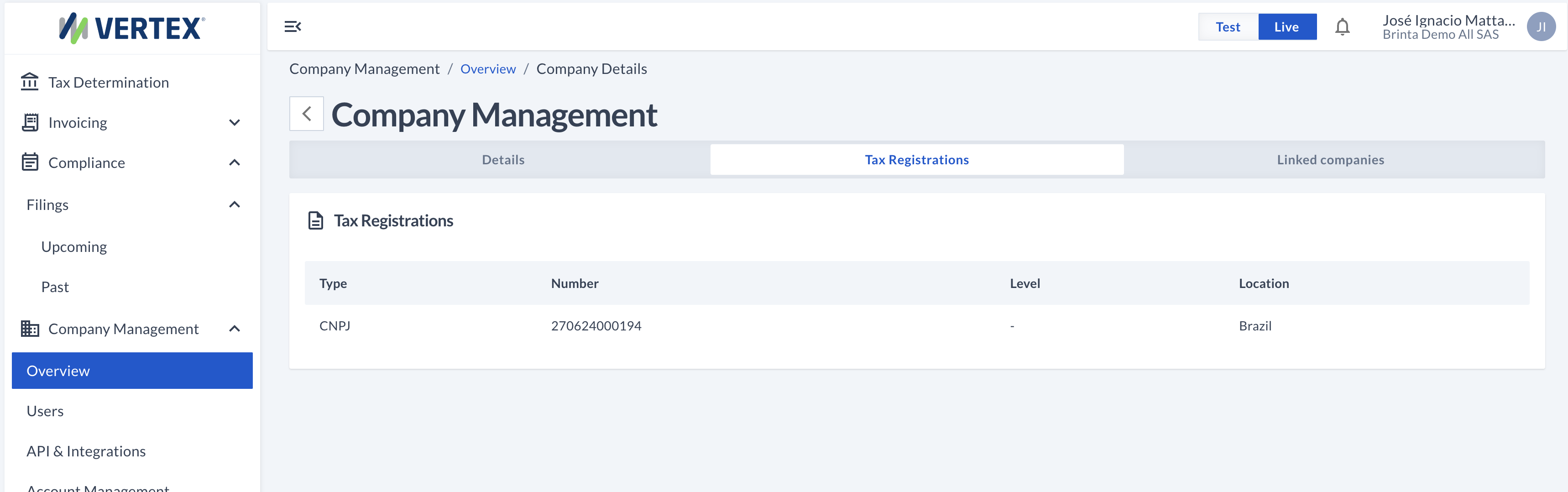
Tax Registrations lists the company's tax registrations (for example, in Brazil: CNPJ, IE, NIRE, CNAE), each with its location.
Linked companies, inside the detail view, shows the Parent company (which company this one reports to) and its own linked subsidiaries — the same idea as section 1, but put in context from this specific company.
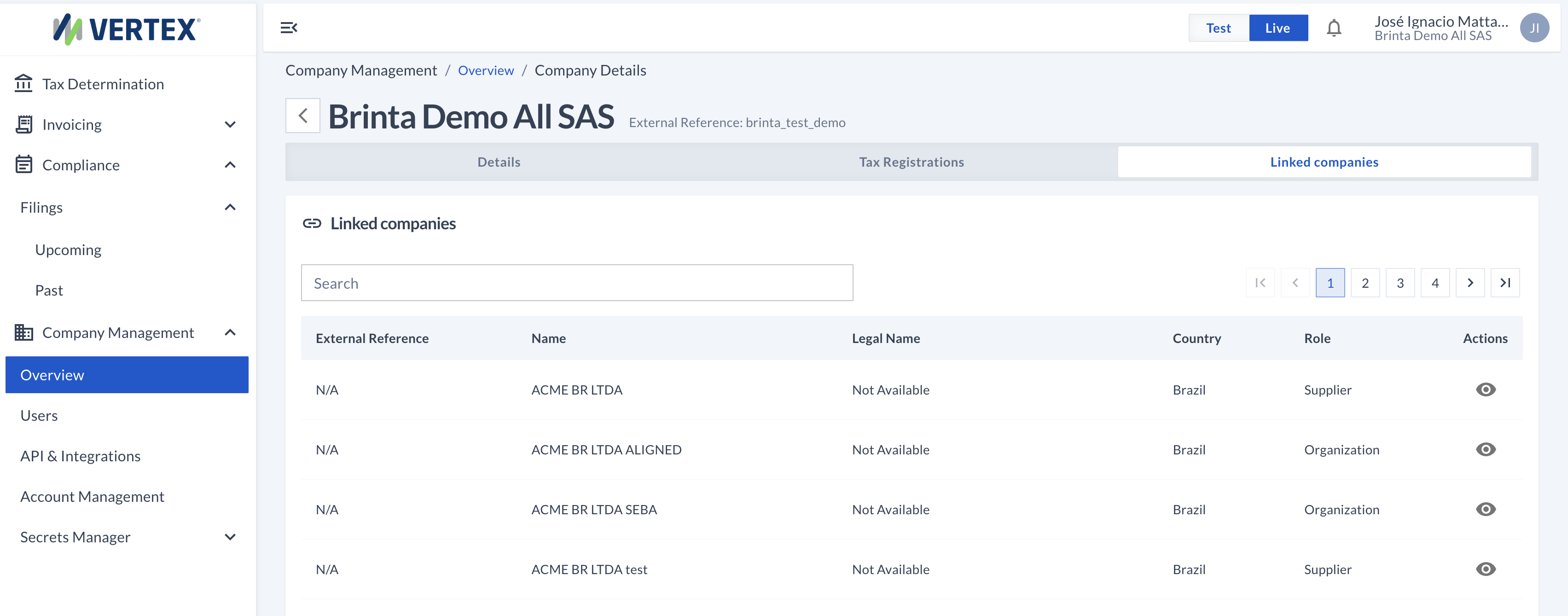
Parent company + its own subsidiaries, viewed from this company
Users: who has access
Compliance › Company Management › Users
Lists every user with dashboard access for this structure, with their role, status, and last access. The Invite User button adds a new one: name, email, and the role they'll have.
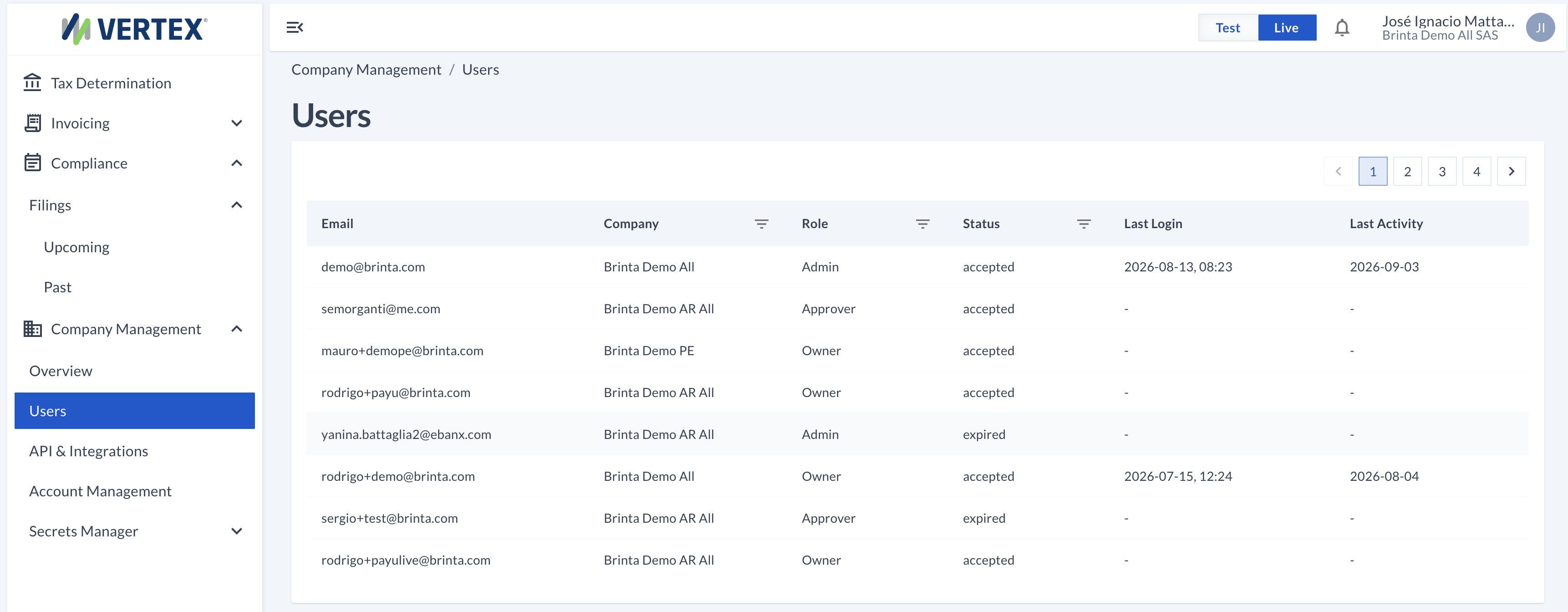
Users — one record per person with access
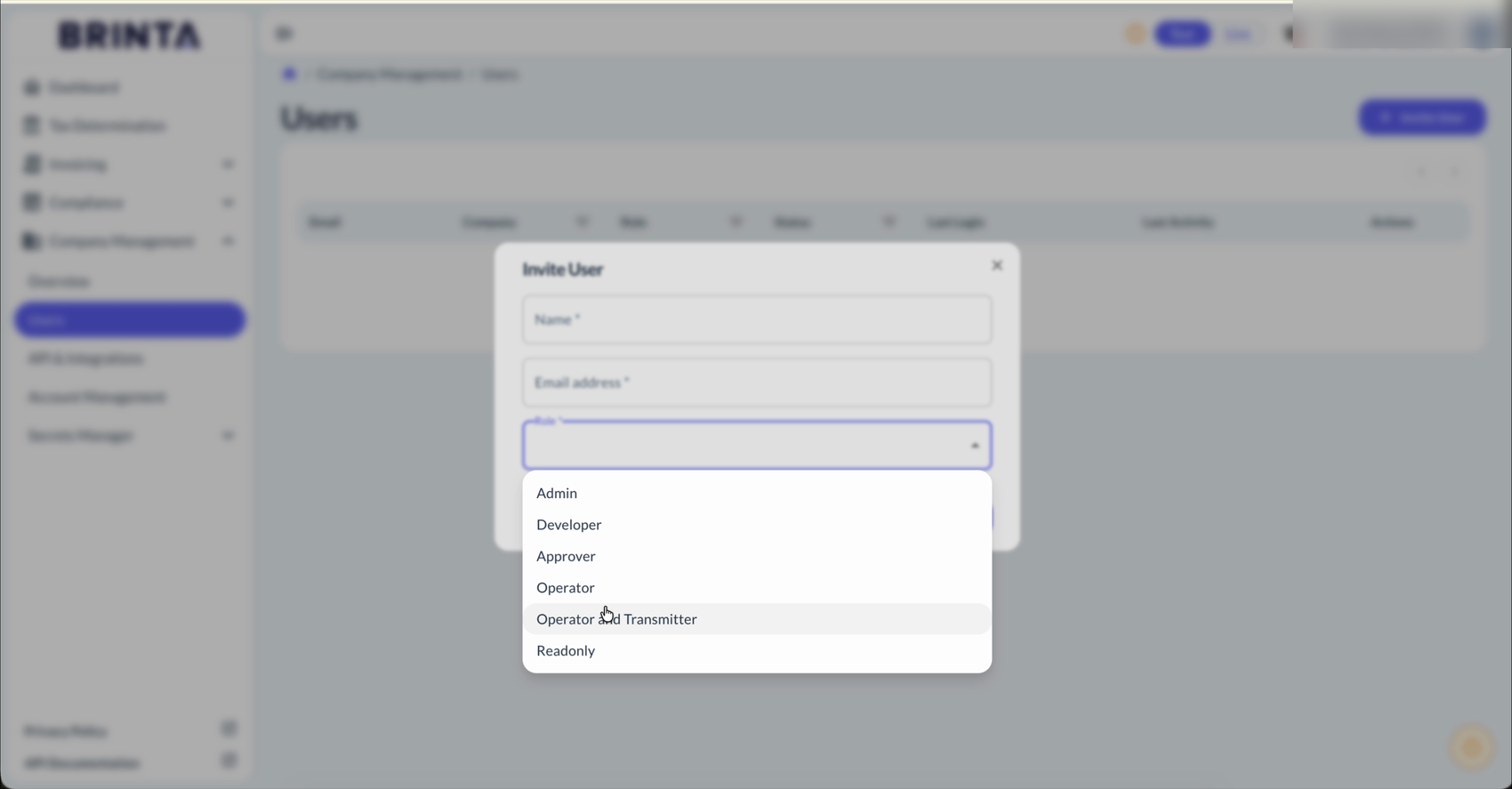
The available roles range from full access (Admin) to read-only (Readonly)
API & Integrations
Compliance › Company Management › API & Integrations
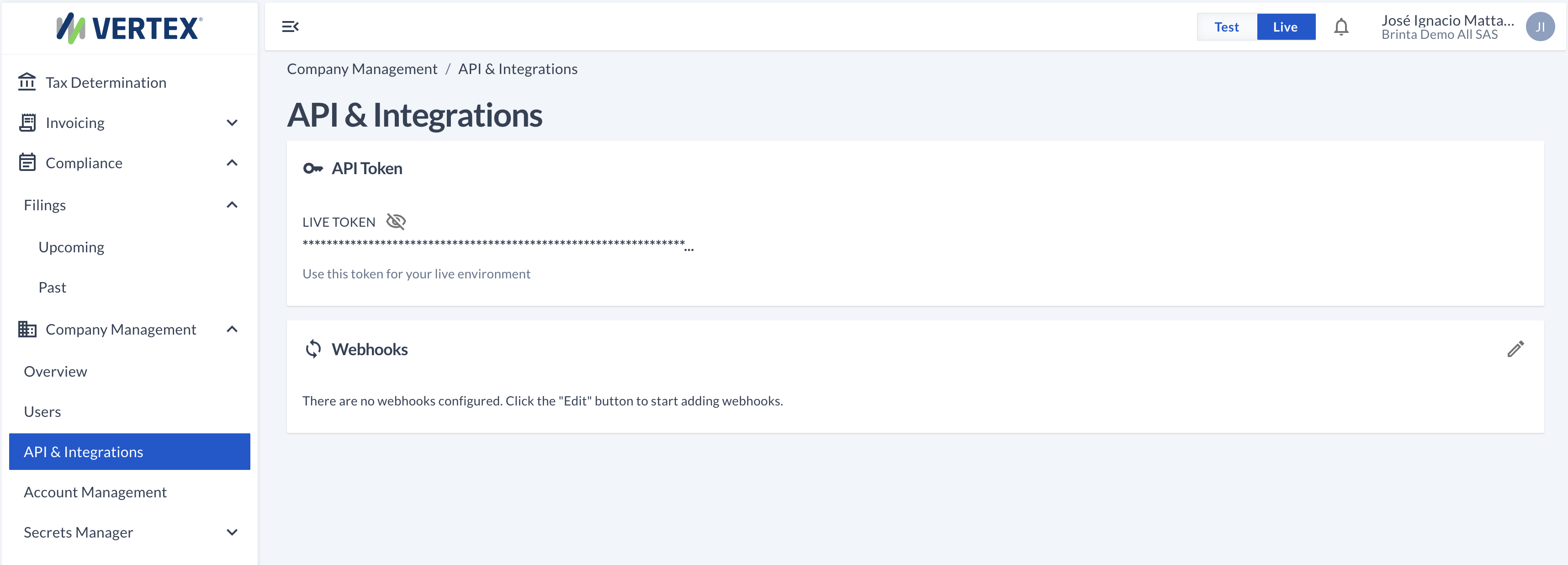
The API Token is the credential for connecting via API — it stays hidden by default. Webhooks let you receive automatic notifications for certain events; they're added from that card's edit button.
Account Management
Compliance › Company Management › Account Management
This is where the mapping is defined between the company's own chart of accounts and the official charts of accounts required by each obligation — for example, Brazil's ECD Plano de Contas Referencial, or COSIF for financial entities. That mapping is what later lets the accounting entries loaded into a filing (Tax Entries, see Guide 3) be associated with the correct tax concept.
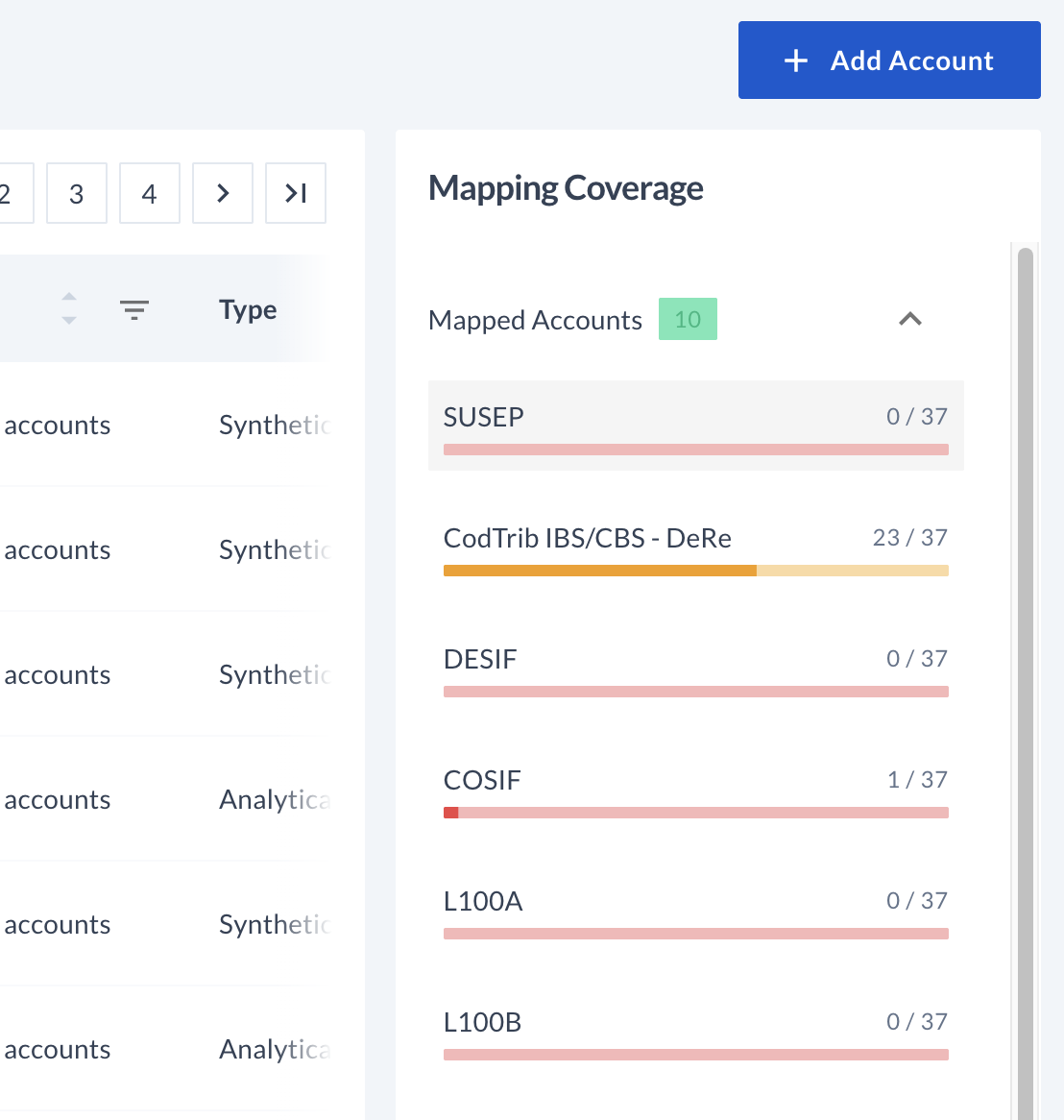
On the left is the company's chart of accounts: one row per account, with its Company, Account (code), Name, Split code, Nature, and Type (Synthetic or Analytical) — plus Status and Start Date, further along the table. The pencil icon on each row opens the detail view to edit it.
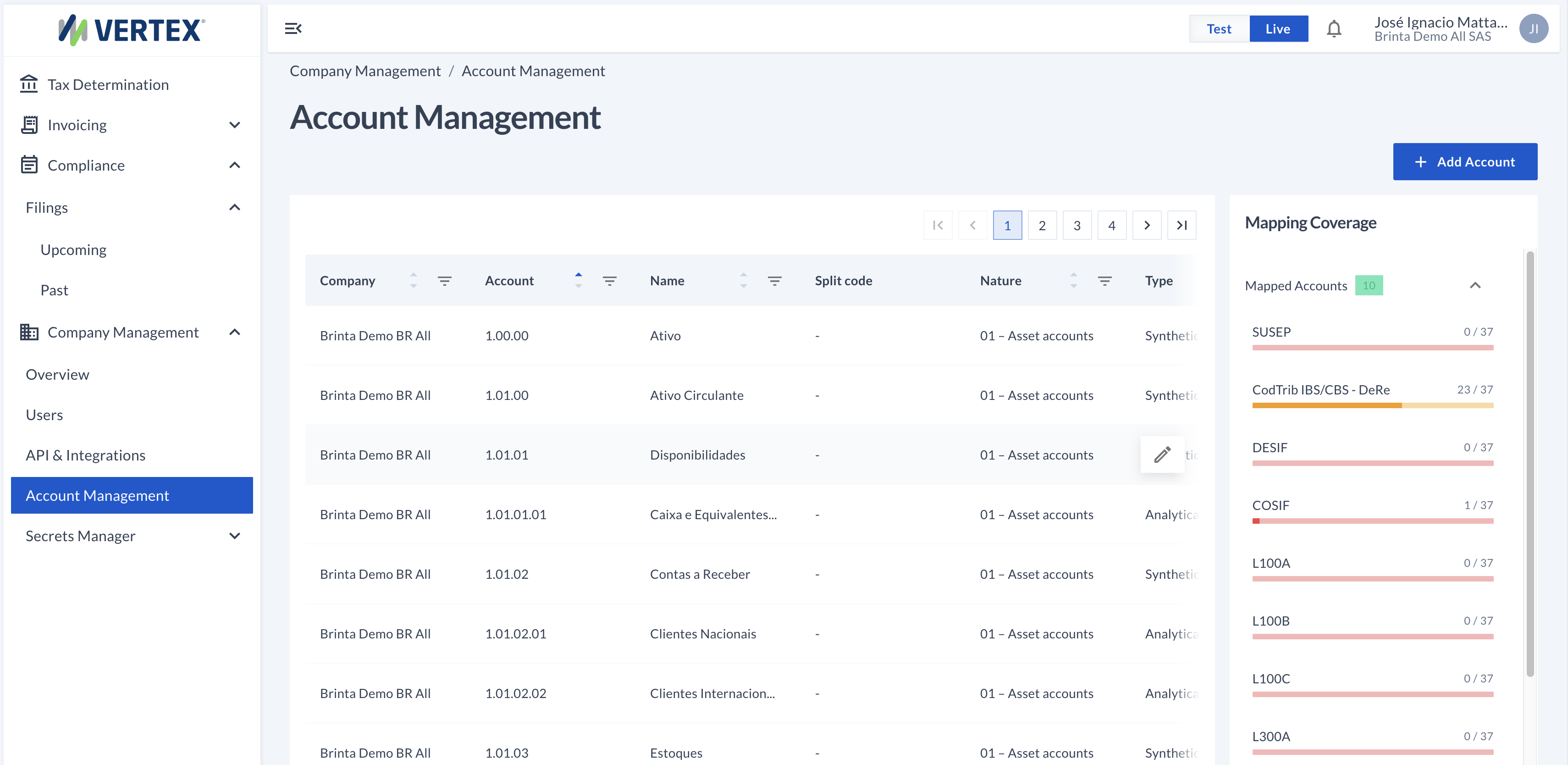
Chart of accounts (left) + mapping coverage by official plan (right)
On the right, Mapping Coverage measures how many accounts already have their correspondence defined against each official plan (DeRe, DESIF, COSIF, etc.), with a progress bar for each one. If you click on Mapped Accounts or Unmapped Accounts, the table on the left filters automatically to show only those accounts — useful for prioritizing what to map first.
The pencil icon on any row opens the Edit Account panel. At the top, General Data holds the account's basic data: Code, Company, Name, alternative name and description, Account Type (Synthetic or Analytical), Status, Nature, the parent account (Parent account, to build the hierarchy), and the Split code.
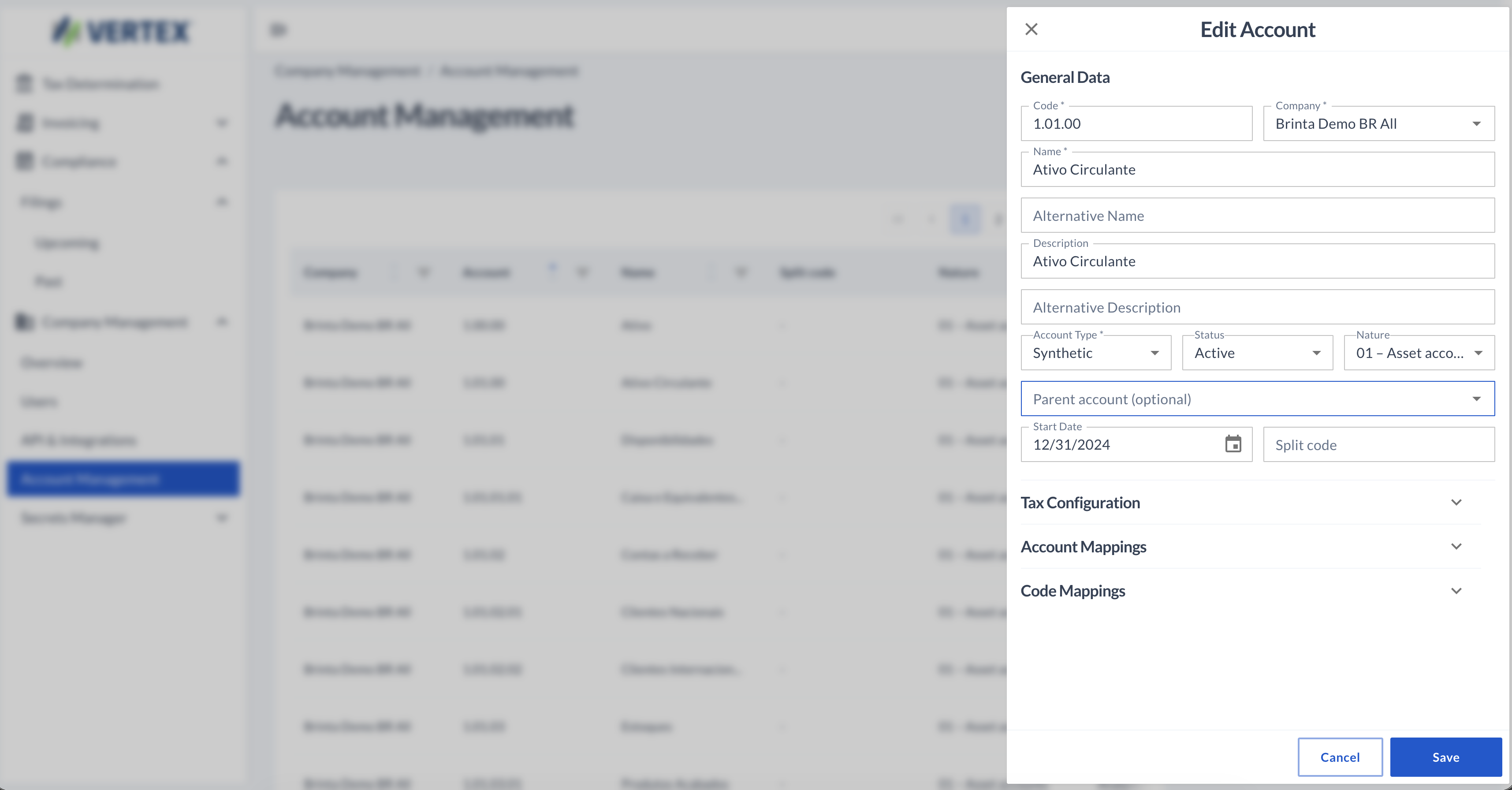
Edit Account — General Data, with the other three sections collapsed below
Below General Data there are three collapsible sections that add extra information to the account. Tax Configuration defines the default tax treatment: Tax Type, Operation type, the tax situation code (CST), and the Rate.
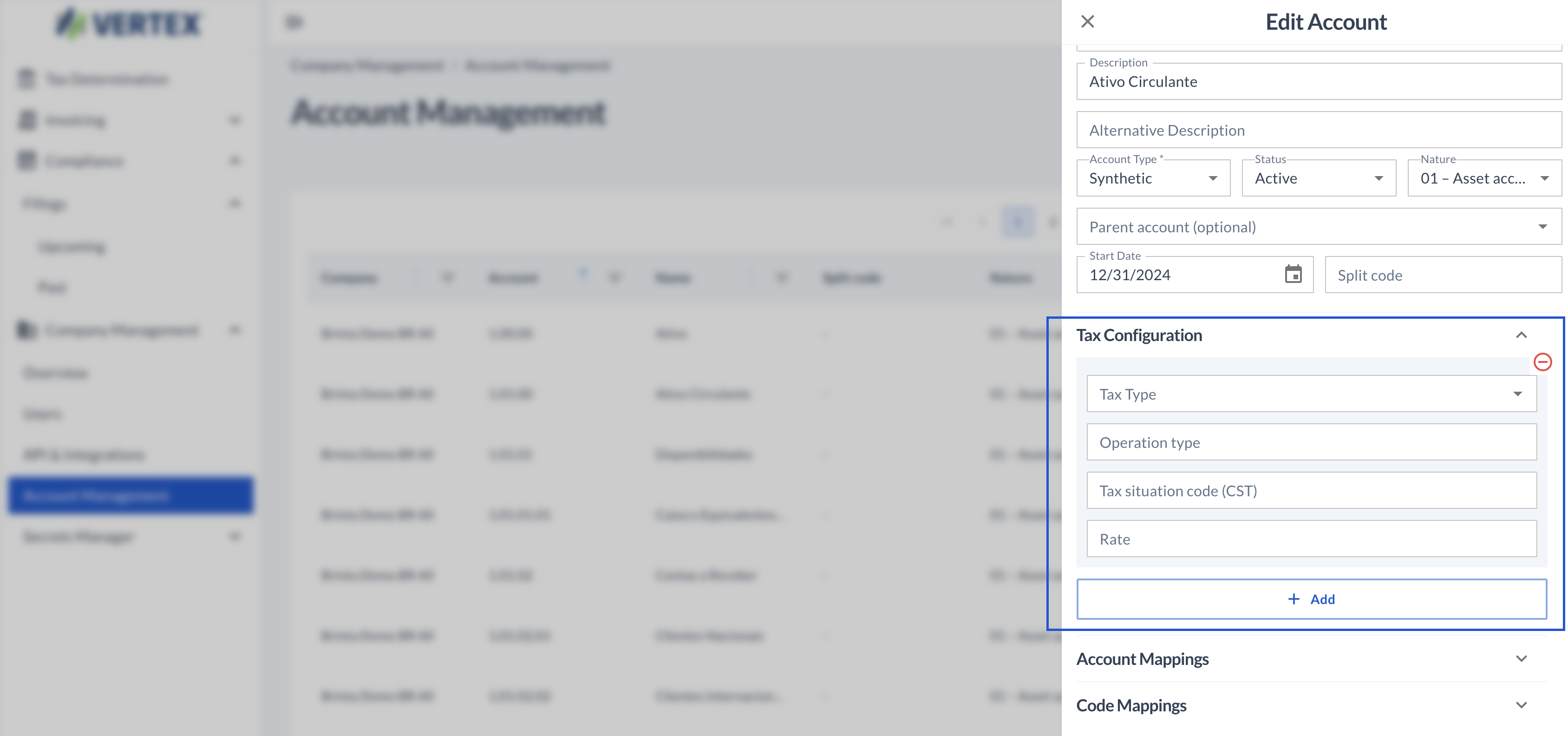
Tax Configuration — the account's default tax treatment
Account Mappings is the heart of the mapping: for each official plan (Group) you choose the official account it corresponds to (Mapped account) within that plan. You can add more than one correspondence if the account applies to several official plans at once.
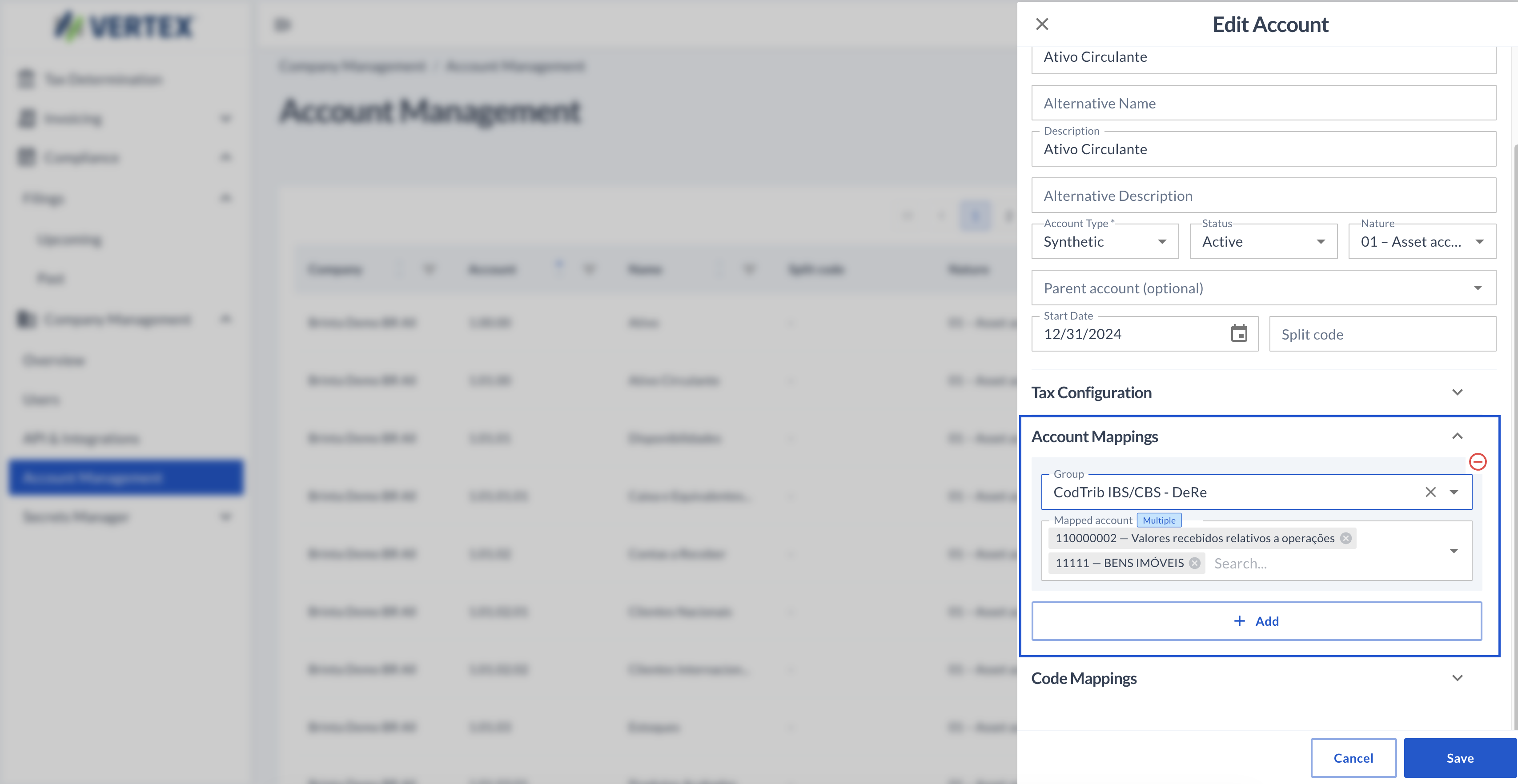
Account Mappings — the company's own account mapped against an account in an official plan
Code Mappings holds specific indicators that some filings require in addition to the general mapping — each entry has a Type (for example cod_det or cod_comp) and a Value.
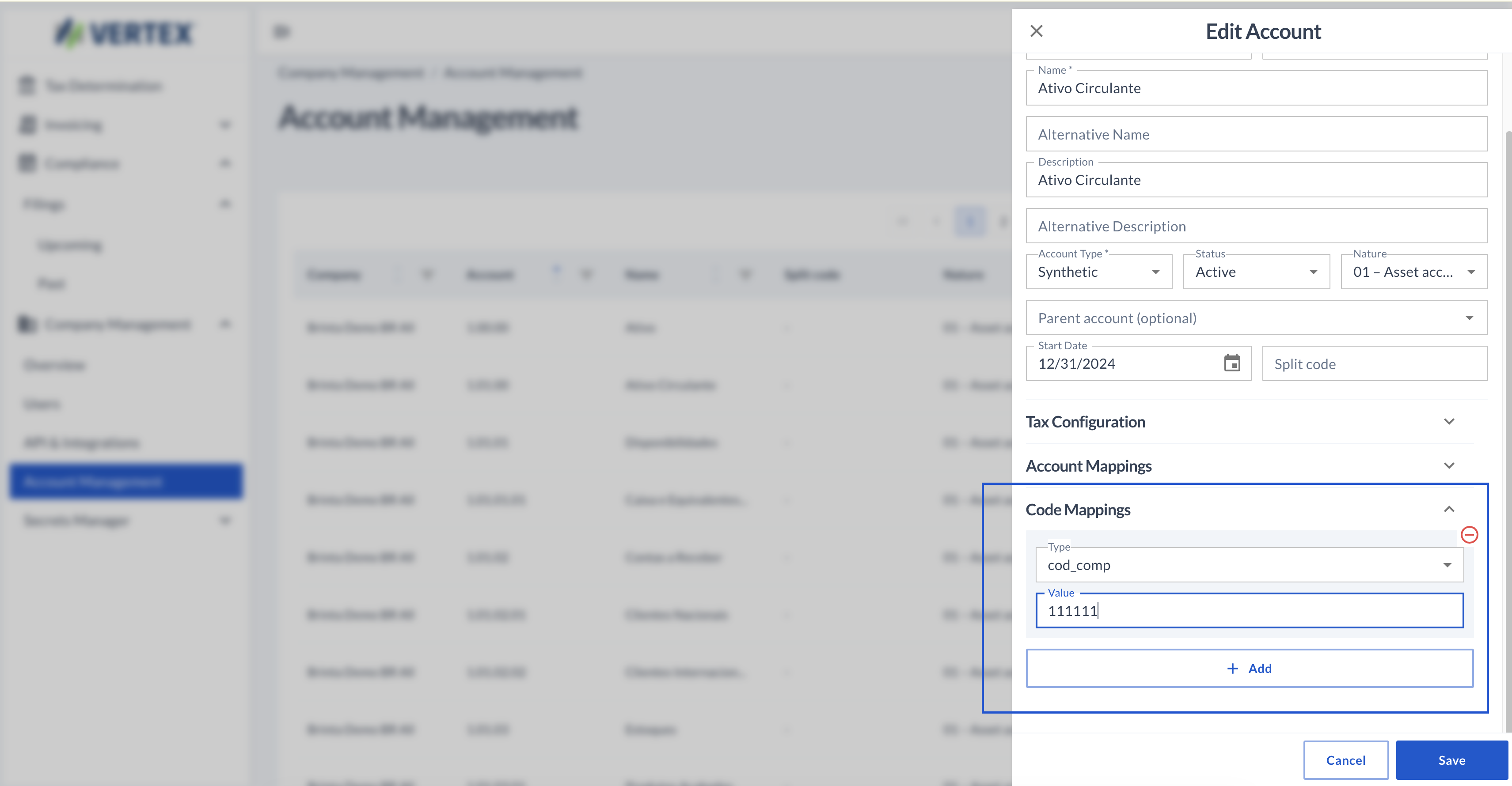
Code Mappings — extra indicators that some specific filings require
The Add Account button, at the top right of the table, opens the same form in a New Account modal — the same General Data fields (now also asking for the Company the new account belongs to) and the same three sections for Tax Configuration, Account Mappings, and Code Mappings, ending in Create Account.

Add Account

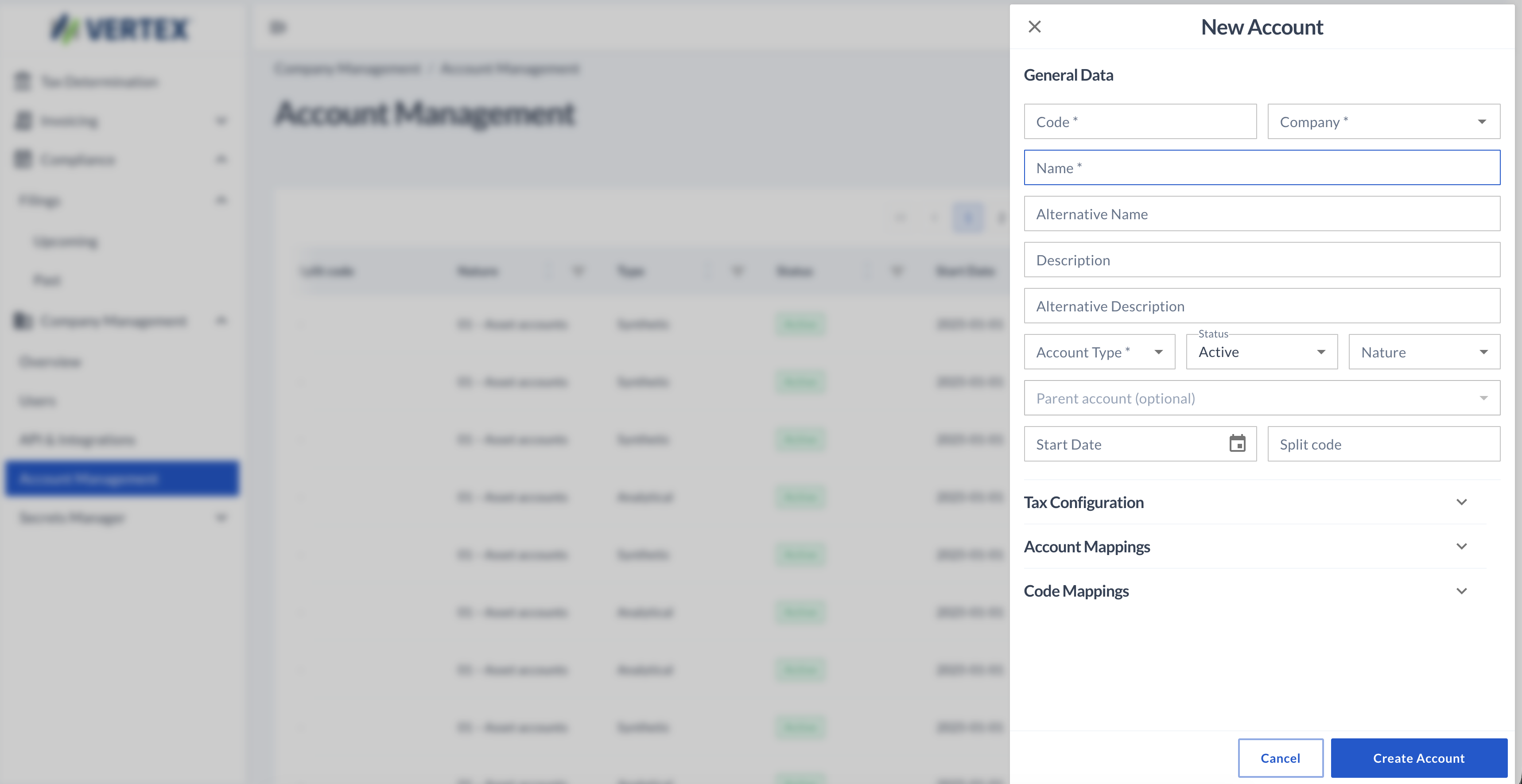
New Account — same form as editing, with Company as an extra required field
Updated about 1 month ago