
Filing Management
This guide explains what you see when you open a specific filing from the Filings list, and what you can do depending on its status.
Filing detail view
Clicking a row in the list (Upcoming or Past) takes you into Filing Details. This screen is made up of different panels, and some only appear depending on the filing's status.
Summary
Shows the data that identifies the filing: Entity, Tax Obligation, Jurisdiction, Form Name, Tax Period, and Due Date. If the due date has already passed, it's shown in red with a warning icon.
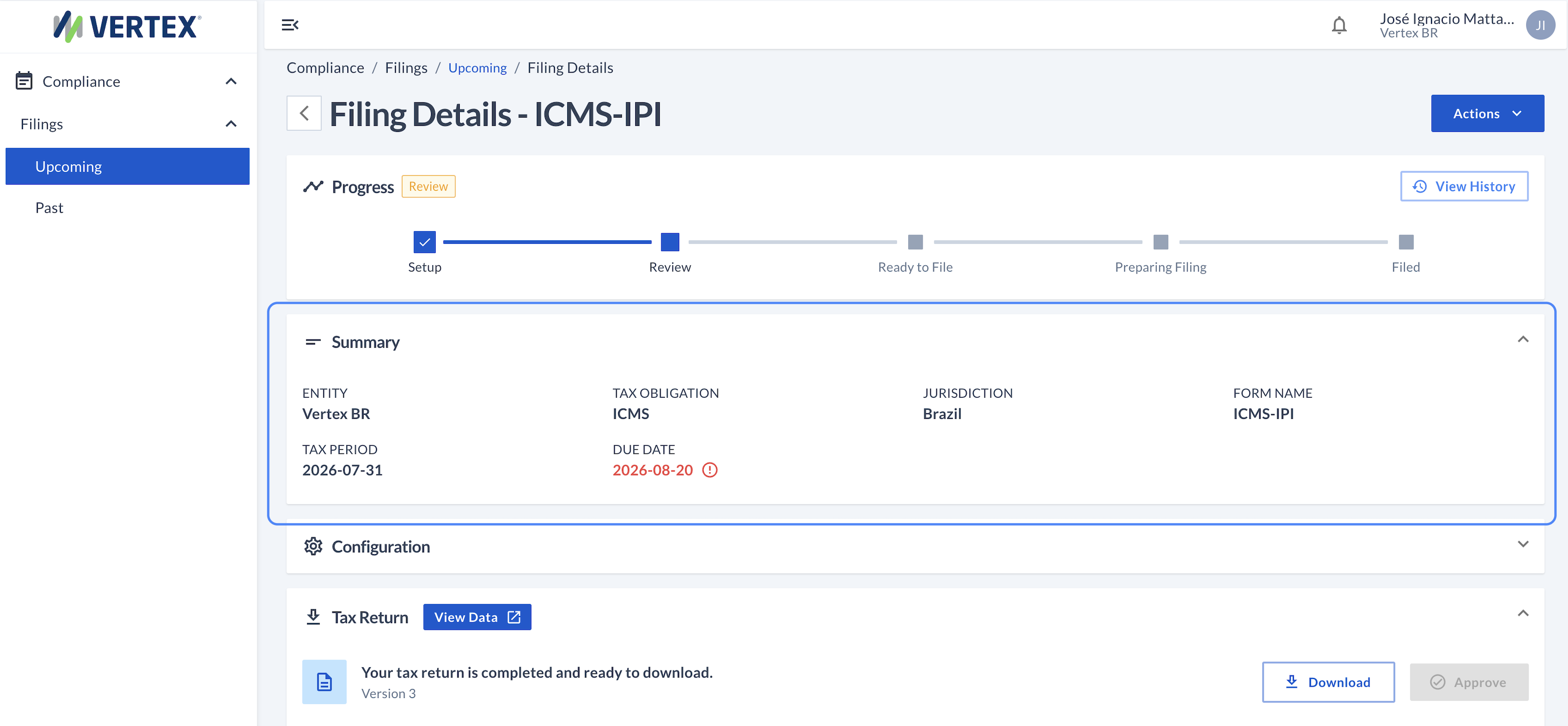
Filing Details — Summary
Configuration
This section lists parameters specific to the obligation, defined by the Vertex team for that particular form. The input options can vary: for example, a yes/no switch, a number, a date, or a list of options, depending on what that parameter represents. Changes here are only saved when you send the filing to review ("Send to review").
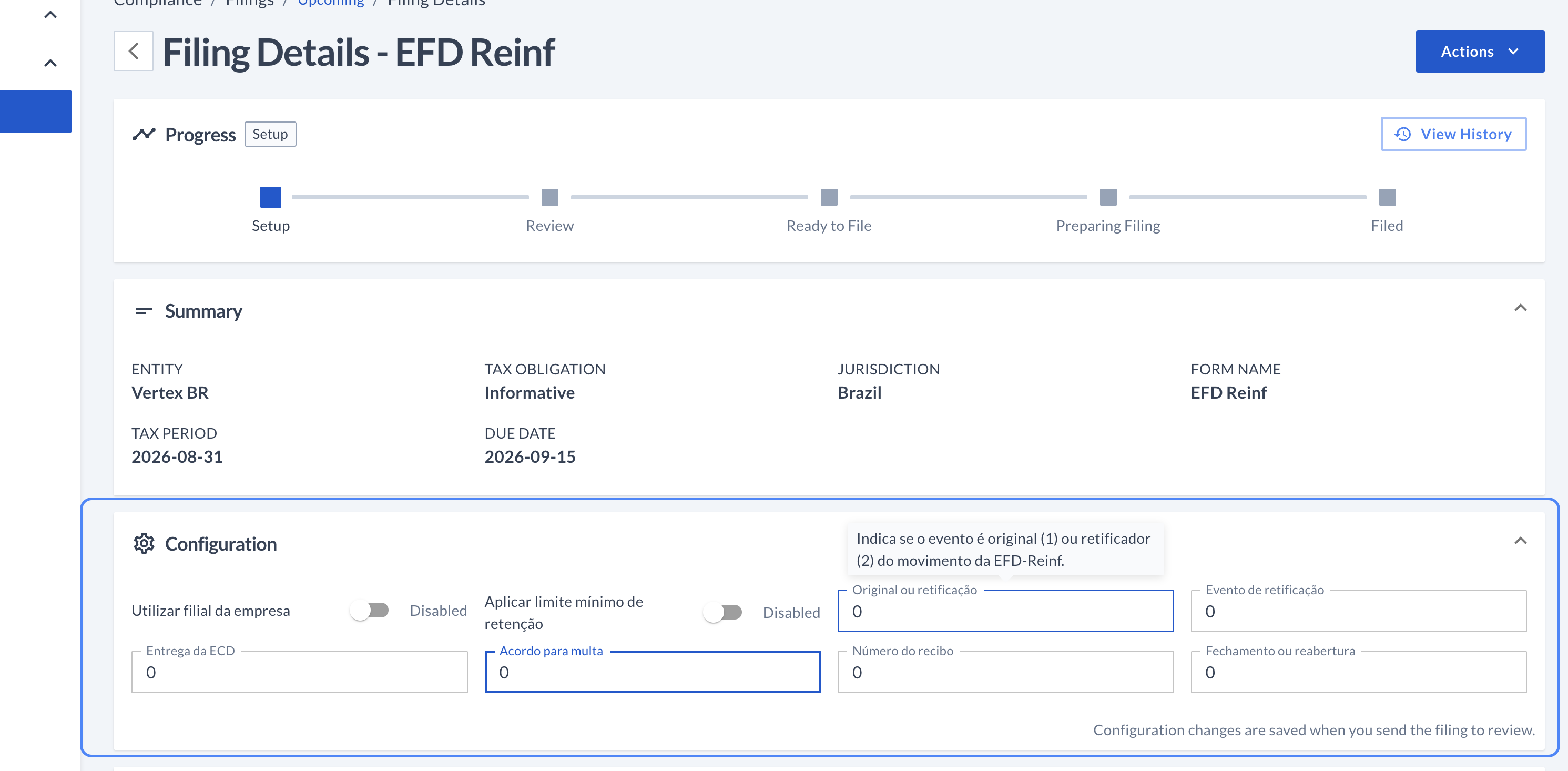
Filing Details — Configuration
Tax Return
Once generated, the filing's draft appears here with a Download button to download it and an Approve button to approve it once it's been validated. Next to the panel's title you'll also find View Data: it takes you to the Data Management section, where you can review the information submitted on the form in much more detail. Every time an obligation is regenerated, the Tax Return is recorded with its own version number.

Filing Details — Tax Return
Versions
The Versions panel keeps the complete history: who generated each version ("Sent by"), when it was sent for processing ("Sent on"), and that version's validation result, including the number of errors and warnings found. From there you can also download or view the detail of any previous version — not just the filing generated in that version, but also the input that was loaded to produce it.
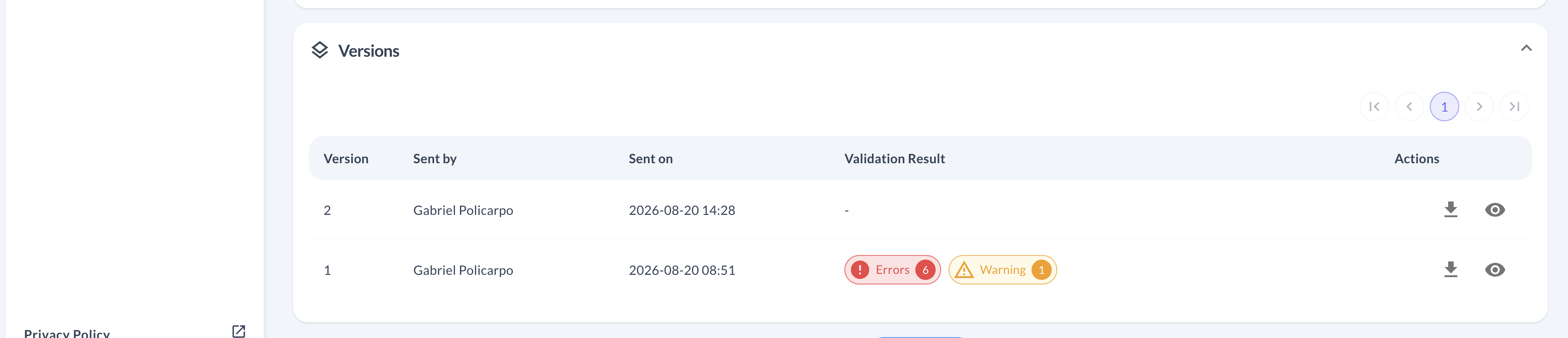
Filing Details — version history
Actions: what can I do at each stage
Depending on the stage the filing is in, you'll have different options available from the Actions button, at the top right of Filing Details.
If the filing is in Setup status
Setup status- We can send the filing to review from Send to review, once the configuration and files are ready.
- We can decide not to submit this filing, in which case we select Not Filed.
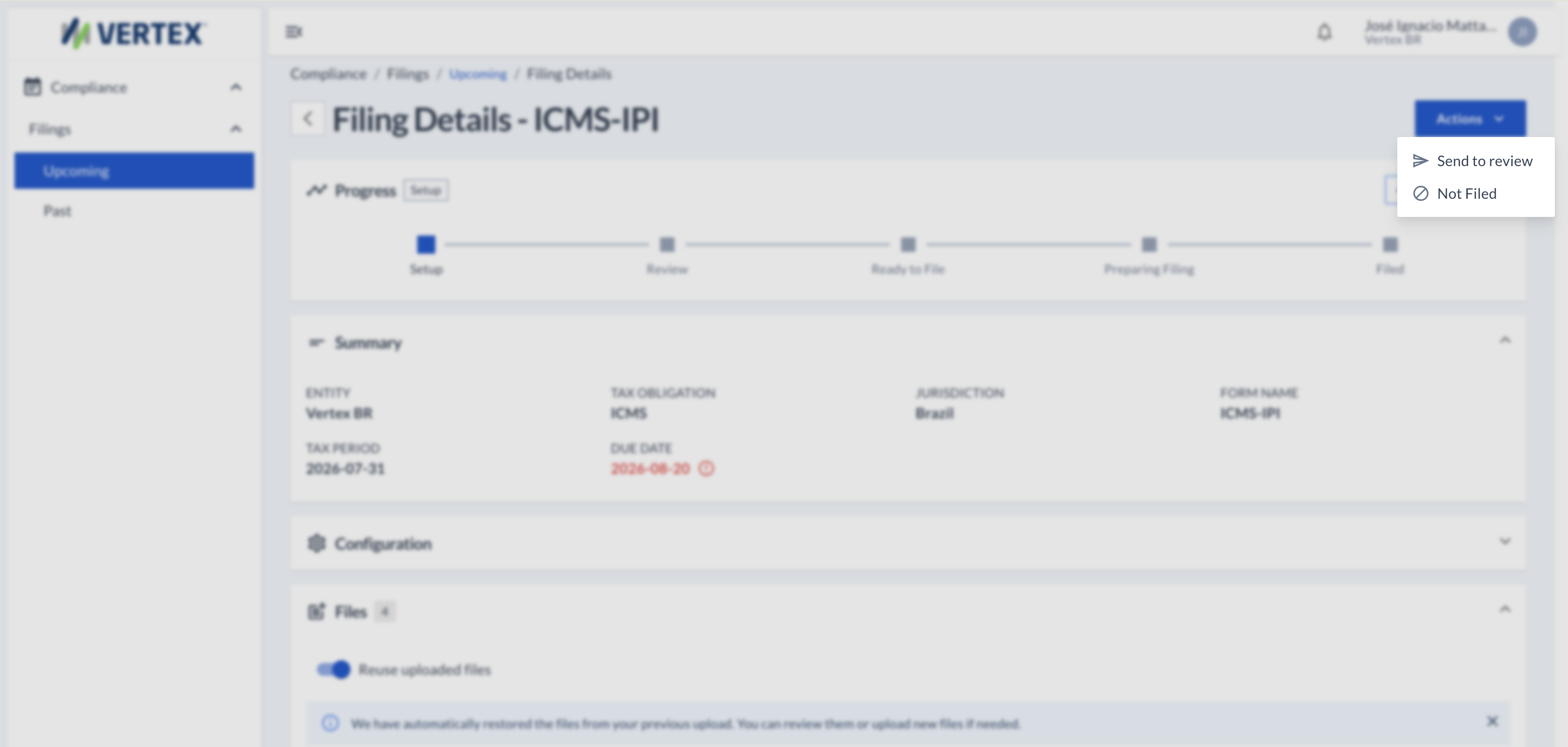
Actions in Setup
If the filing is in Processing status
Processing status- We can cancel the processing in progress from Cancel Process.
- We can decide not to submit this filing, in which case we select Not Filed.
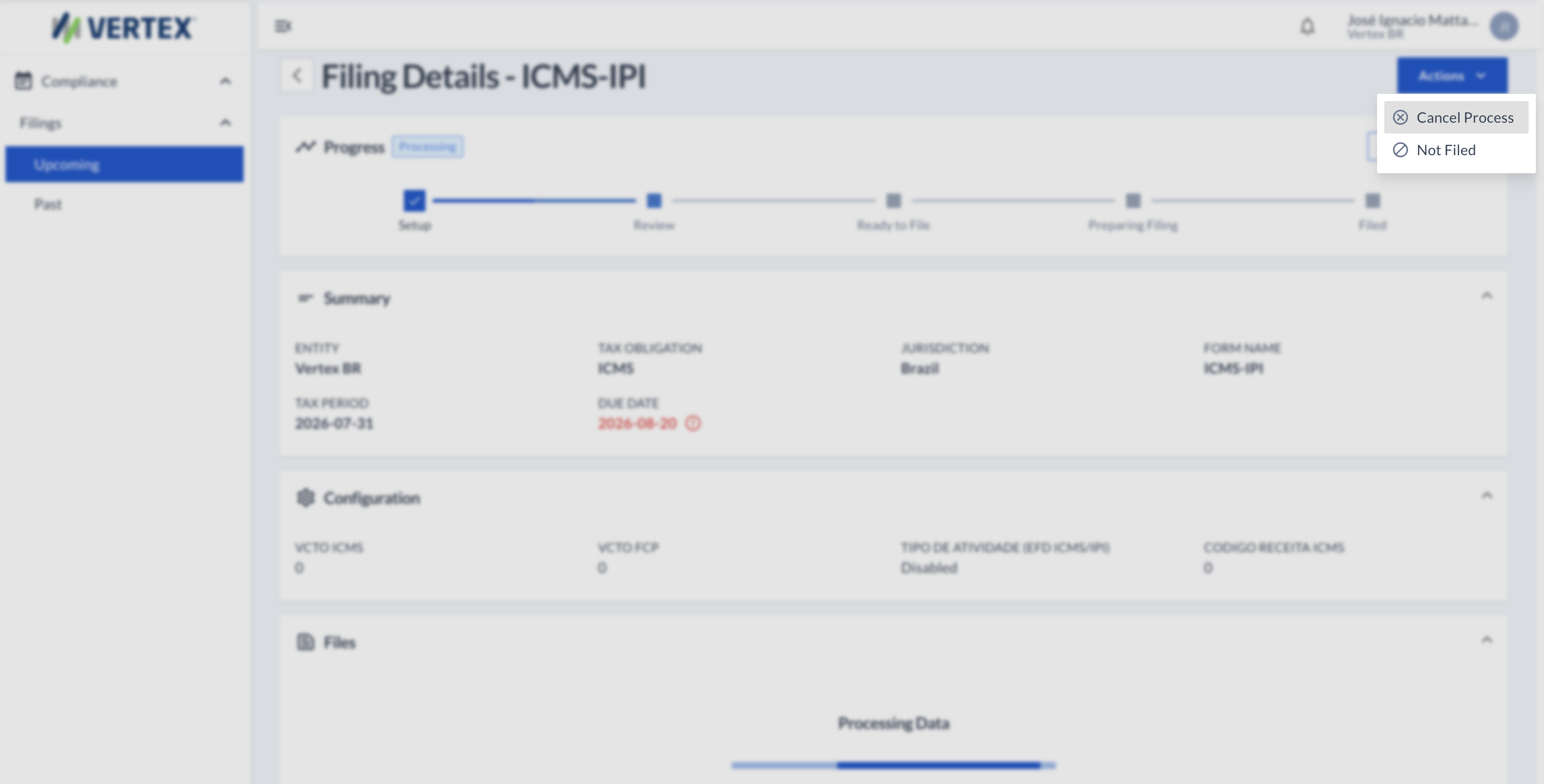
Actions in Processing
If the filing is in Review status
Review status-
We can approve the draft and move the filing forward from Approve.
-
We can send the filing back to Setup to fix the configuration or files from Back to Setup.
-
We can regenerate the Tax Return without leaving Review from Reprocess — for example, after fixing something at the data source. This creates a new version in the Versions panel.
-
We can choose not to present the filing and mark it as Not Filed
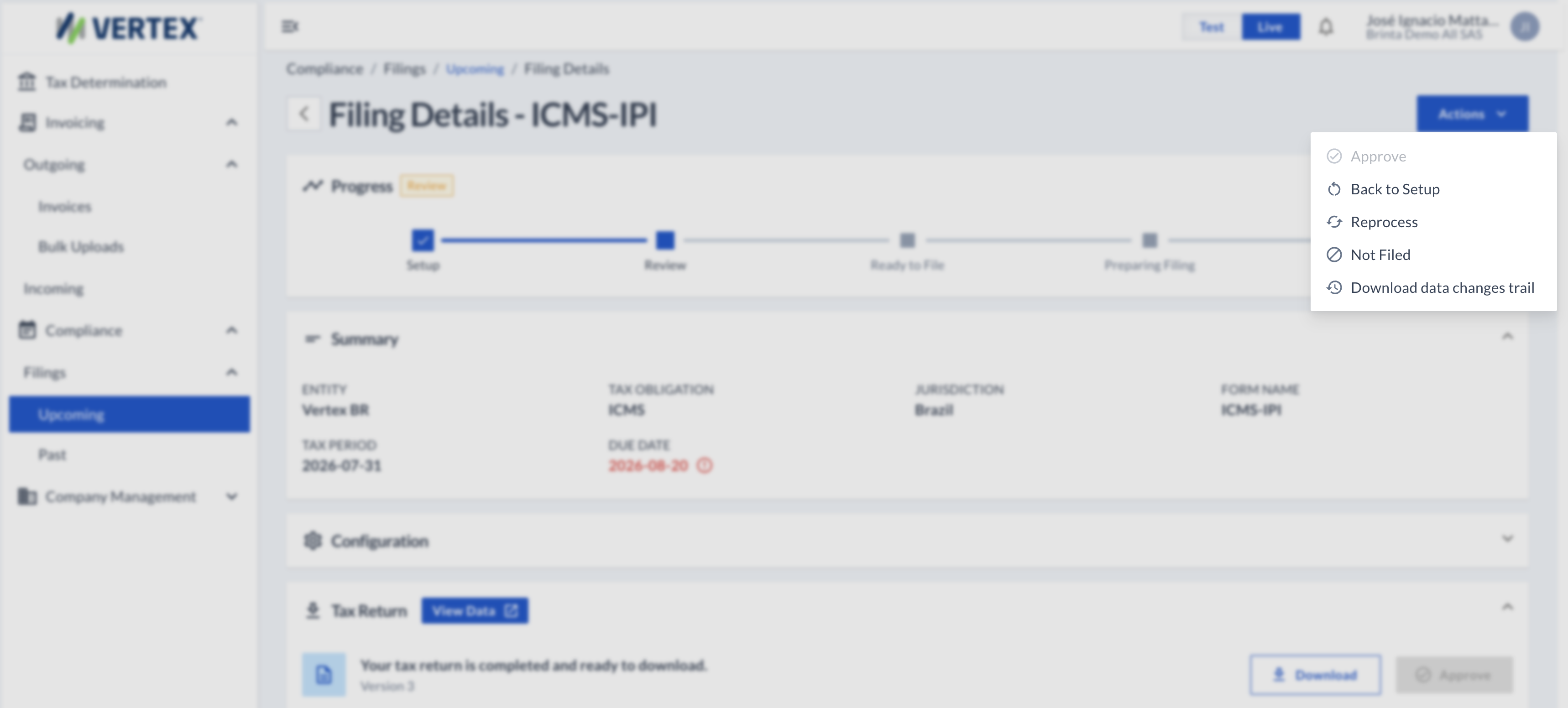
Actions in Review
If the filing is in Filed status
Filed statusThe only option available from the Actions button is Generate Amendment, to correct a filing you already submitted — the step-by-step for that amendment is in section 3.
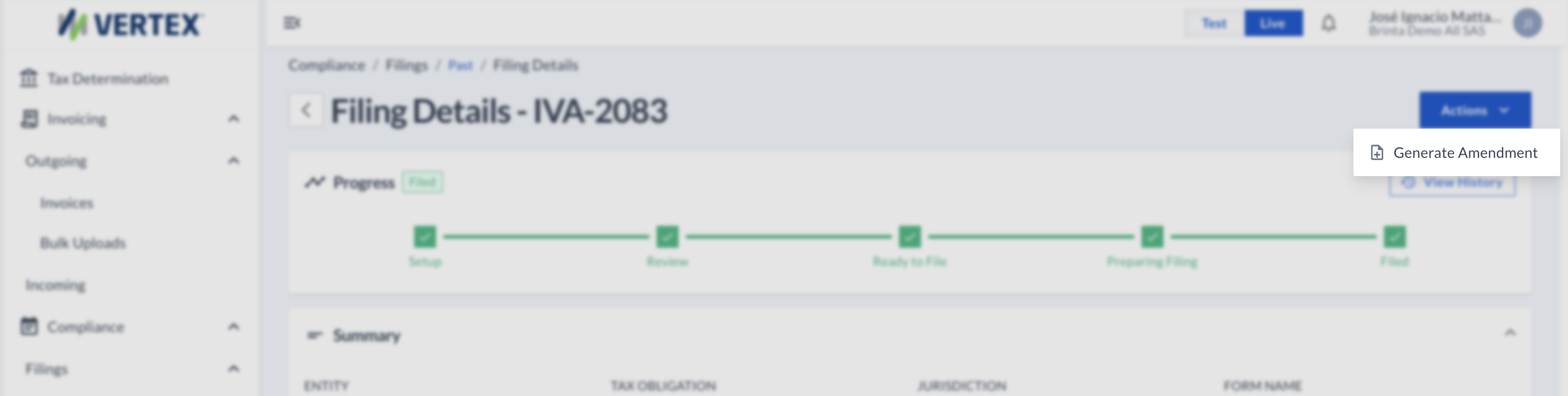
In Filed, Actions only offers Generate Amendment
You can also upload the Proof of Submission: the document confirming that the filing was submitted to the tax authority, so it's available alongside the filing.
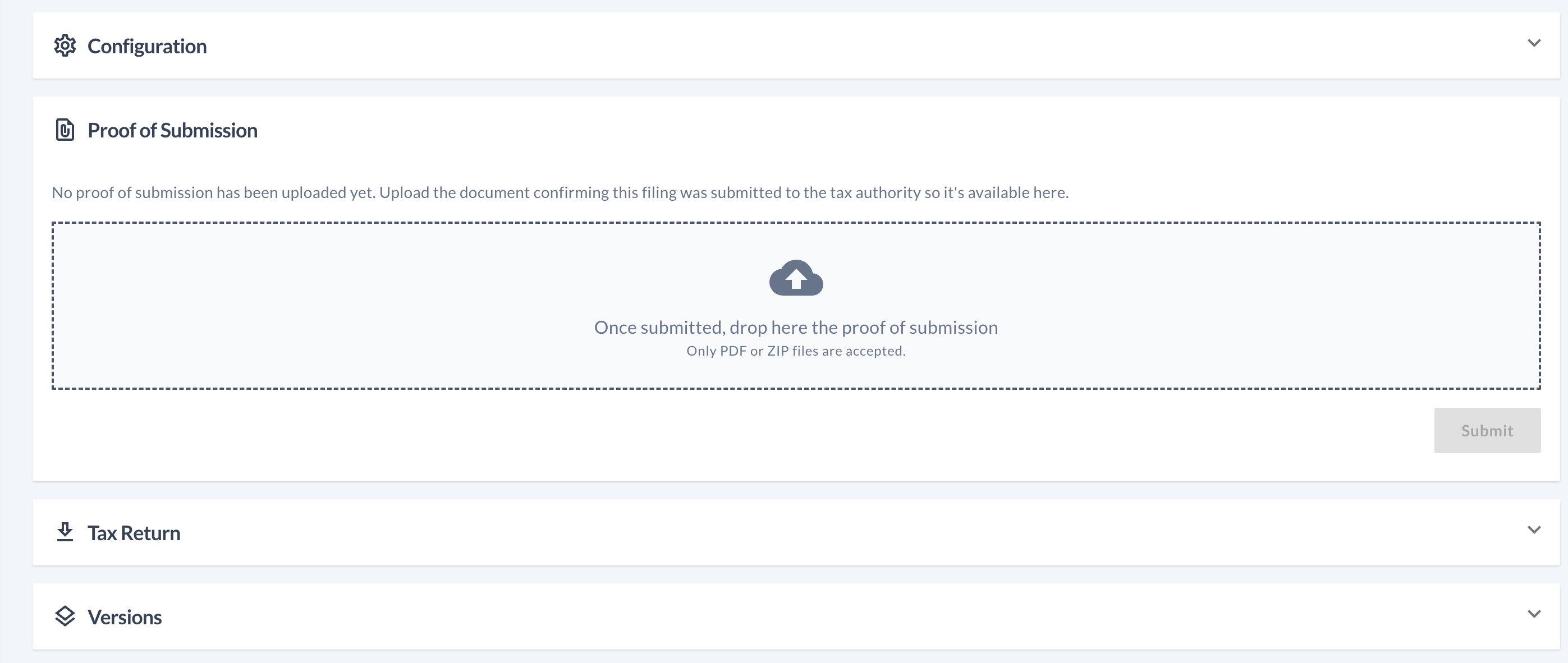
Proof of Submission — the document stays available alongside the filing
Generating an amendment
If you need to correct a filing you already submitted, you generate an amendment: a new copy of that filing, to adjust and submit again.
From a filing in Filed status, the Actions button shows the Generate Amendment option.
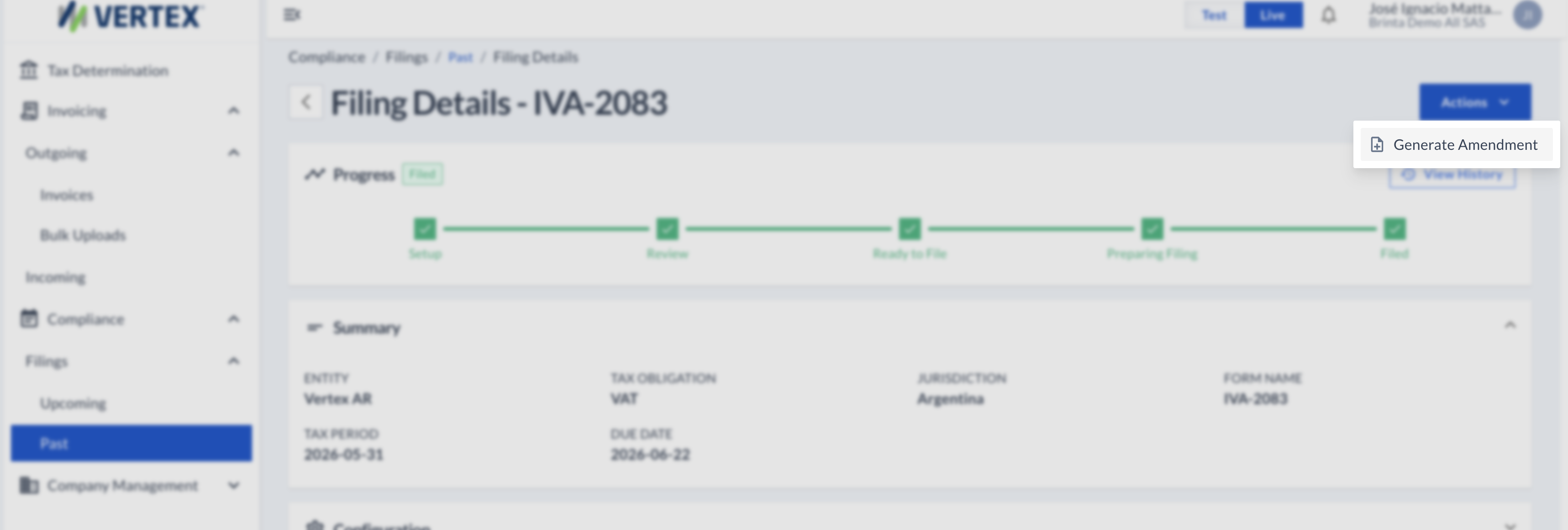
It asks for confirmation before creating it, because it generates a completely new filing based on the original.
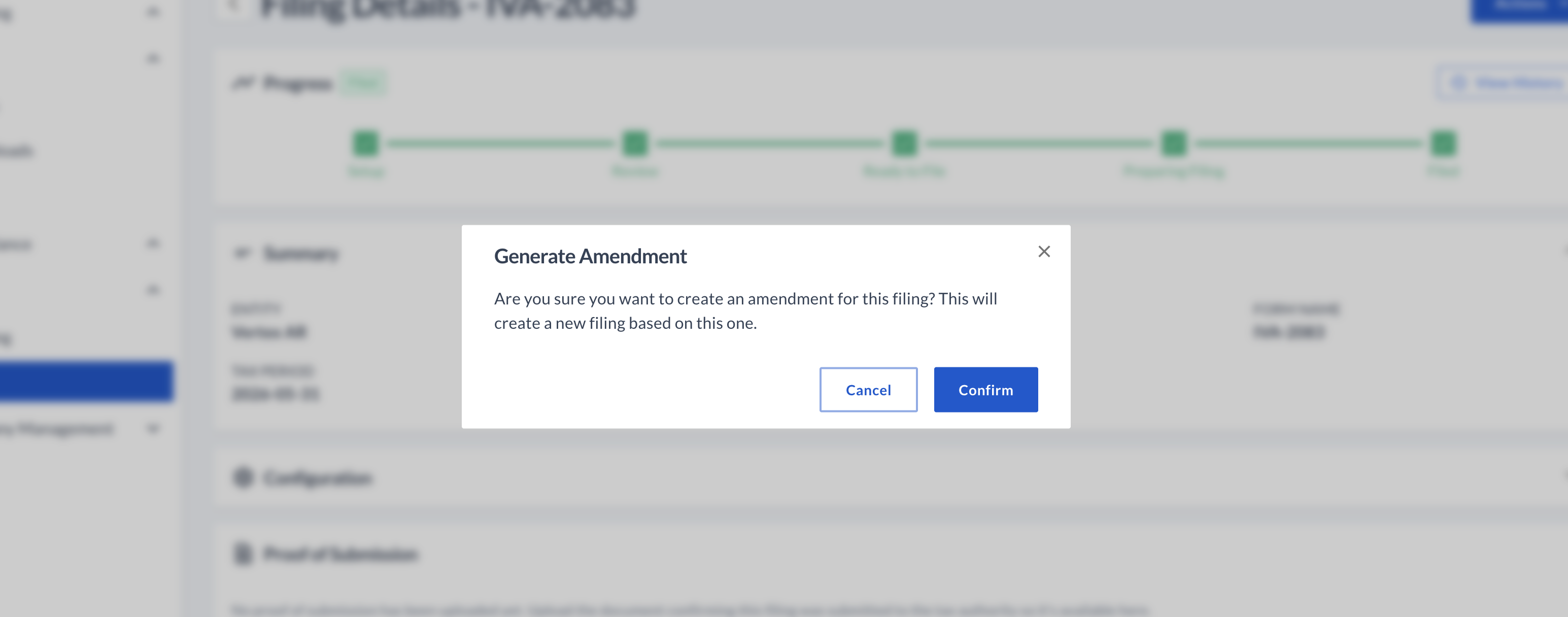
Confirm to create the amendment
The amendment appears in Upcoming, tagged with the Amendment label, and starts over in Setup.

From there you correct whatever is needed: the Configuration values become editable (changes are saved when you send it to review), and Files asks for the supporting files for the adjustment.
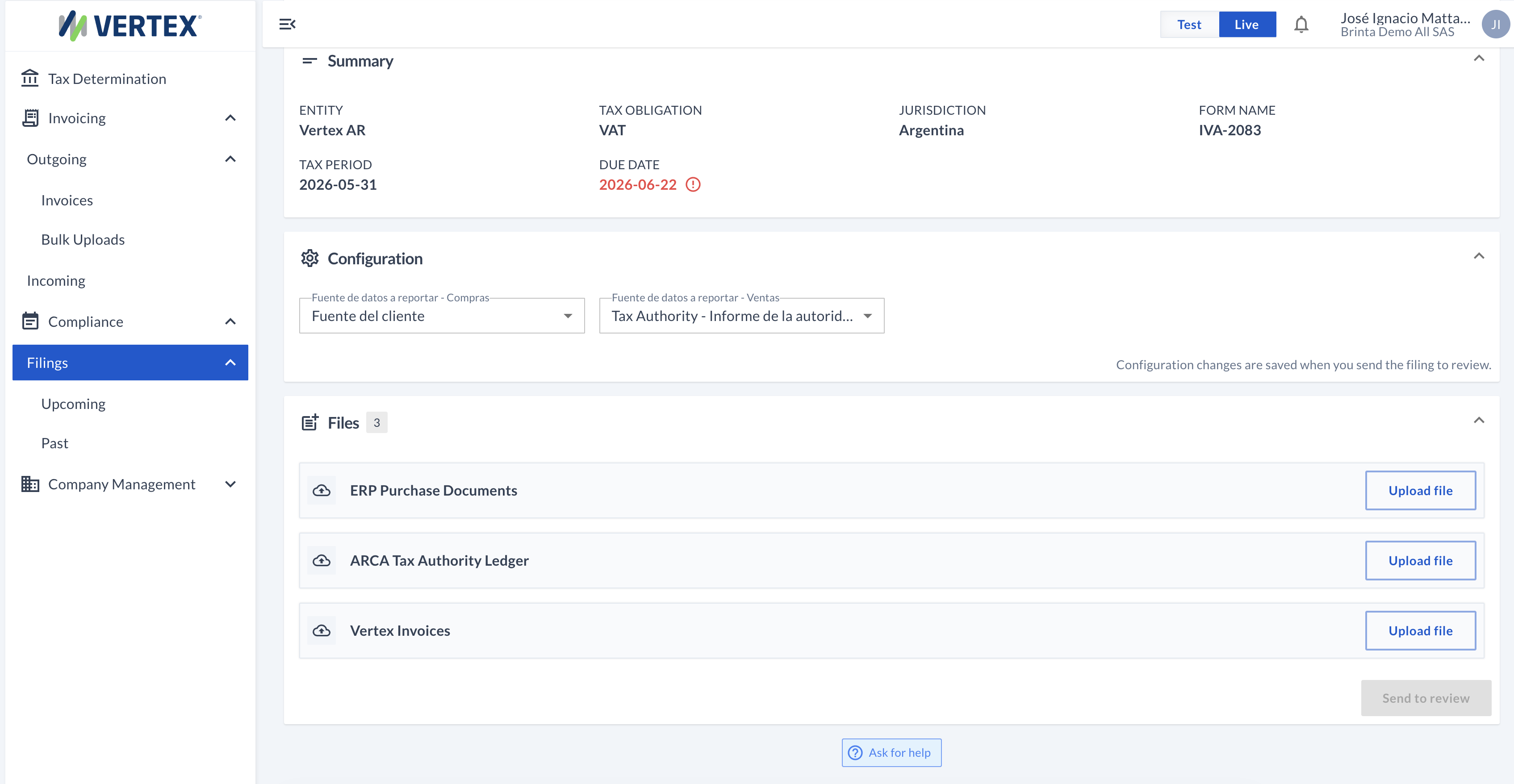
Editable Configuration + supporting Files, ready to send to review
Send to review sends the amendment through the same flow as any other filing — Review, Ready to File, Preparing Filing, and Filed, with the same actions we saw in section 2.
FAQs
Why do the Configuration parameters change from one filing to another?
Because they depend on each obligation — a Vertex expert defines, based on the obligation being filed, what values the user needs to enter as parameters and what options are available (whether it's a yes/no, a list of options, a numeric value, among others).
I need to fix something while the filing is in Review — what do I do?
Use Back to Setup to go back to the configuration and files, fix whatever is needed, and send it to review again.
Why is there more than one version in the history?
Every time the Tax Return is reprocessed or regenerated, a new version is kept, without losing the previous ones.
What do the errors and warnings on a version mean?
They're the result of validating that specific version of the Tax Return — how many blocking issues (errors) or issues to review (warnings) were found when generating it.
Updated about 1 month ago