
Filings Overview
This guide explains how to use the Filings overview to see, at a glance, which filings you have pending and which ones you've already submitted.
Upcoming Filings
Compliance › Filings › Upcoming
This screen shows every filing that hasn't been submitted yet. It has two parts: a summary at the top and the full list below.
Filings are generated automatically as soon as the window to submit the obligation opens.
The summary
Filings Summary counts how many filings are in each early status (Setup, Preparing Filing, Review, Ready to File), split between those that are On Track and those that are Past Due. Check the Past Due row first: these are the ones that have already missed the deadline for the step they're in.
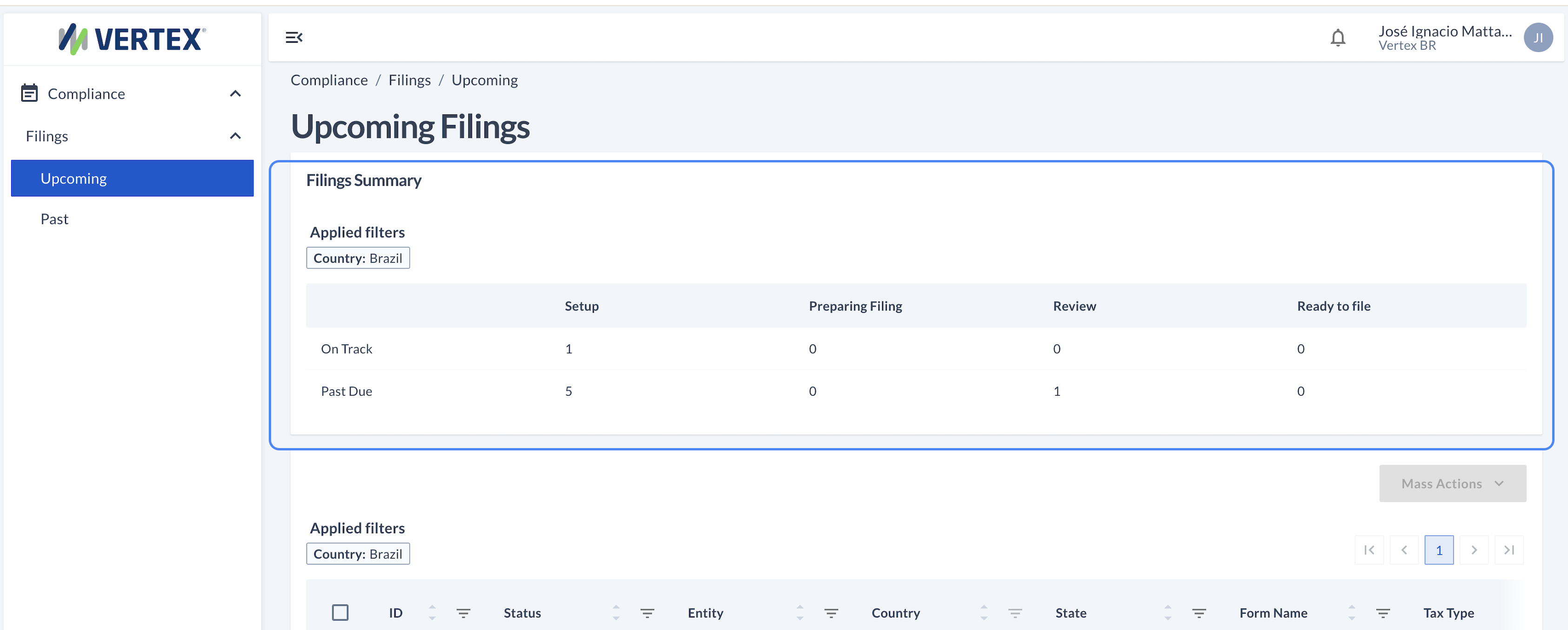
Upcoming Filings — summary and the start of the list
The list
Below the summary is the full list of filings. It's a wide table: scroll horizontally to see every column. Each column can be sorted and filtered independently, and any applied filter shows up as a chip above the table (for example, "Country: Brazil").
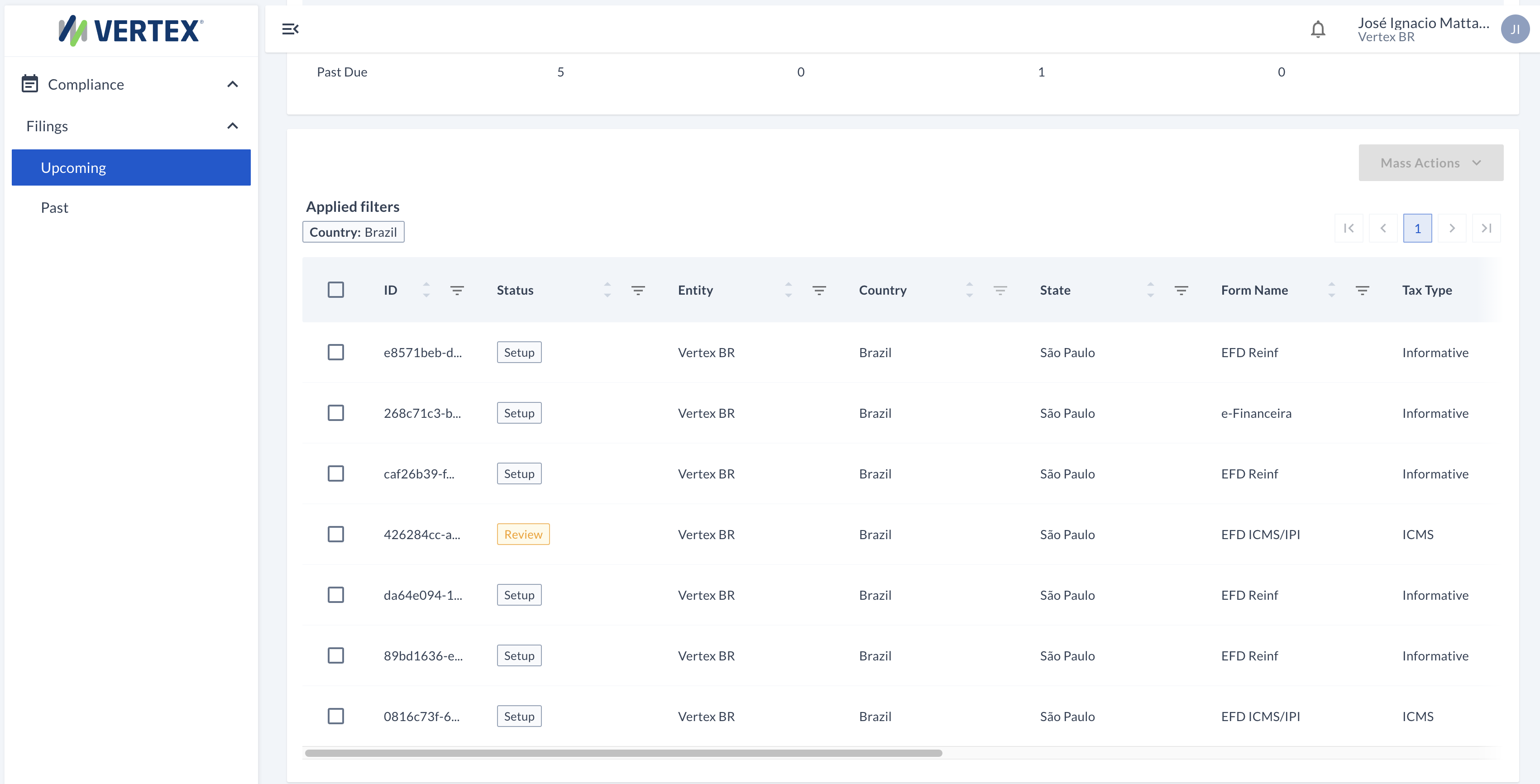
Upcoming Filings full list
List columns
| Column | What it shows |
|---|---|
| ID | Unique identifier for the filing in the system. |
| Status | What stage of the process it's in — details on each status are below. |
| Entity | Entity or subsidiary the filing belongs to. |
| Country | Country of the obligation. |
| State | Province or state within the country. |
| Form Name | The specific form being filed. |
| Tax Type | Tax type for that filing. |
| Tax Period | Tax period the filing covers. |
| Due Date | Filing deadline. |
| Validation Result | Result of the latest validation — count of errors found, if any. |
| Payable Amount | Amount due for that filing (N/A if not applicable). |
| Actions (eye button 👁) | Opens the full filing detail (Filing Details). |
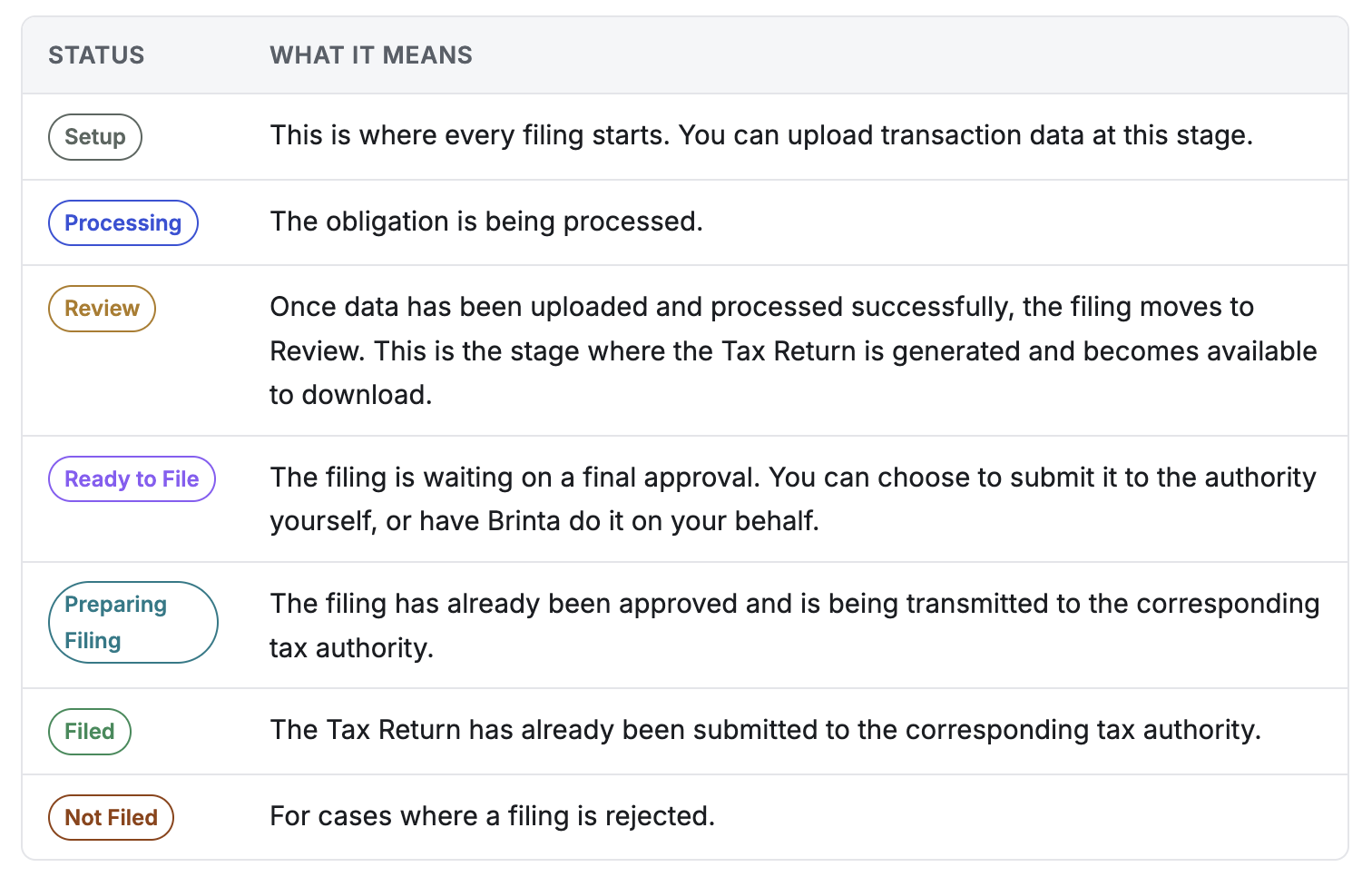
What does each status mean?
Processing several filings at once (Mass Actions)
Compliance › Filings — available on both Upcoming and Past
When you need to apply the same change to several filings, you don't have to do it one obligation at a time. By checking the rows you want in the list and opening the Mass Actions button, you can apply that change to all of them at once.
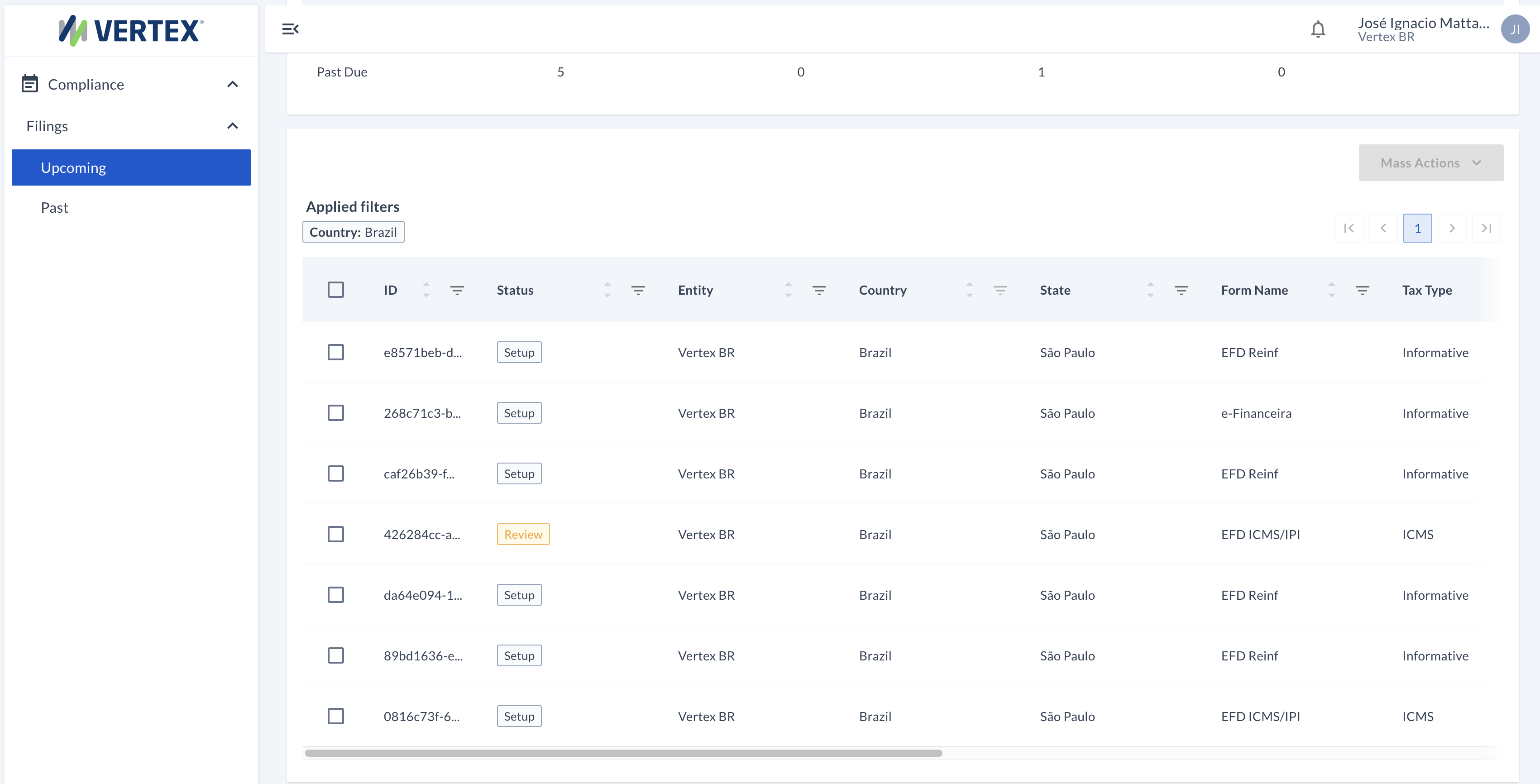
The Mass Actions button becomes active once you check one or more filings in the list with the same status
Which options are available depends on the status of the filings you checked.
If you check filings in Processing
Processing- You can send them all back to Setup at once with Back to setup — for example, if you need to fix something before they keep processing.
- You can download the change history.
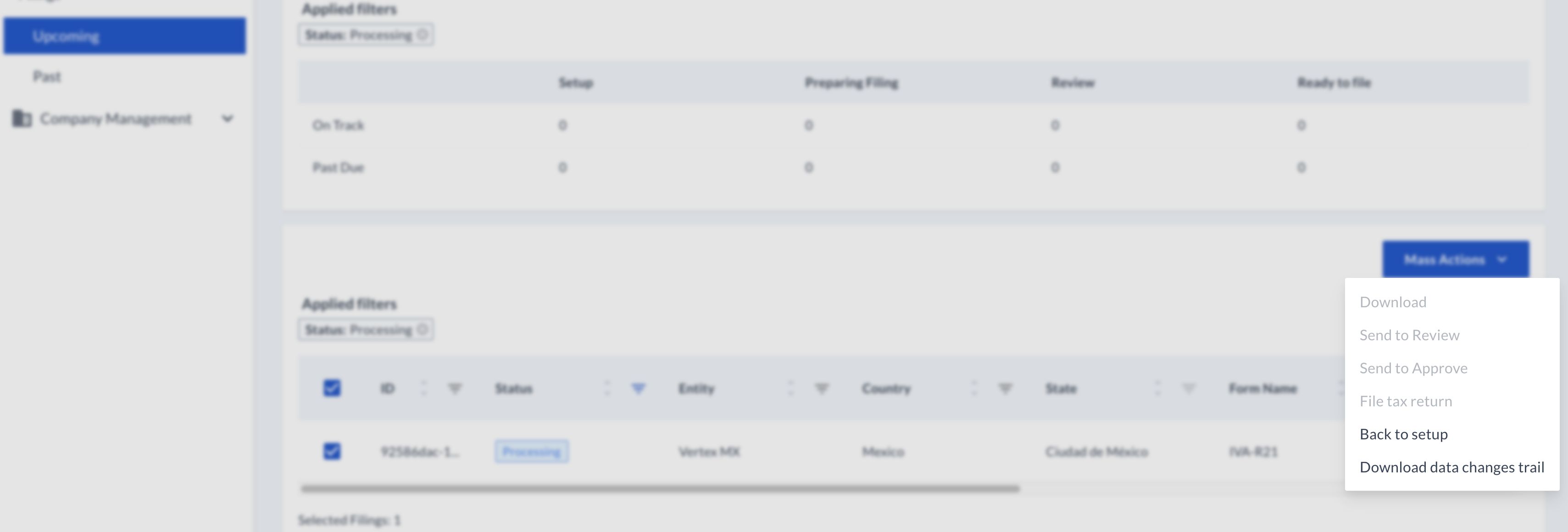
Mass Actions on filings in Processing
If you check filings in Review
Review- You can send them all for approval at once with Send to Approve.
- You can send them all back to Setup with Back to setup.
- You can download the change history.
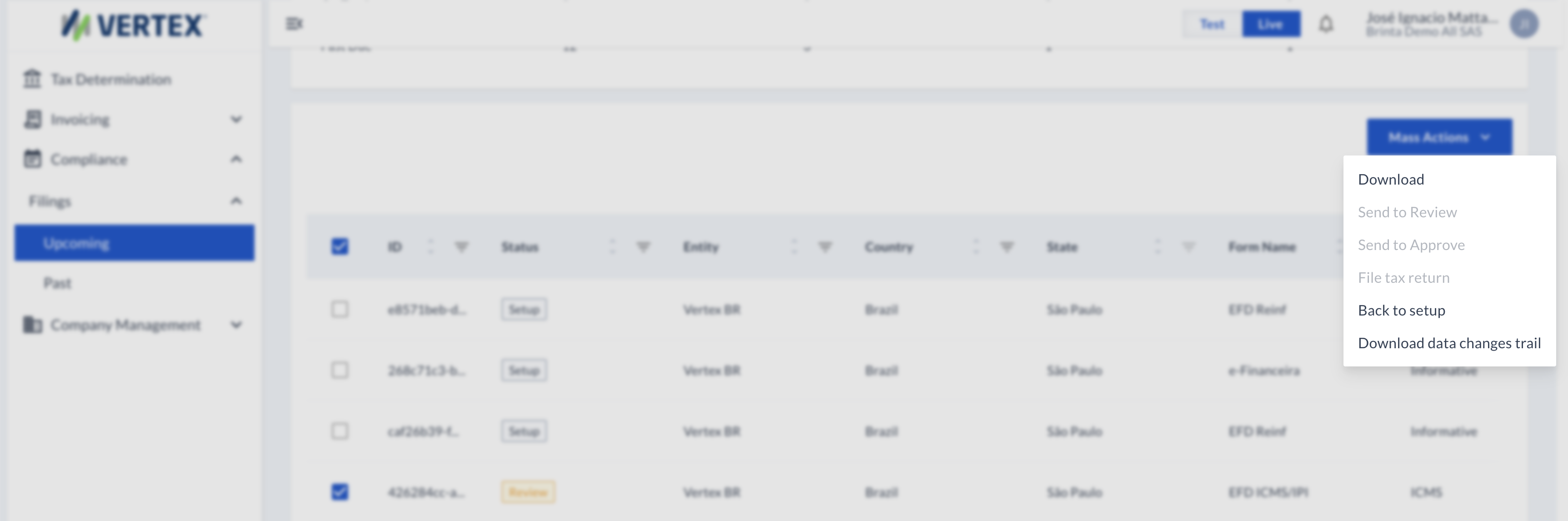
Mass Actions on filings in Review
If you check filings in Ready to File
Ready to File- You can submit them all to the authority at once with File tax return.
- You can send them all back to Setup with Back to setup.
- You can download the change history.
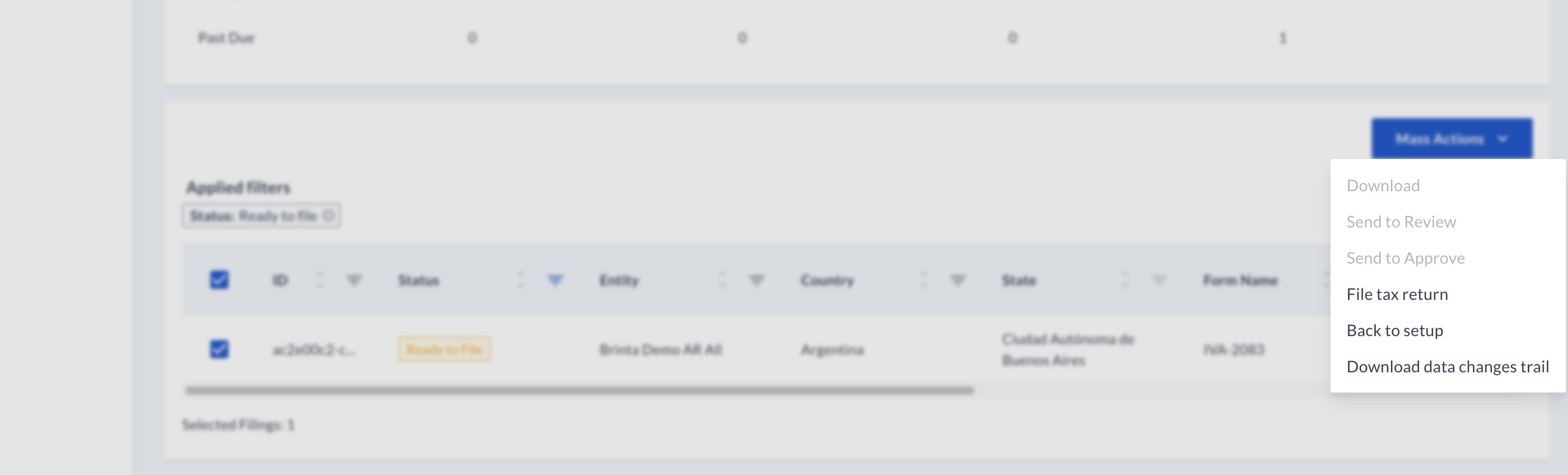
Mass Actions on filings in Ready to File
If you check filings in Preparing Filing
Preparing Filing- You can send them all back to Setup with Back to setup.
- You can download the changes history.
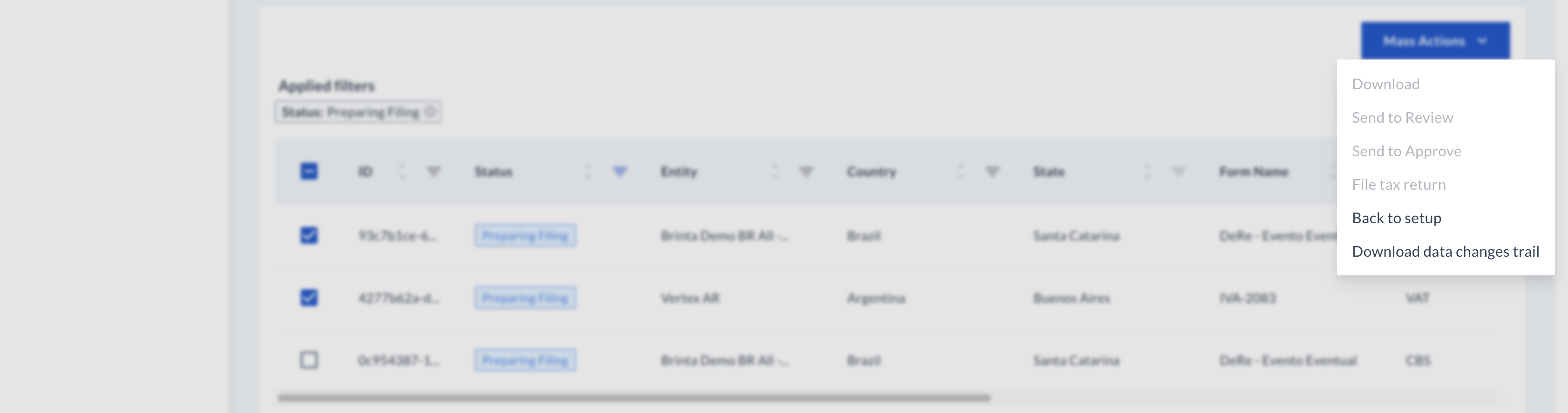
Mass Actions on filings in Preparing Filing
If you check filings that are already approved and submitted - in Filed
Filed- You can download the change history for those filings with Download data changes trail.
- You can download the Proof of submission files
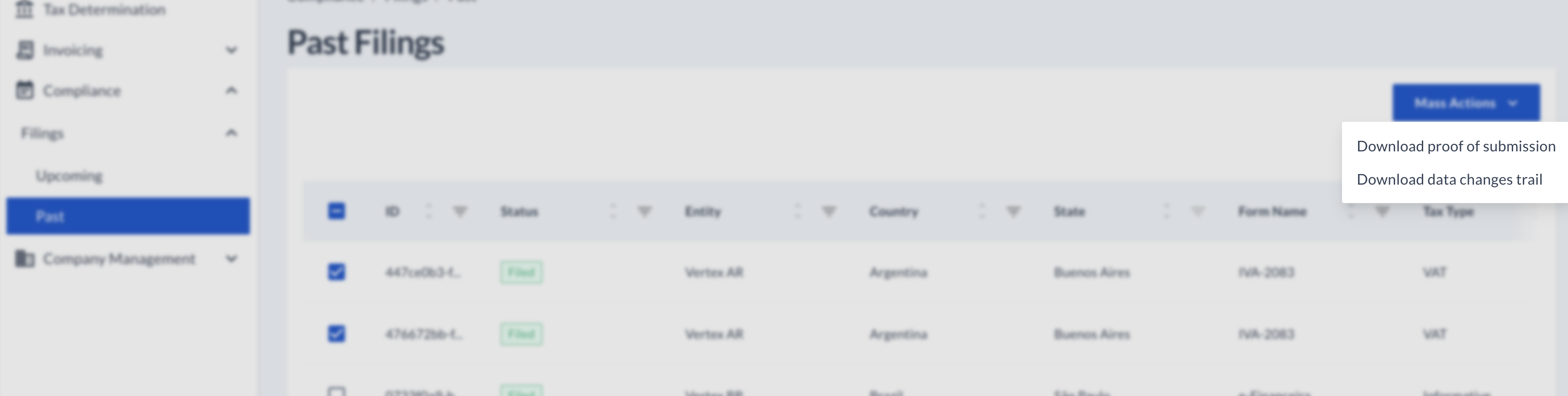
Mass actions on filings in Filed
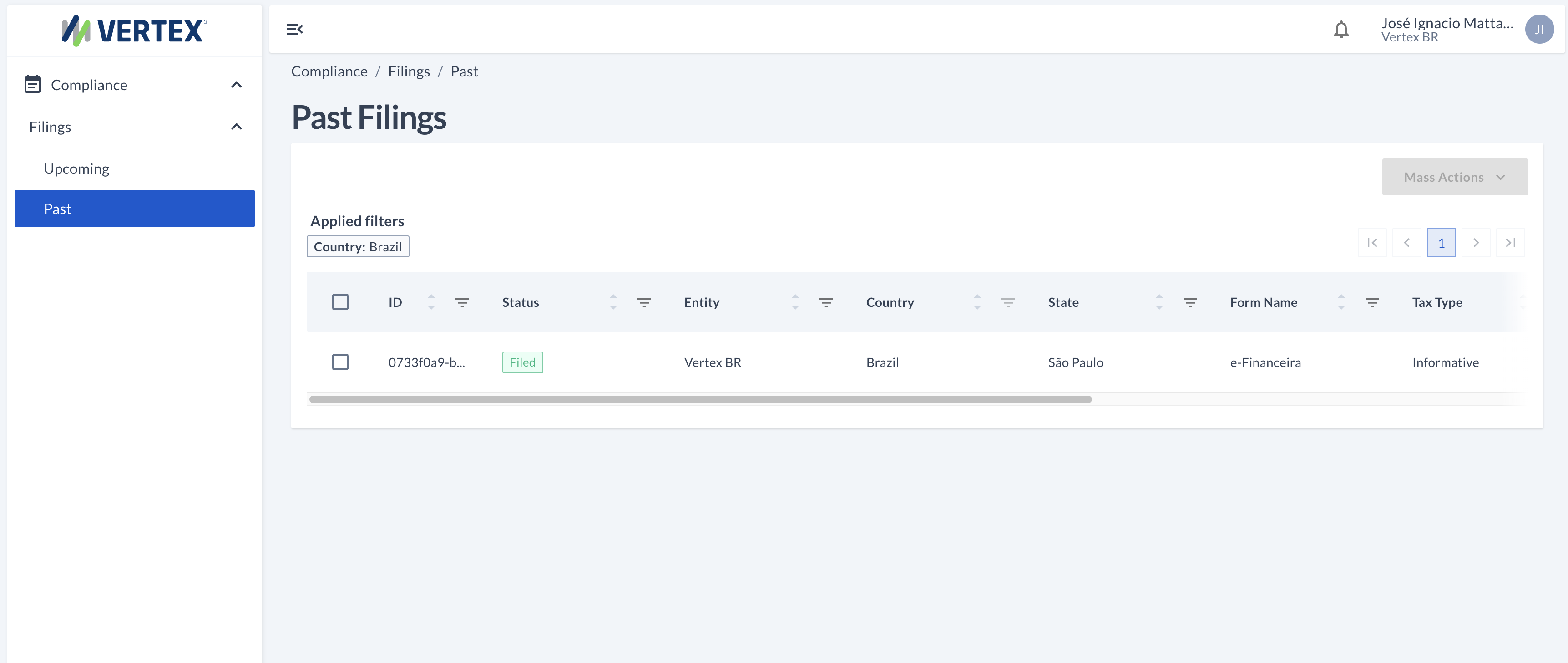
Past Filings
Compliance › Filings › Past
Same table as Upcoming — same columns, same filters, same Mass Actions — but showing only filings that have already been submitted, with status Filed.
FAQs
What's the difference between On Track and Past Due?
On Track means the filing is still within the deadline for the step it's in. Past Due means that deadline has already passed without it moving to the next step.
Can I sort or filter by a specific column, like Form Name?
Yes. Every column header has its own sort and filter icons, independent from the rest.
What's the filing ID for?
It's the unique identifier for that filing in the system. It's the most useful piece of information to reference it specifically — for example, when asking support for help.
What does each status I see in the table mean?
Further up, in "What does each status mean?", you'll find the details on each one.
What's the point of checking rows in the list?
From there you can apply changes to several obligations at once, instead of one by one (Mass Actions). Details on which options are available per status are further down in this same guide.
Updated about 1 month ago