
Data Management
What Filing Data Management is, how to edit and delete records, how to import data in bulk, how to reprocess your changes, and how to audit them.
Filing Data Management is the screen where you can explore and correct the tax data used to build a filing — before that filing is submitted.
You get there from the filing's detail view (Filing Details): inside the Tax Return panel, the View Data button takes you there.
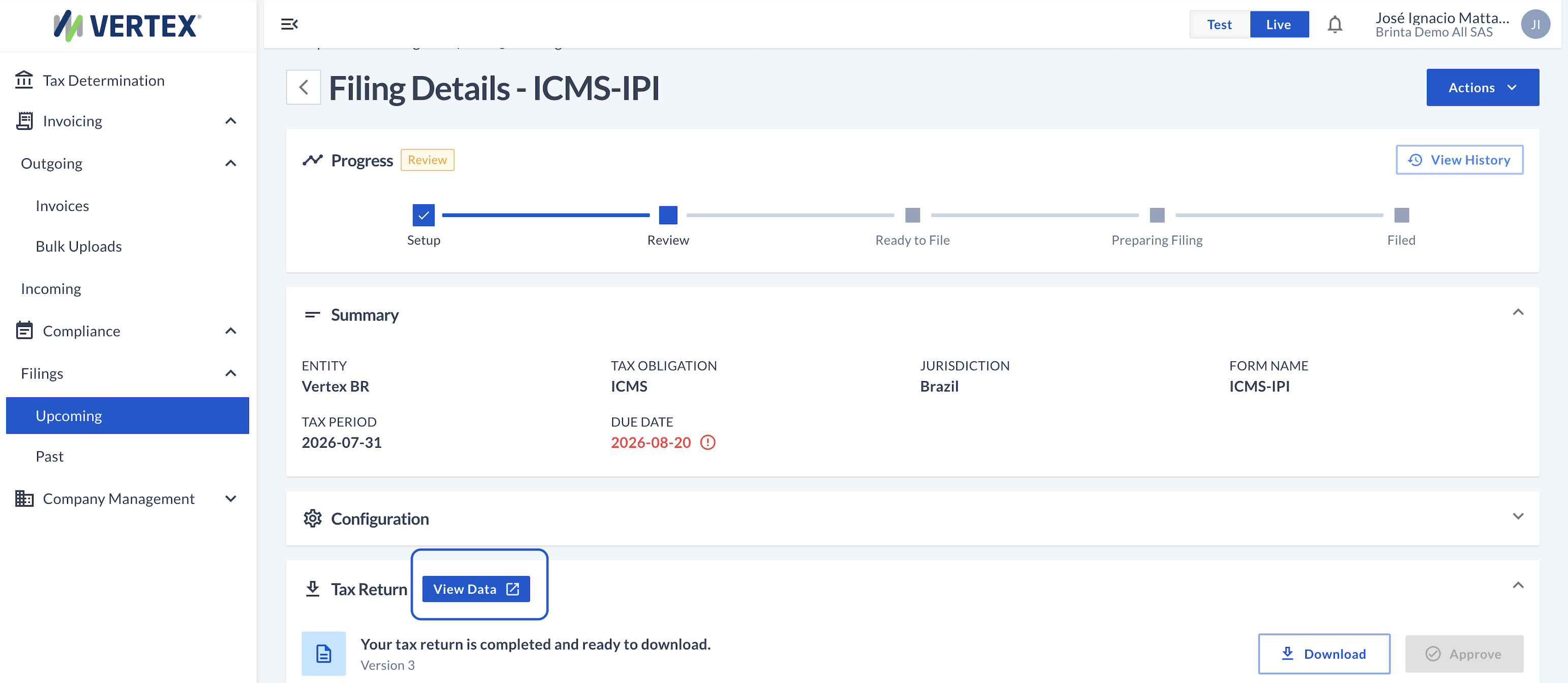
Filing Details — the View Data button is inside the Tax Return panel

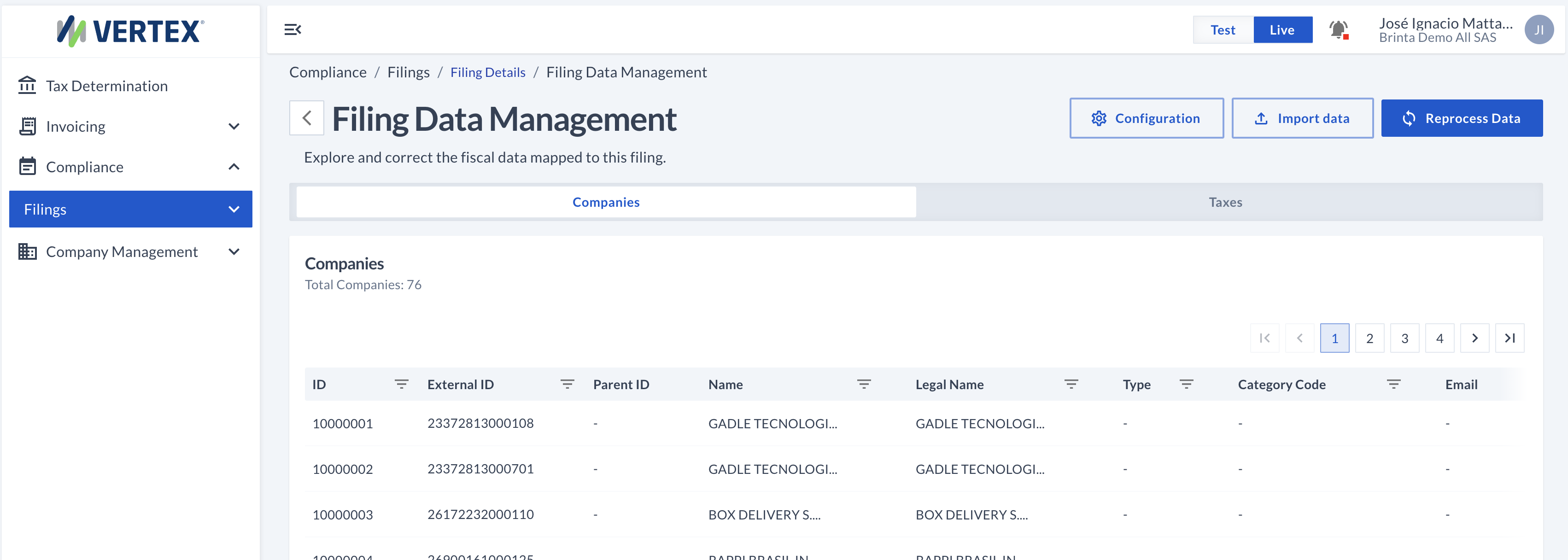
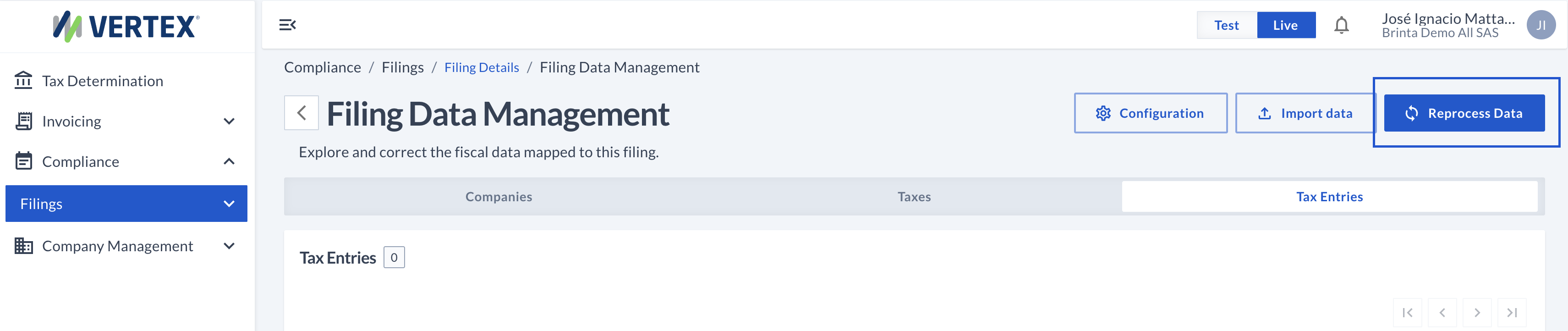
Filing Data Management — this is where you land
What Filing Data Management is
The information is organized into 5 tabs. Each one has its own table, with the columns that correspond to that type of data:
| Tab | What it shows | Examples of what you can correct |
|---|---|---|
| Companies | The companies mapped to the filing. | Name, type, category code, address. |
| Invoices | The invoices for those companies. | Dates, amounts, currency, origin and destination city. |
| Items | Each product or service line of an invoice. | Quantity, amounts, tax classification (CFOP, ICMS, IPI, PIS/COFINS). |
| Taxes | The taxes calculated per line. | Rate, taxable amount, tax amount, location. |
| Tax Entries | The aggregated tax entries. | Amount, adjustment type, period, entry code. |
Editing a record
The pencil icon, on any row of any tab, opens an Edit [Entity] panel with that specific row's fields. It doesn't matter if you're in Companies, Invoices, or any other tab: the way to correct a record is always the same.
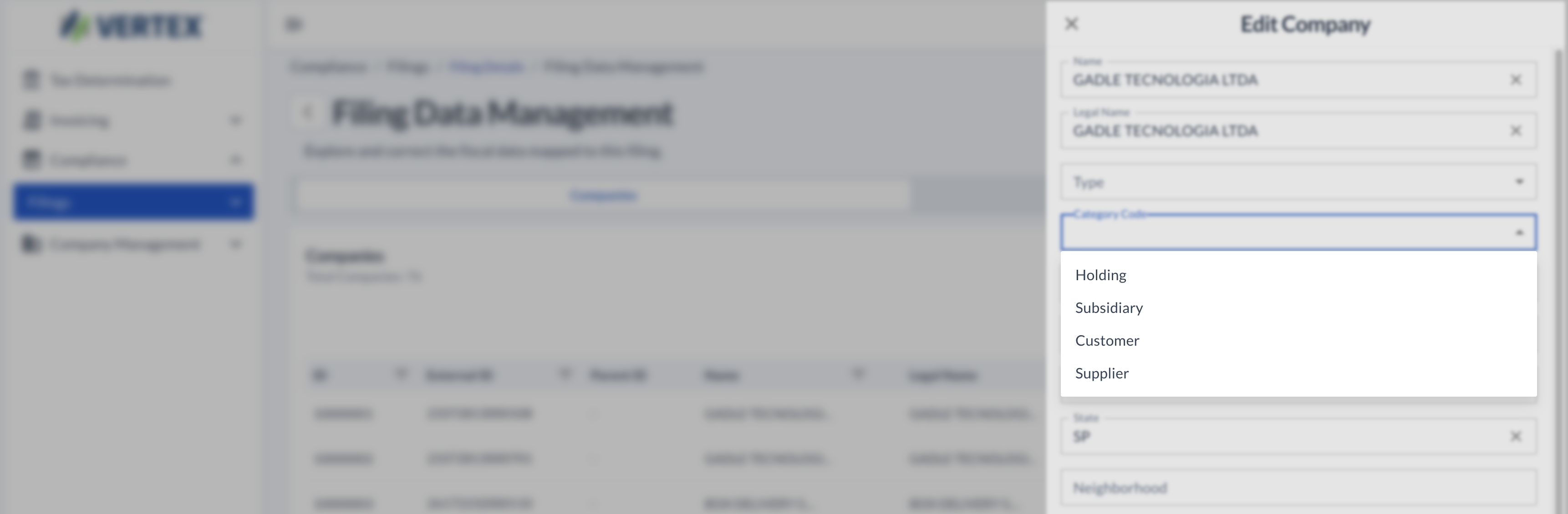
Edit Company — some fields, like Category Code, are fixed-option
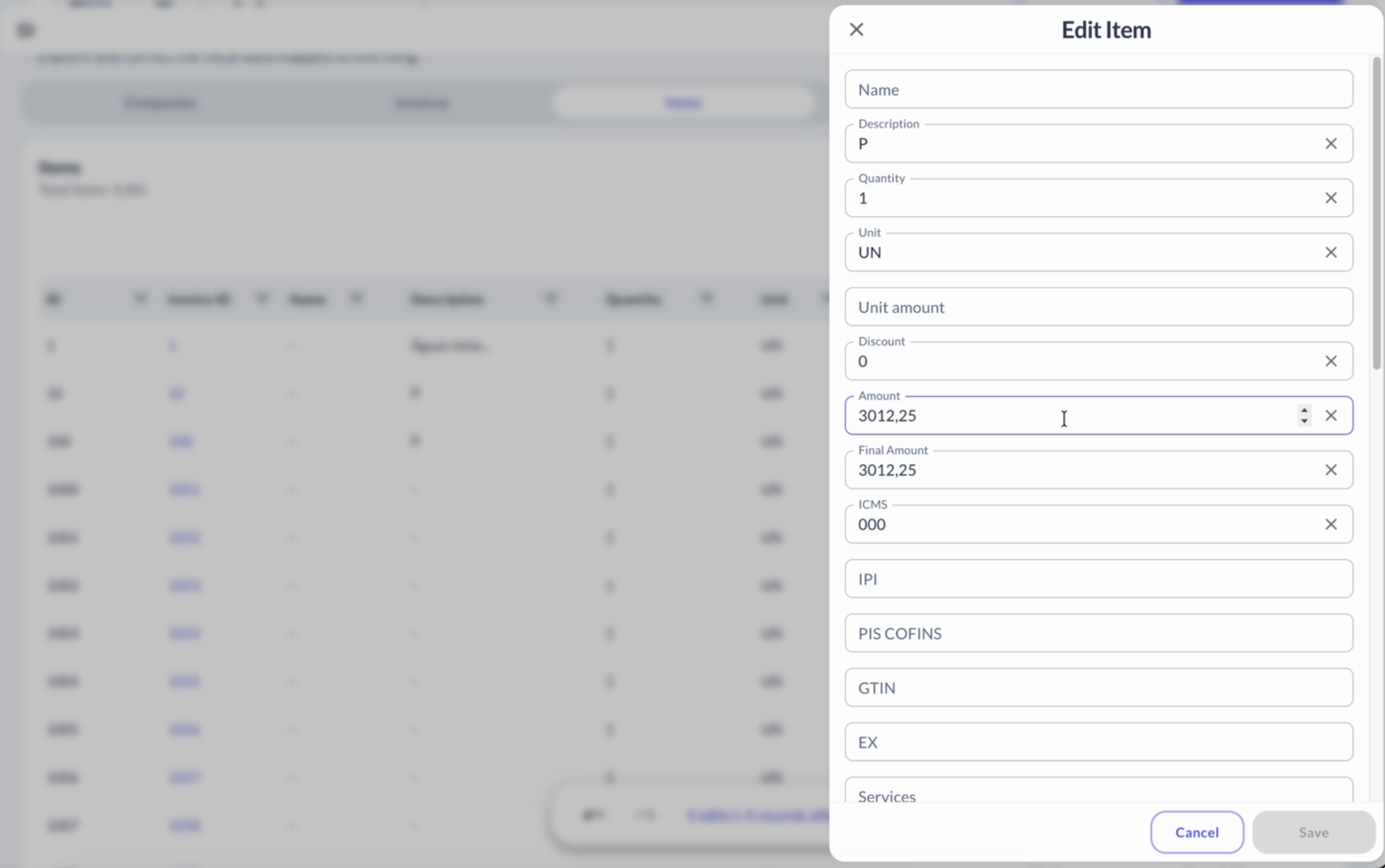
Edit Item — same panel, with the tax fields specific to an item
Once you've made the changes you needed on that company, invoice, or whatever applies, you can save them or cancel the edit.
Deleting a record
The trash icon asks for confirmation before deleting, and warns you if that row has related data that would be deleted along with it.
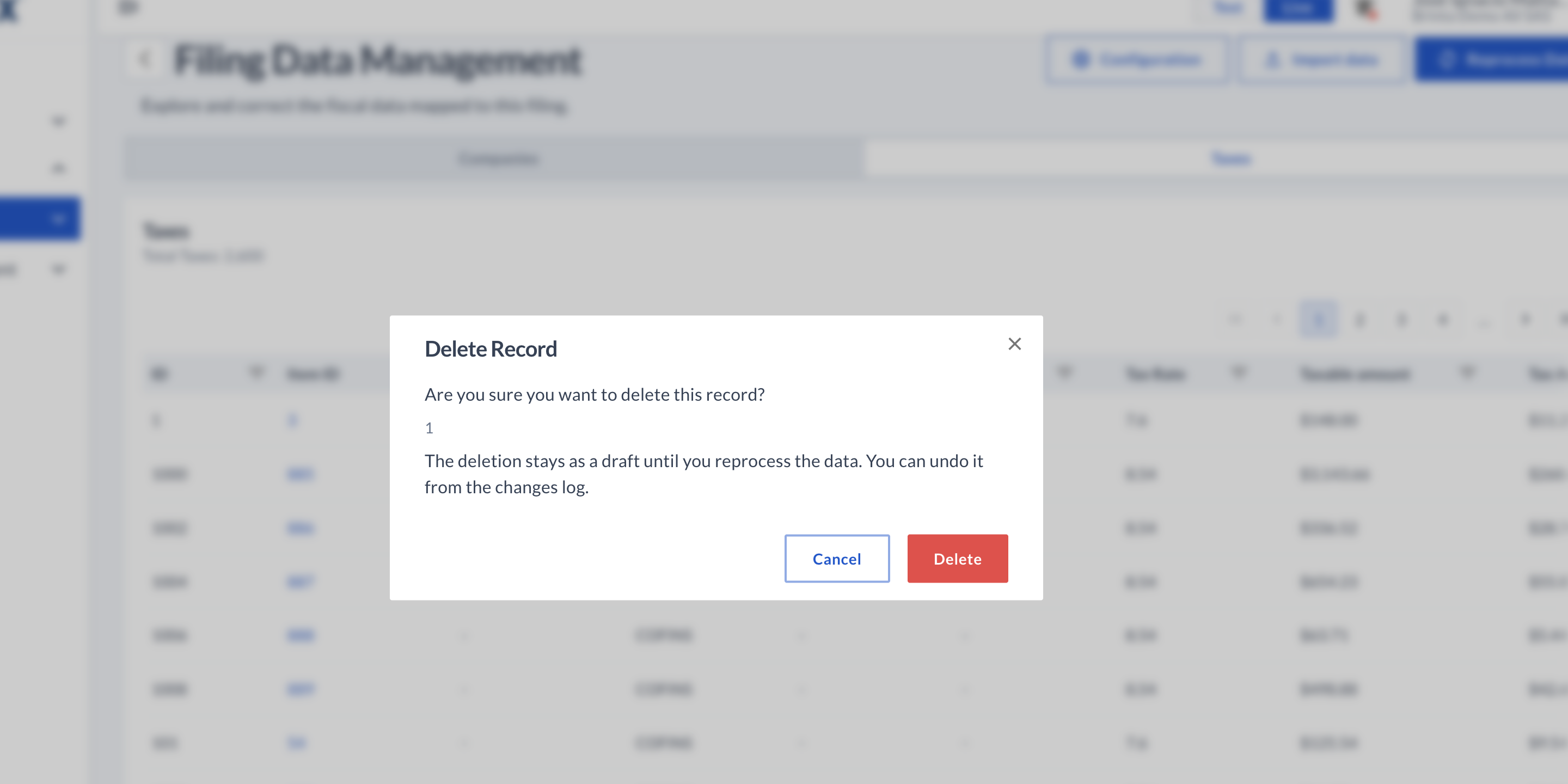
The deletion stays as a draft — it can be undone until you reprocess
Editing multiple records at once (Bulk Edit)
If you need to correct the same field on many records at once, you don't have to edit them one by one.
- First filter the table by whatever identifies those records — for example, Document type: NFSE — and a pencil icon will appear in the header of the column you want to correct.
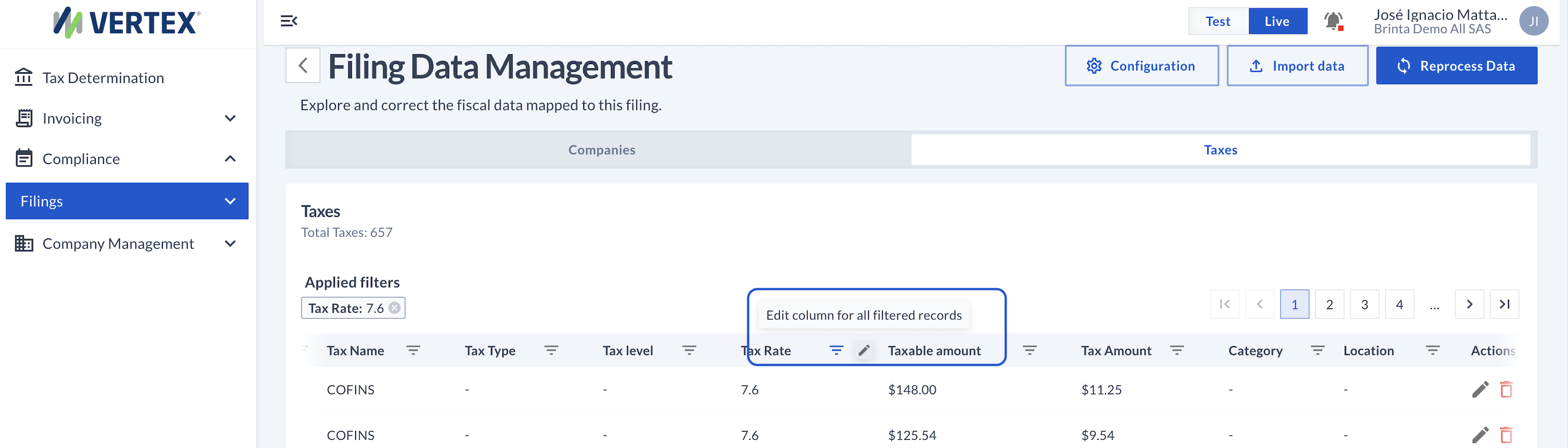
With a filter applied, the pencil that appears in the column header enables Bulk Edit for every filtered record
- Clicking it opens the Bulk Edit panel, with every field of that entity available — not just the column you clicked. Fill in only the field(s) you want to change; the rest stay as they are.
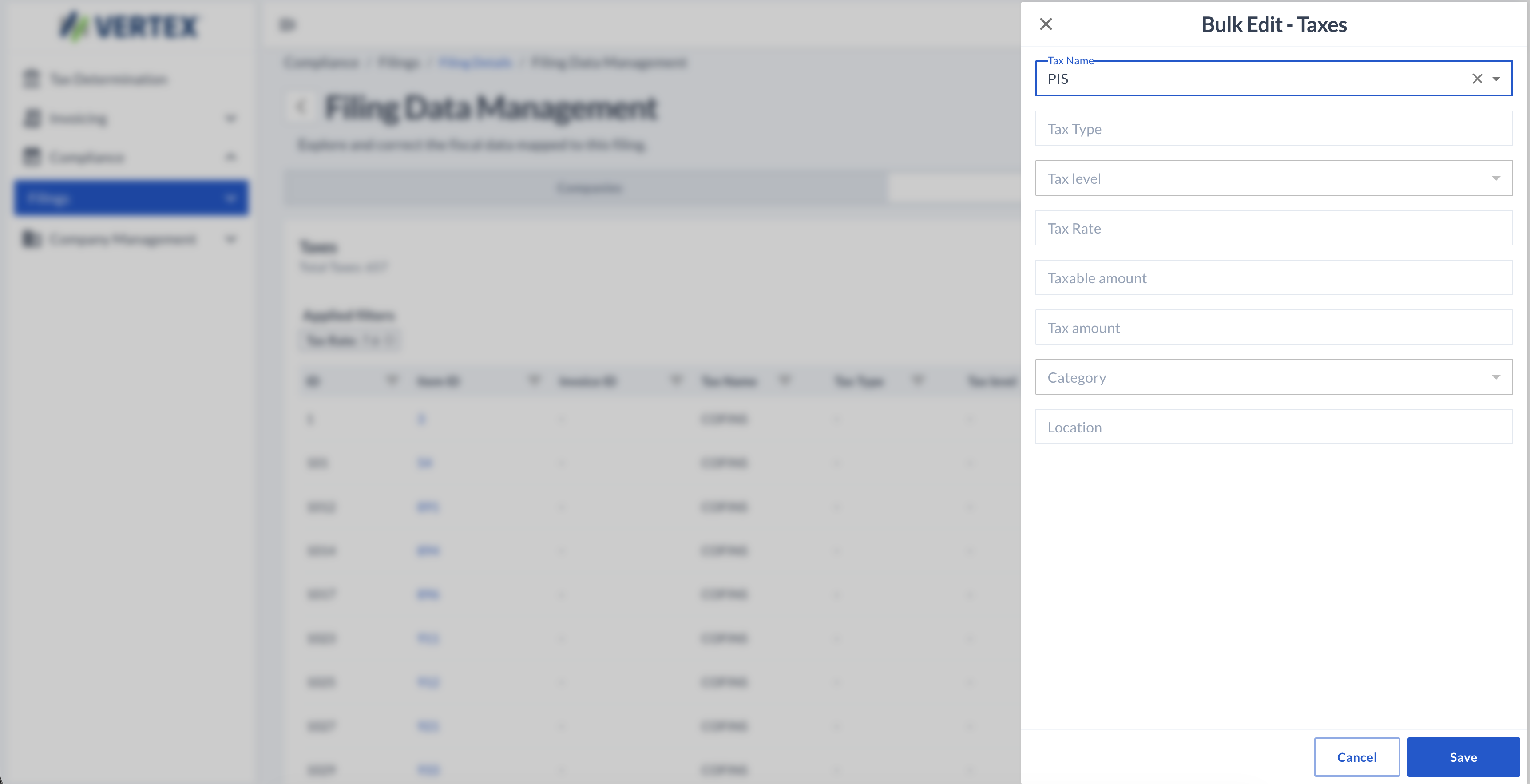
Bulk Edit
- When you save, the change is applied as a draft to every record that matches the filter — the table shows the old value struck through and the new one below it, along with a notice confirming how many records will be affected.
- Once you've reviewed the changes to apply, click the "Reprocess Data" button so the filing is generated with the updated values.
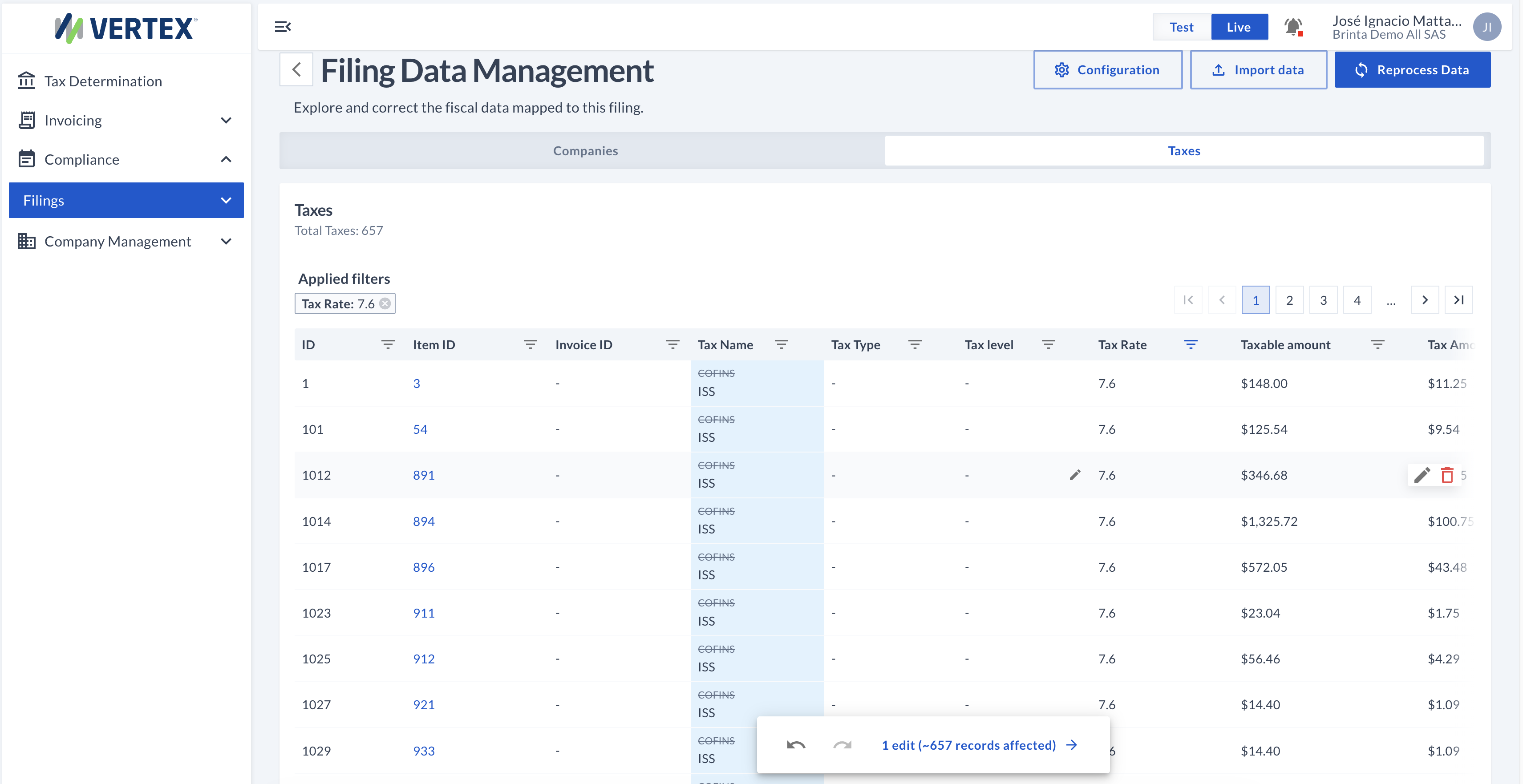
The change stays pending on every filtered record, with the count of affected records
Like any other change, a Bulk Edit stays as a draft until you reprocess — and in the pending changes counter it shows up with its own tag.
Bulk Edit, listing the field you changed, the new value, how many records were affected, and the filter you used to select them.
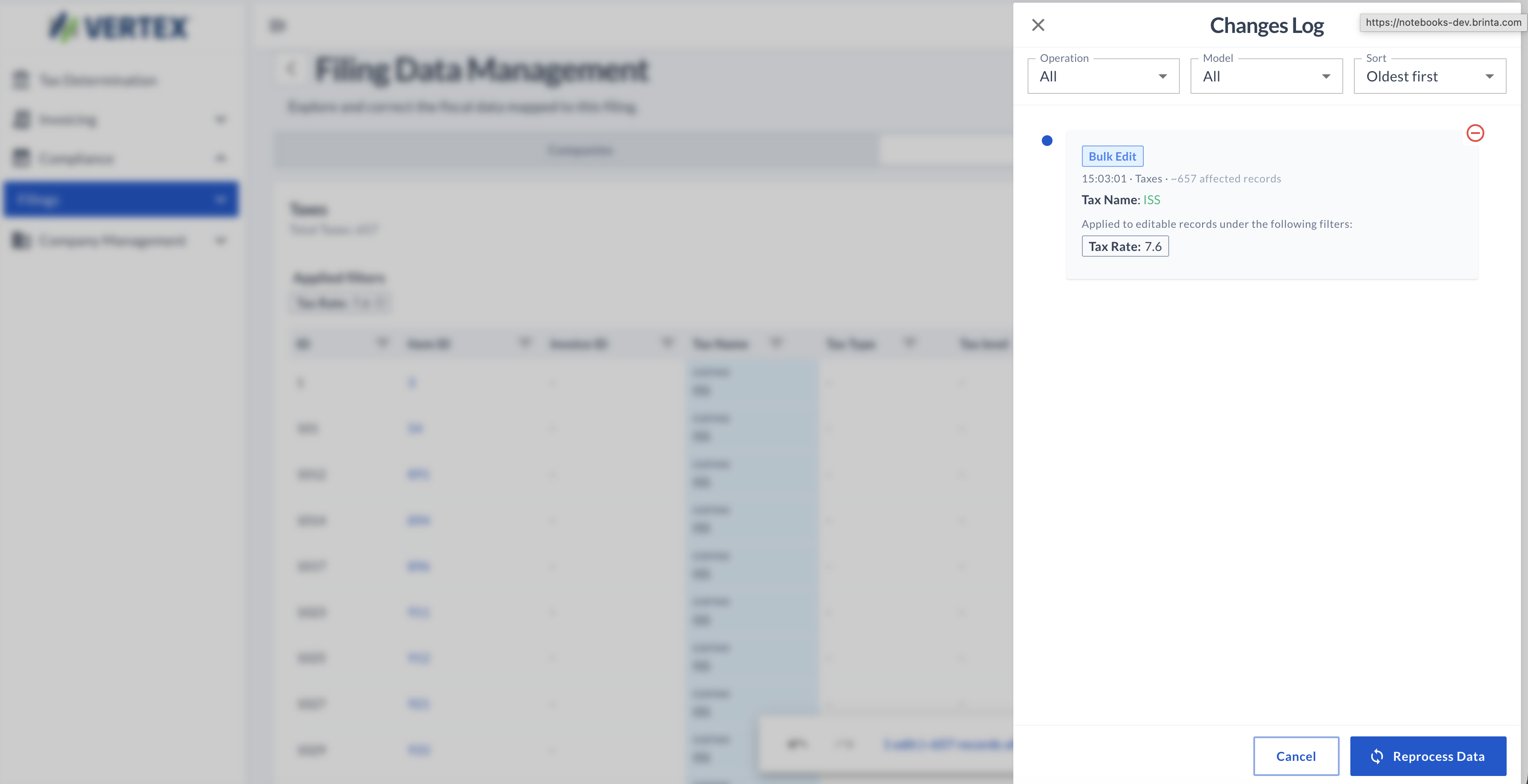
The Bulk Edit is logged with its own tag, the filter applied, and the number of records affected
Reviewing pending changes
No edit or deletion is applied instantly: it stays as a draft. The row is marked in the table, and a counter appears above the list showing how many changes are going to be applied based on what you edited.
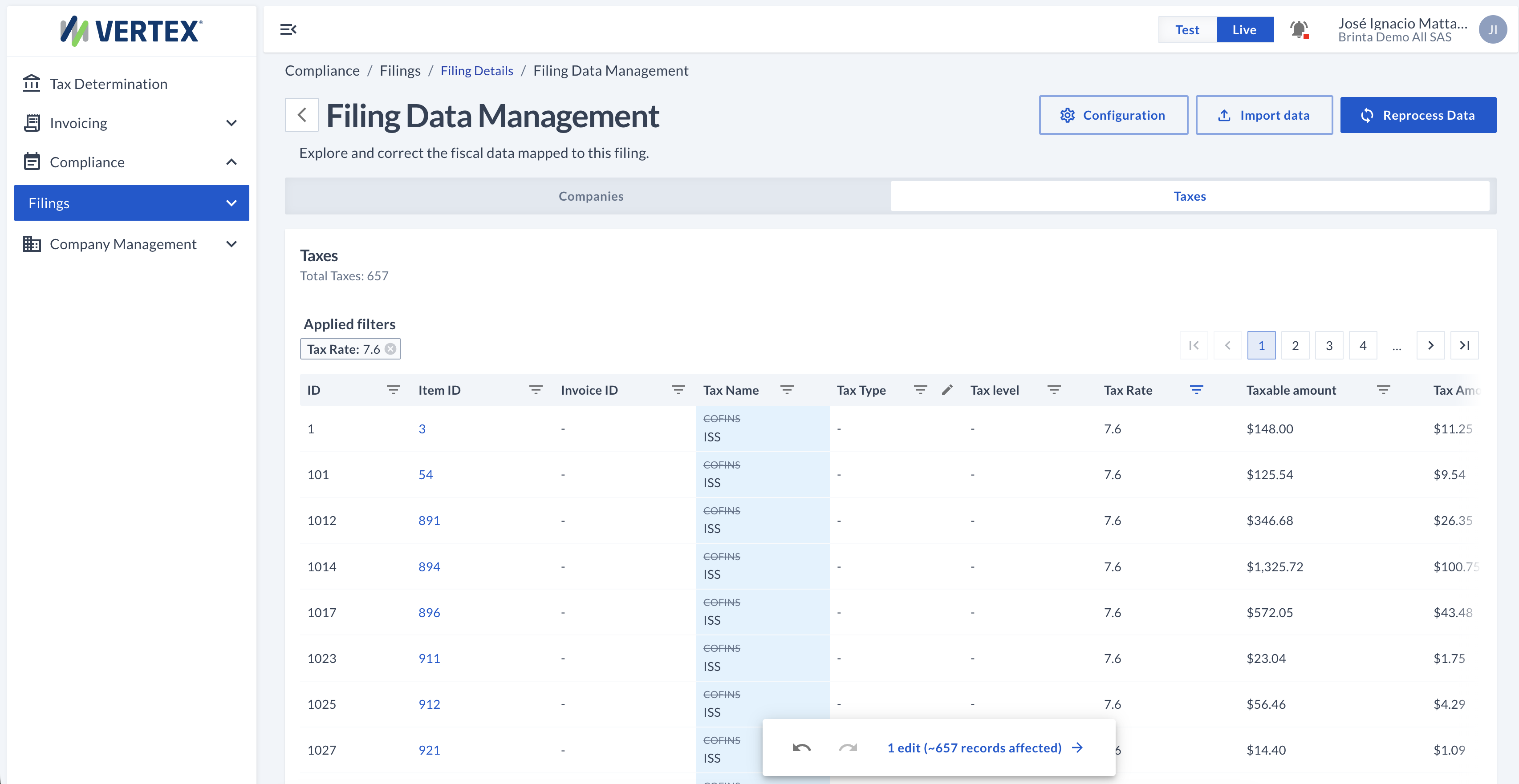
As soon as there's a pending change, the Reprocess Data button appears next to Import Data
From that counter you can see, grouped by section (Companies, Invoices, Items, Taxes, or Tax Entries), every change you made — with the old and new value in each case, or marked as a deletion if you removed the record.
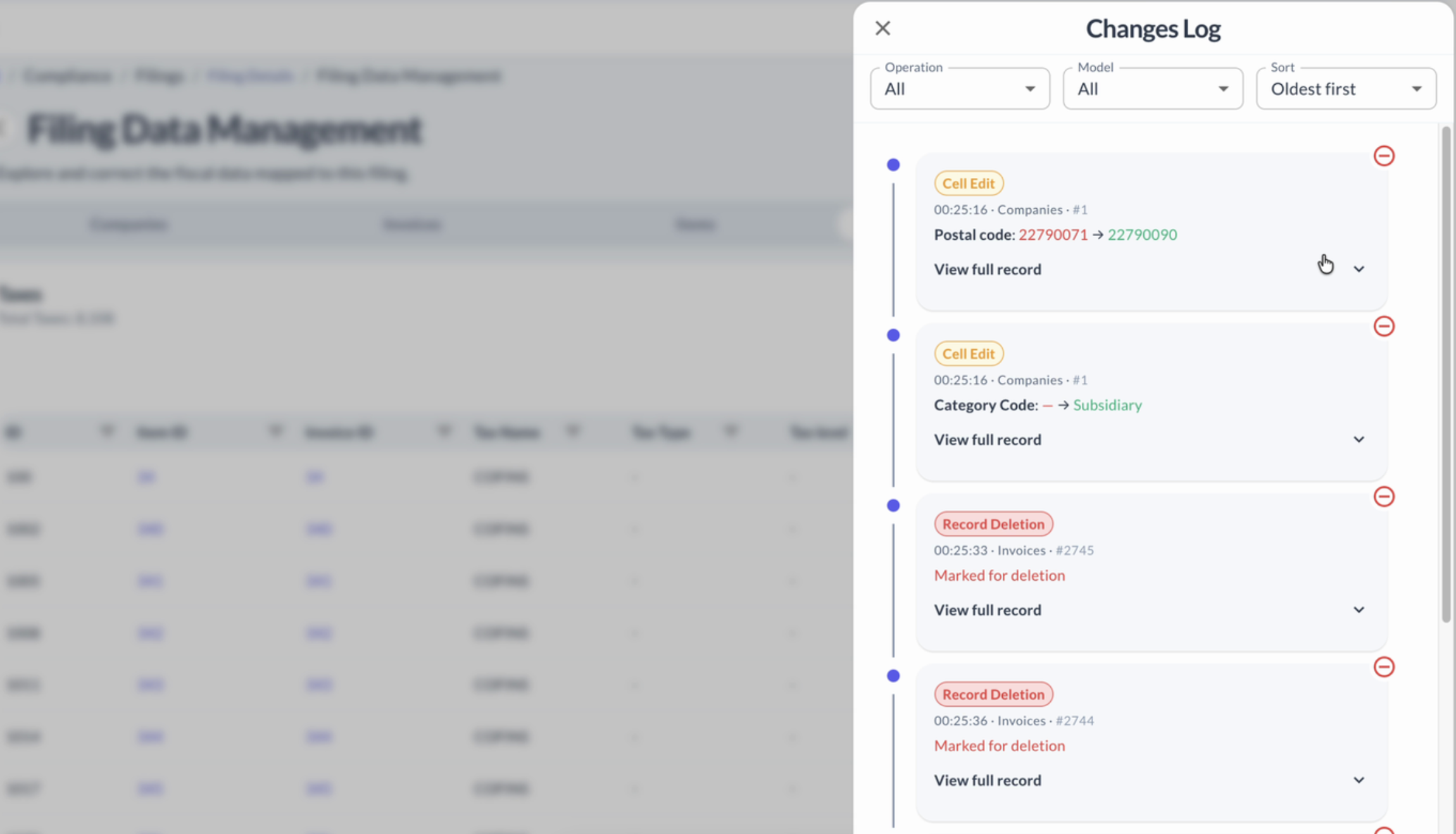
All pending changes, from any tab, in one place
Reprocessing the data
The corrections you made aren't enough on their own: until you reprocess, they stay saved as a draft and the filing remains as it was. The Reprocess Data button takes all those corrections and regenerates the Tax Return — the filing is recalculated with the corrected data, and the file you're going to submit gets updated with the changes you made.
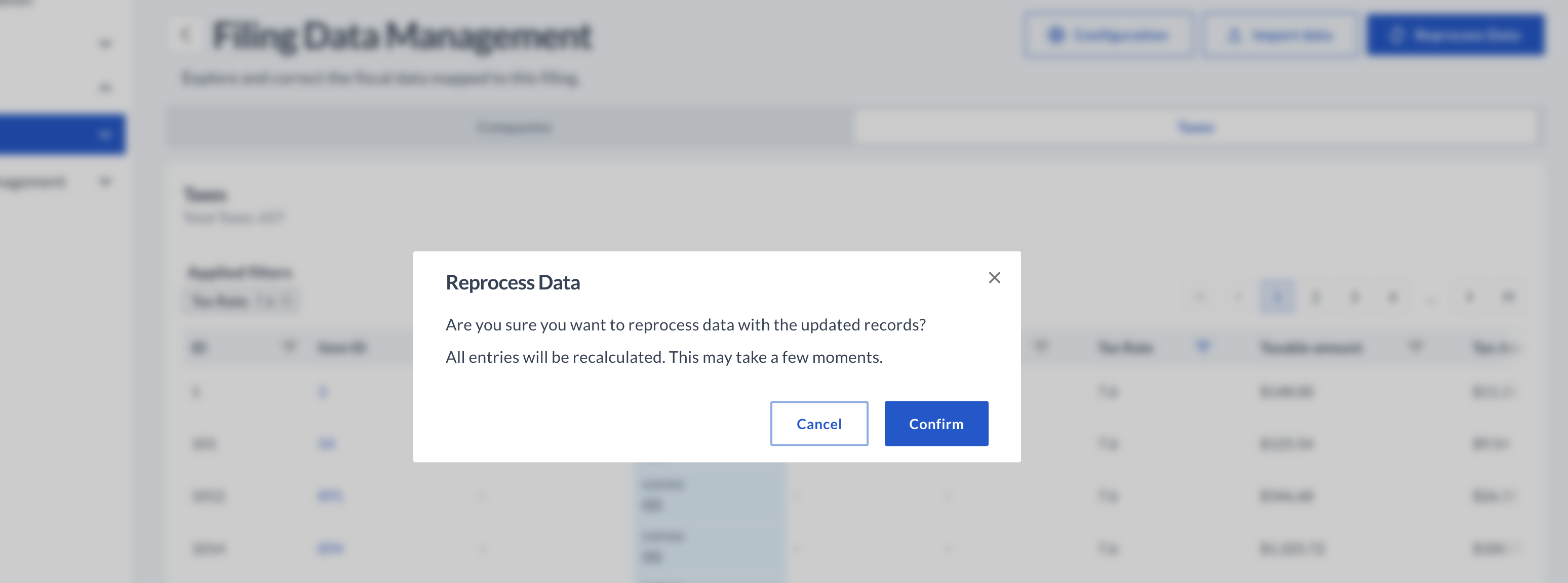
Reprocess Data — applies all pending corrections at once
Importing data in bulk (Import Data)
Inside Filing Data Management you'll find Import Data: it lets you load several records at once with a spreadsheet, instead of creating them by hand one by one. For now it's only available for Tax Entries, but soon you'll be able to import Invoices and Companies the same way too.

The button sits next to Reprocess Data, at the top right
Clicking it opens a panel with three data types — today only Tax Entries is enabled. From there you can download the base spreadsheet (Download template) to make sure the columns match what the validator expects, fill it in, and drag it into the panel or browse for it on your computer. The template also includes, on each column, a note with the format and variants that field accepts — for example, which adjustment types are valid for each tax.
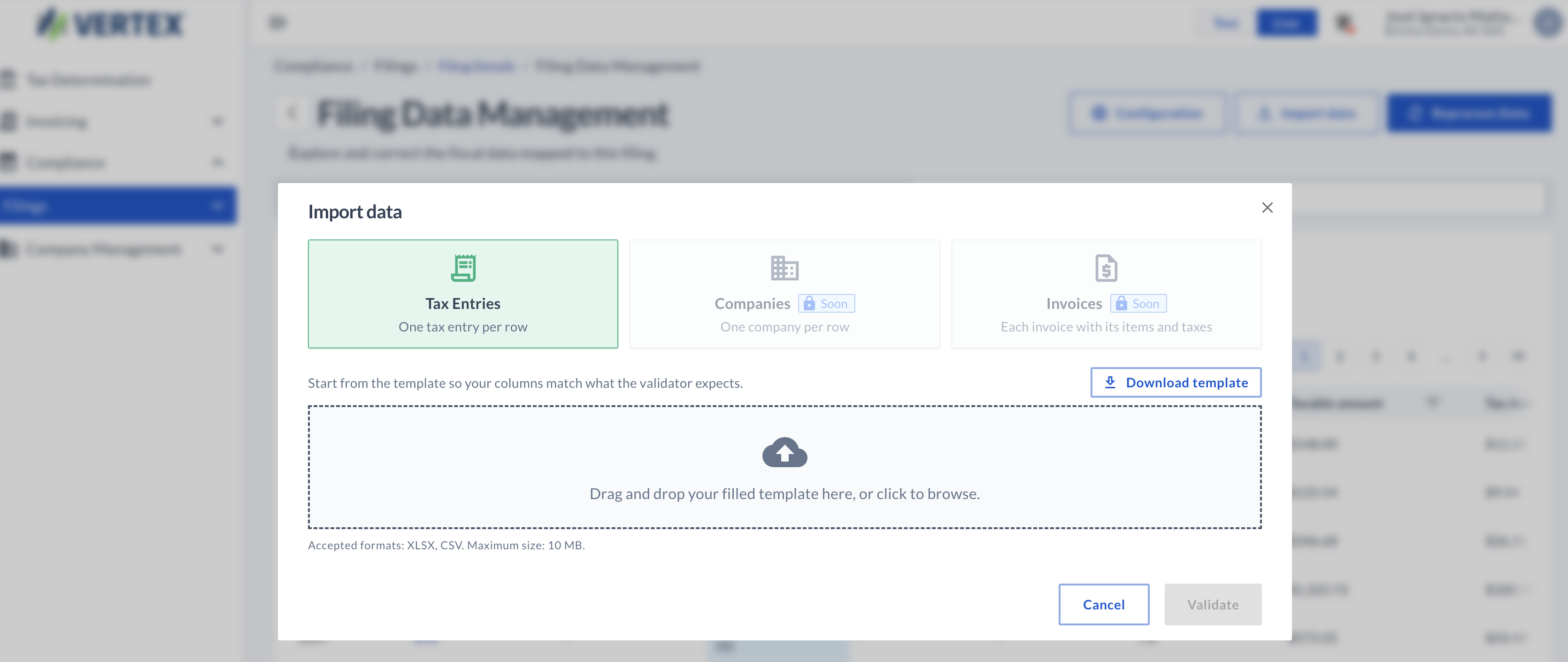
Import Data
With the file loaded, Validate checks it row by row. If any row doesn't meet a rule — for example, if the period falls outside the filing's range, or the adjustment type isn't one of the allowed values for that tax — it's flagged with the specific reason; the rest of the valid rows can still be imported, leaving that row out so you can fix it and upload it later.
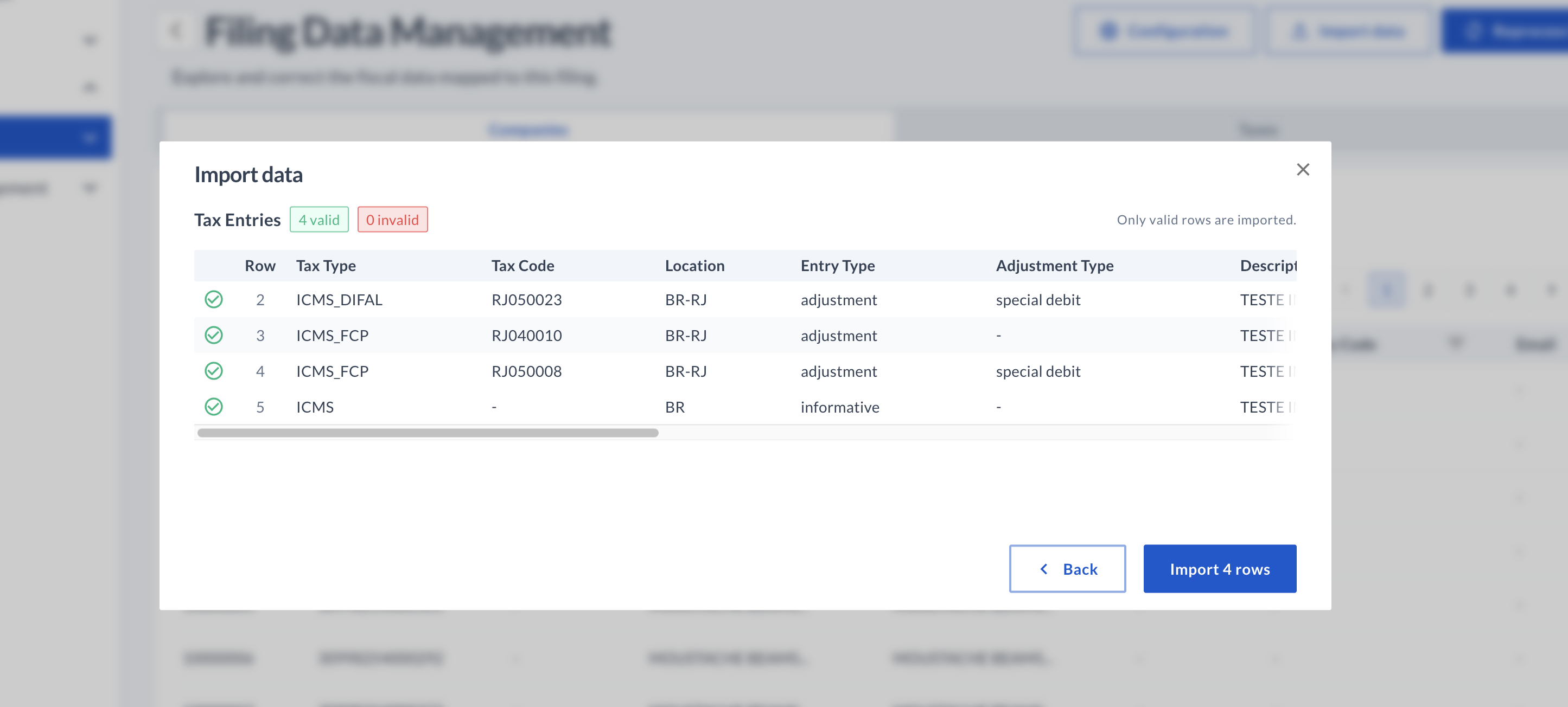
Only valid rows get imported — the rest stay out until you fix them
The records you imported appear highlighted at the top of the table, just as if you'd loaded them by hand, and stay pending until you reprocess — you can see them in the changes list, identified as an import load.
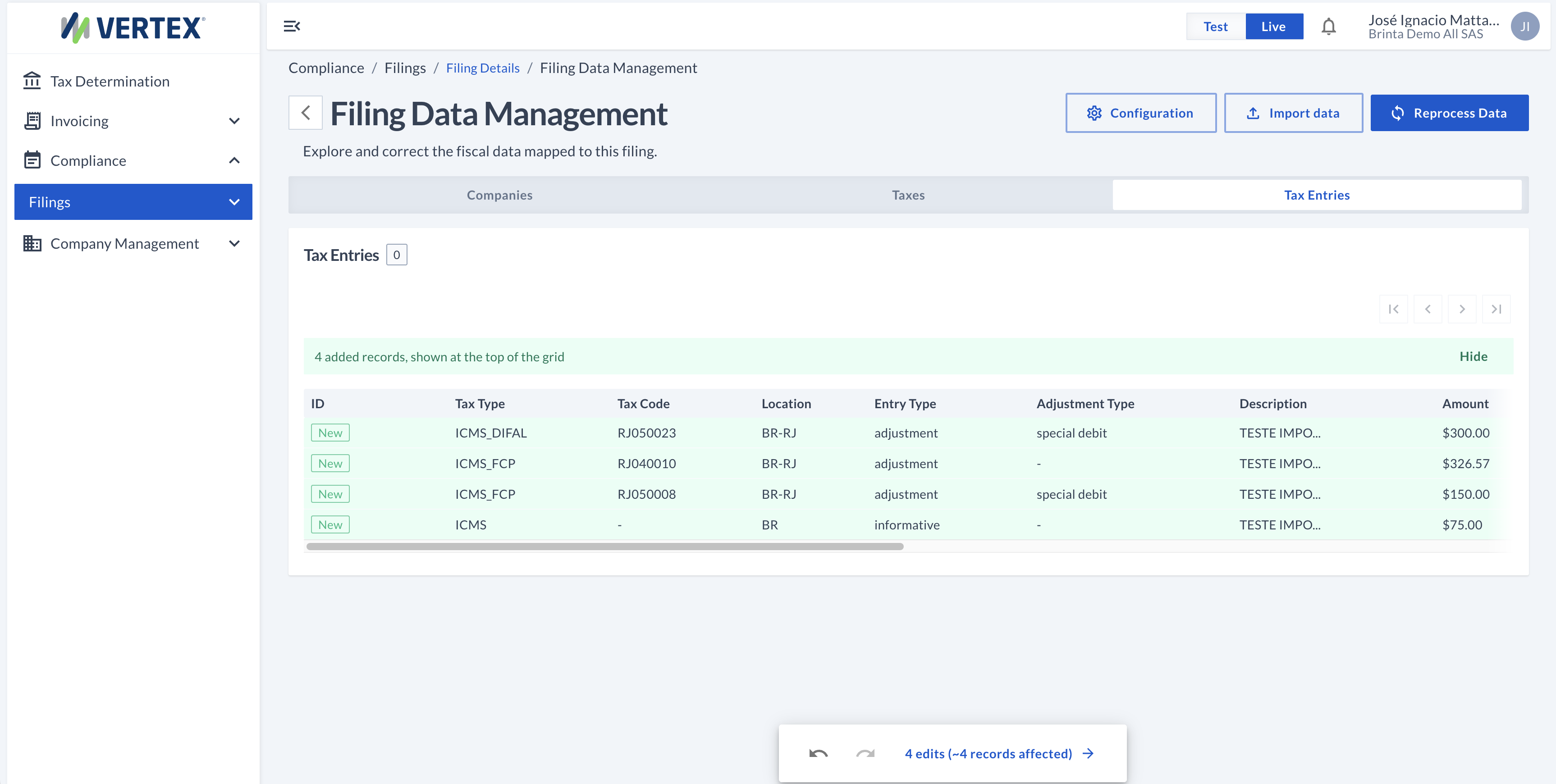
New records are marked "New" and stay at the top of the table
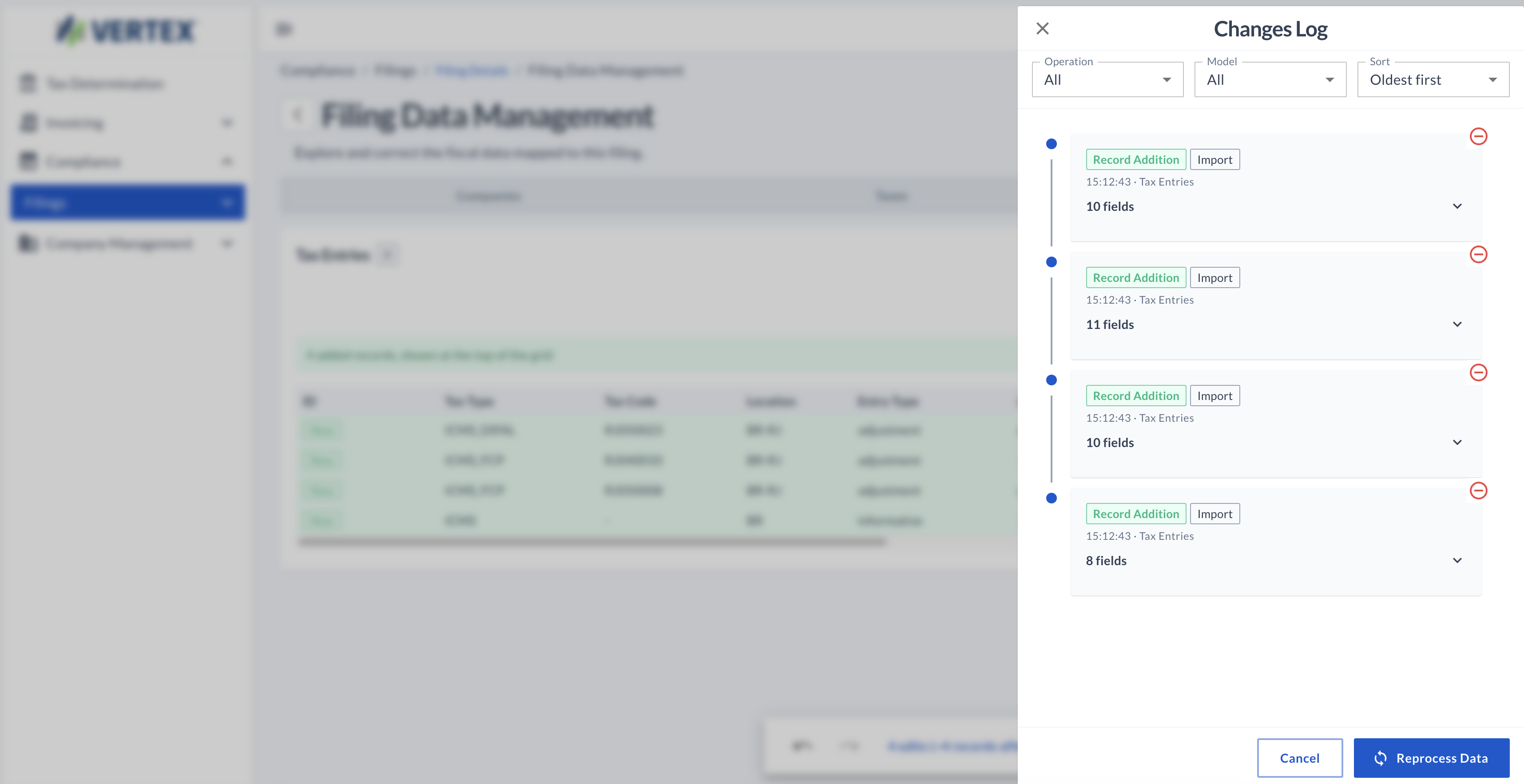
In the changes list they're identified as an import load
Once you've finished importing and adjusting everything you needed, the Reprocess Data button applies all pending changes at once — the ones you loaded via spreadsheet and any other edit or deletion you made — and updates the filing with the corrected information.
Auditing the changes applied
Every time you reprocess, a new version of the filing is generated. In the filing's detail view (Filing Details), the Versions section keeps the complete history: who made the change, when, and whether that version was generated without errors.
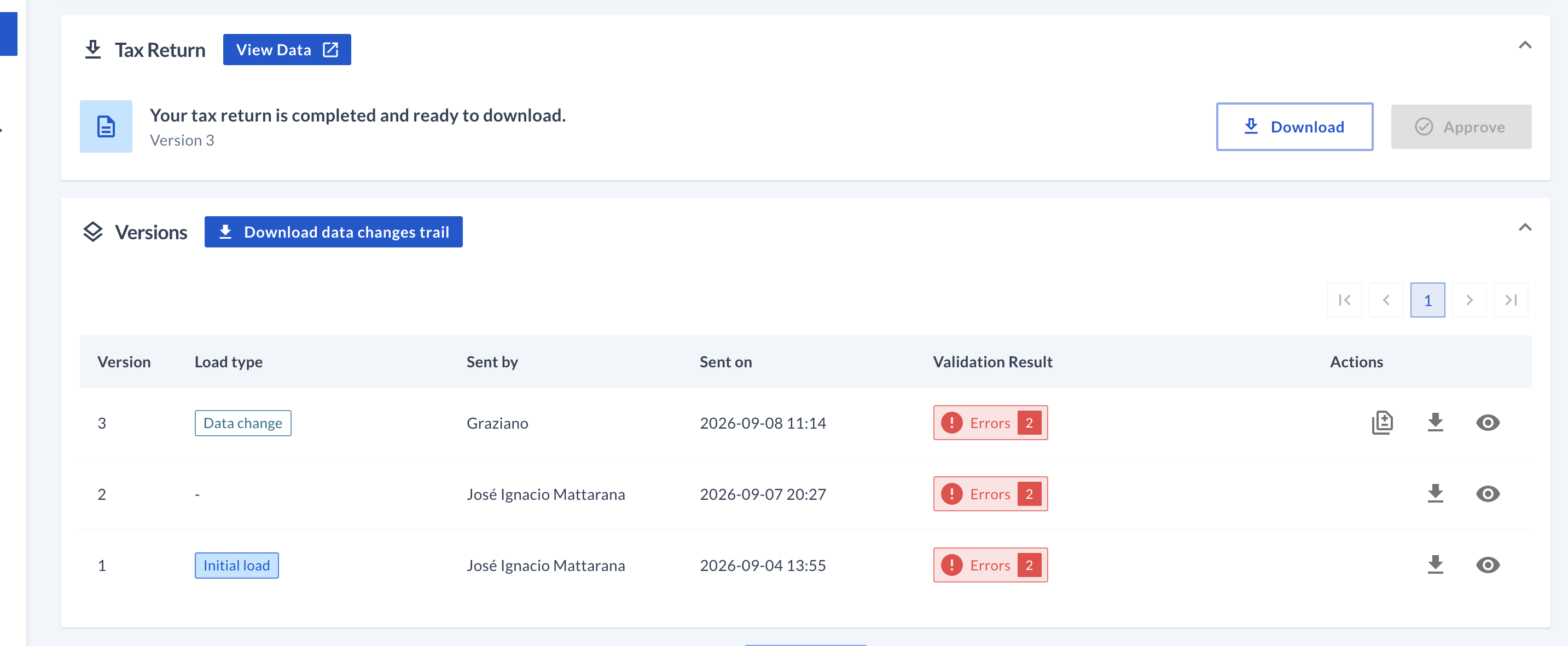
Versions marked "Data change" are the ones generated by reprocessing edited data
In those versions you'll find an extra icon in Actions: View data changes. It opens a line-by-line detail of everything that was edited, added, or deleted in that specific version — each entry is tagged according to the type of change.
1. Edits
These are tagged as Cell Edit: they show the specific field that changed, with the old and new value.
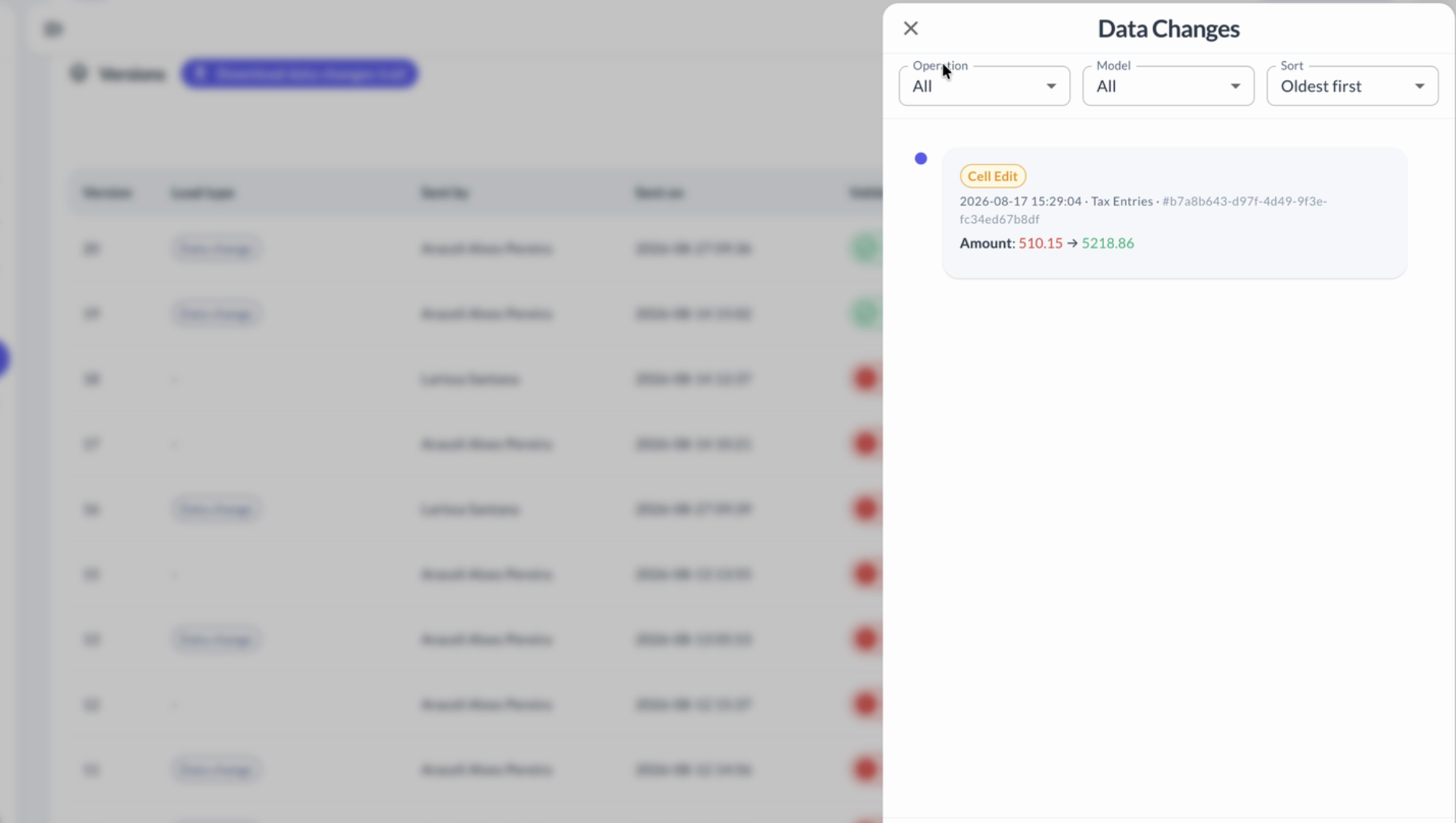
Each change shows where it was made (Companies, Invoices, Tax Entries, etc.) and the old value → the new one
2. Deletions
These are tagged as Record Deletion, same as in section 3, with the option to view the complete record before it was deleted.
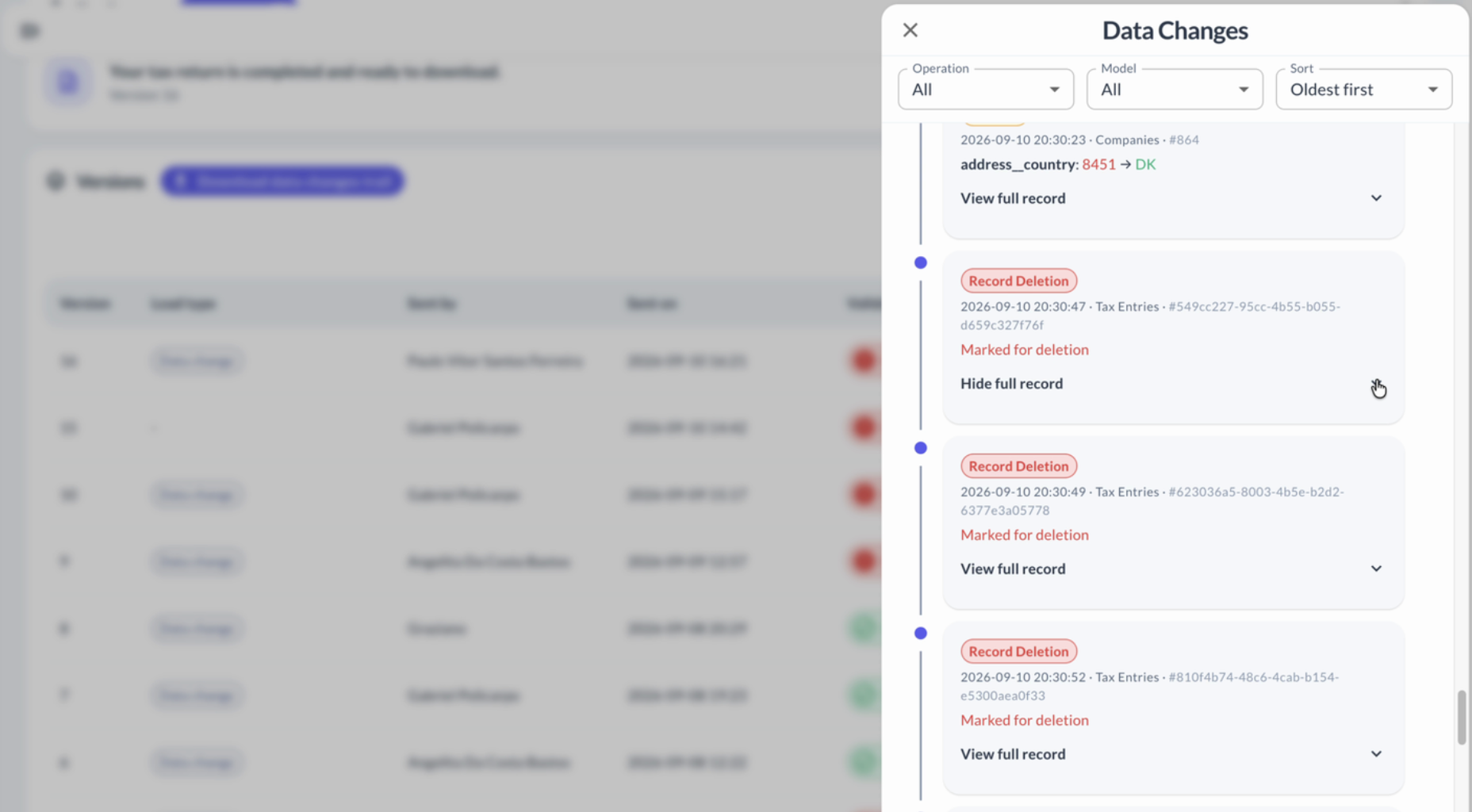
You can expand each deletion to see the complete record before it was deleted
3. Record additions
These are tagged as Record Addition — for example, when importing data in bulk, as we saw in section 6. In this case it shows every field of the new record.
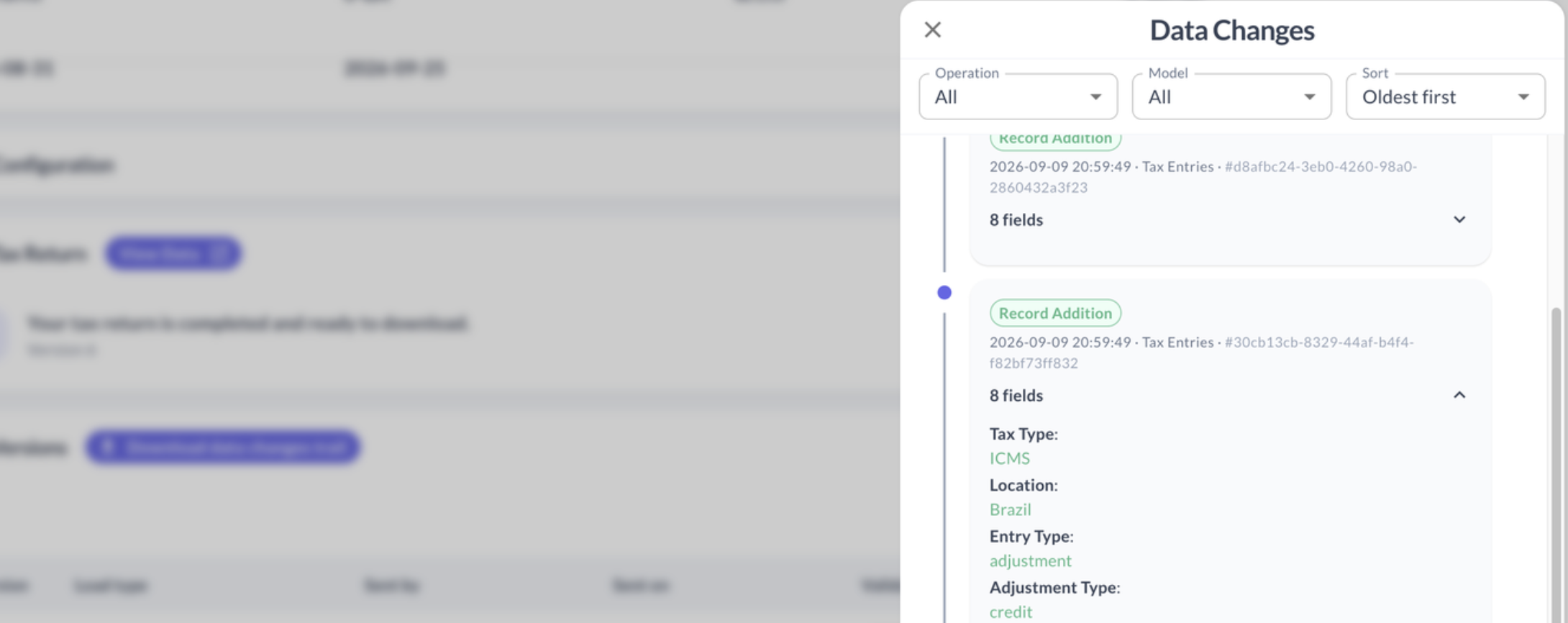
Since there's no previous value, the fields of the added record are shown directly
Above the list you can filter by change type and by section, and sort it from oldest to newest. If you need the detail outside the dashboard, you can download it as CSV from several places: Download data changes trail, above the versions table, downloads the complete history of every version; the download icon on each row downloads that specific version's detail; and Download data changes, inside the panel, downloads whatever you're viewing there, with whatever filters you've applied.
This traceability isn't just for auditing a specific change — it also helps you review, over time, which points tend to need the most frequent adjustments across your filings.
Updated about 1 month ago