
Creating credit notes from the dashboard
How to get there
- Open the original invoice's detail view (
Invoices > Invoice Details). - Click Actions ⚙️ (top right).
- Click Create Credit Note.
This opens the Create Credit Note modal, pre-filled with data from the original invoice.
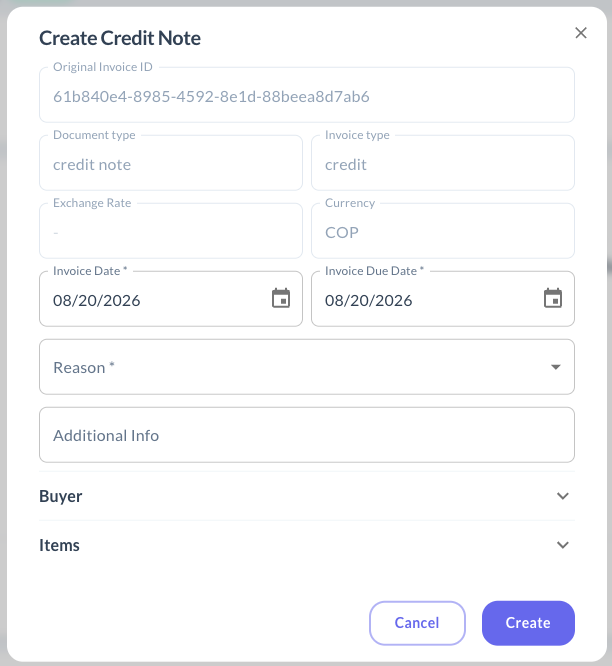
Modal fields
| Field | Editable? | Notes |
|---|---|---|
| Original Invoice ID | 🔒 No | Internal ID of the invoice being credited. |
| Document type / Invoice type | 🔒 No | Auto-filled as credit note / credit. |
| Currency / Exchange Rate | 🔒 No | Inherited from the original invoice. |
| Invoice Date | ✏️ Yes | Defaults to today's date. |
| Invoice Due Date | ✏️ Yes | Defaults to today's date. |
| Reason | ✏️ Yes — required | See below. |
| Additional Info | ✏️ Yes | Free text, optional. |
👤 Buyer
The Buyer section (Legal Name, Name, Type) is pulled directly from the original invoice and can't be edited from this modal.
🏷️ Reason
The reason you pick changes how the Items section behaves:
| Reason | Meaning | Items behavior |
|---|---|---|
void | Voids the invoice entirely. | No per-item amount needed — the full total is voided. |
return | Return (partial or full) of one or more items. | Enter, per item, the amount to refund. |
discount | Discount applied to one or more items. | Enter, per item, the discount amount. |
📦 Items
For return and discount, the item list comes from the original invoice (name not editable) — you fill in the amount to refund or discount per item. For void, this section doesn't apply since the whole total is voided.
Updated about 2 months ago
Did this page help you?