
Manual Creation Invoice DSe
This guide explains how to manually create a Purchase Invoice(Document de Soporte Electrónico) in Colombia using the Brinta platform.
Step 1 – Access Invoice Creation
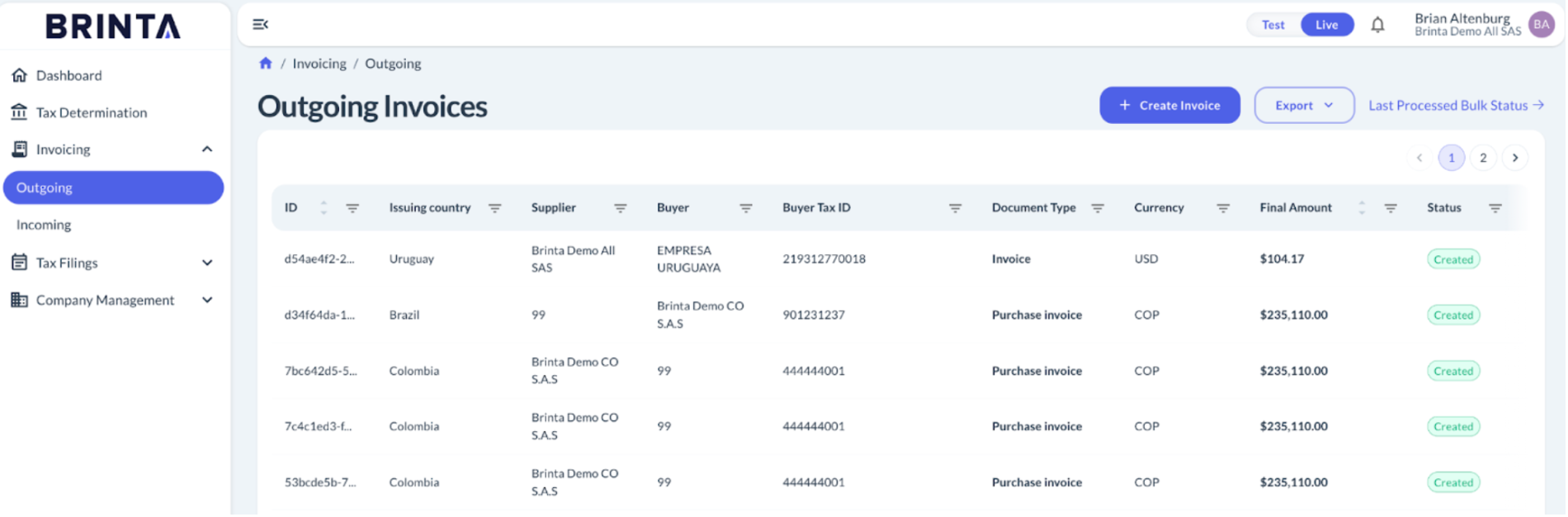
- Navigate to Invoicing → Outgoing
- Click Create Invoice (top-right corner)
Step 2 – Choose Creation Method and Country
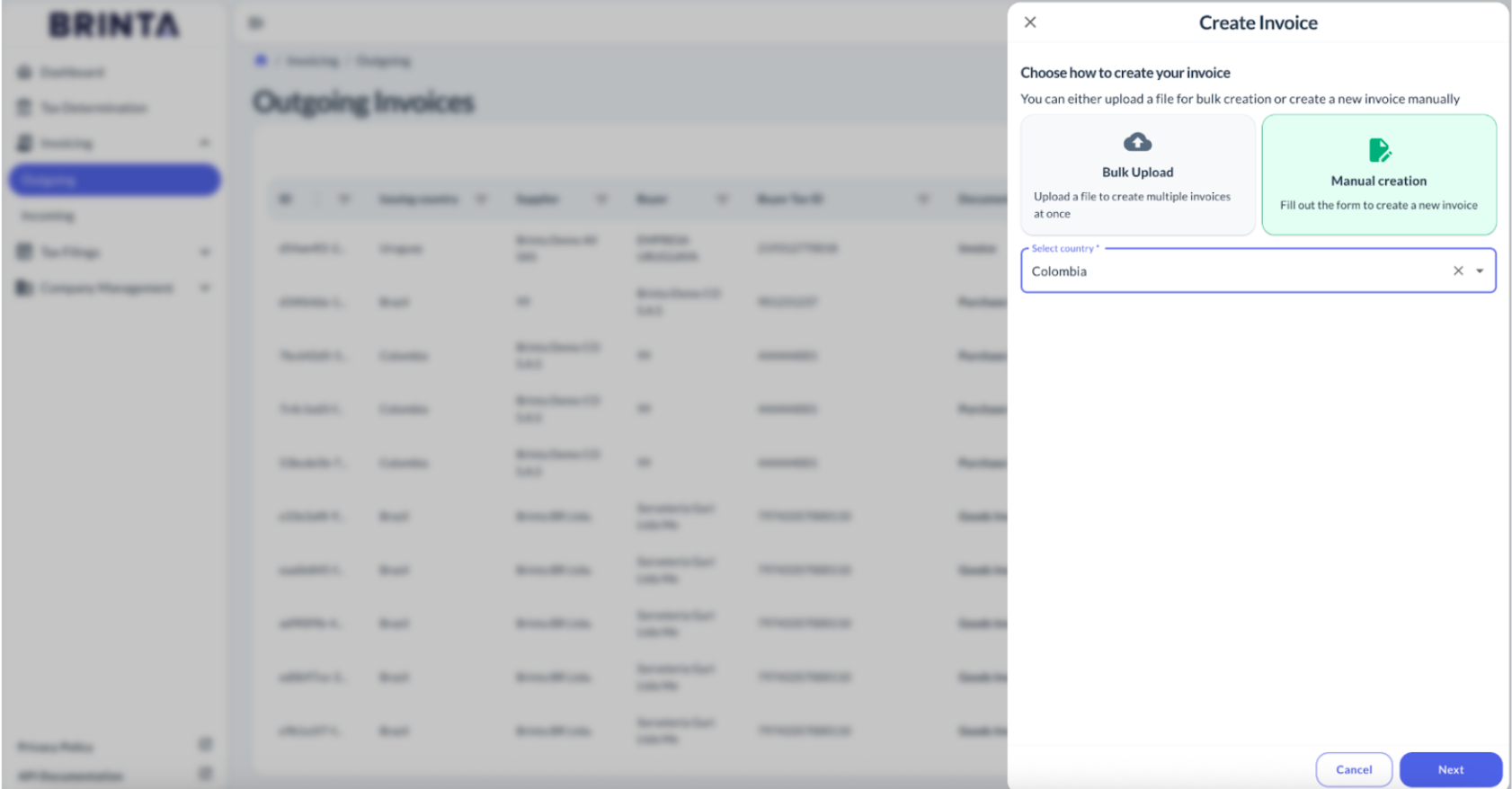
- Select Manual creation
- Select Country: Colombia
- Click Next
Step 3 – General Information
Complete the General Information section as follows:
Supplier Company
- Select the supplier company issuing the invoice.
- If you have multiple suppliers, choose the correct one.
Invoice Serie
- Used only if the supplier has multiple invoice series.
- In most cases, Brinta pre-defines the series, so this field is optional.
Invoice Type
- Select Purchase
Document Type
- Select Purchase Invoice
Purchase Order Number (Optional)
- Enter the PO number related to the invoice, if applicable.
Invoice Date
- The issuance date of the invoice.
- Must comply with Colombian tax rules (no future dates).
Invoice Due Date
- The payment due date agreed with the buyer.
Payment Method Type
- Select the payment method type, for example:
- Credit card
- Debit card
- Bank transfer
- Cash
Payment Method Name
- The specific payment method name, for example:
- VISA
- Mastercard
- Bancolombia Transfer
Currency Select the invoice currency (e.g. COP, USD).
Exchange Rate
- Mandatory if the currency is foreign (not COP).
- Indicates the exchange rate used for tax calculation.
Additional Info
- Invoice notes or observations.
- This information appears in the invoice description.
E-Invoice Checkbox
- ✅ Checked → A real electronic invoice will be issued and reported to DIAN.
- ⛔ Unchecked → The invoice will be created only internally (no tax submission).
Step 4 – Buyer Information (Colombia)
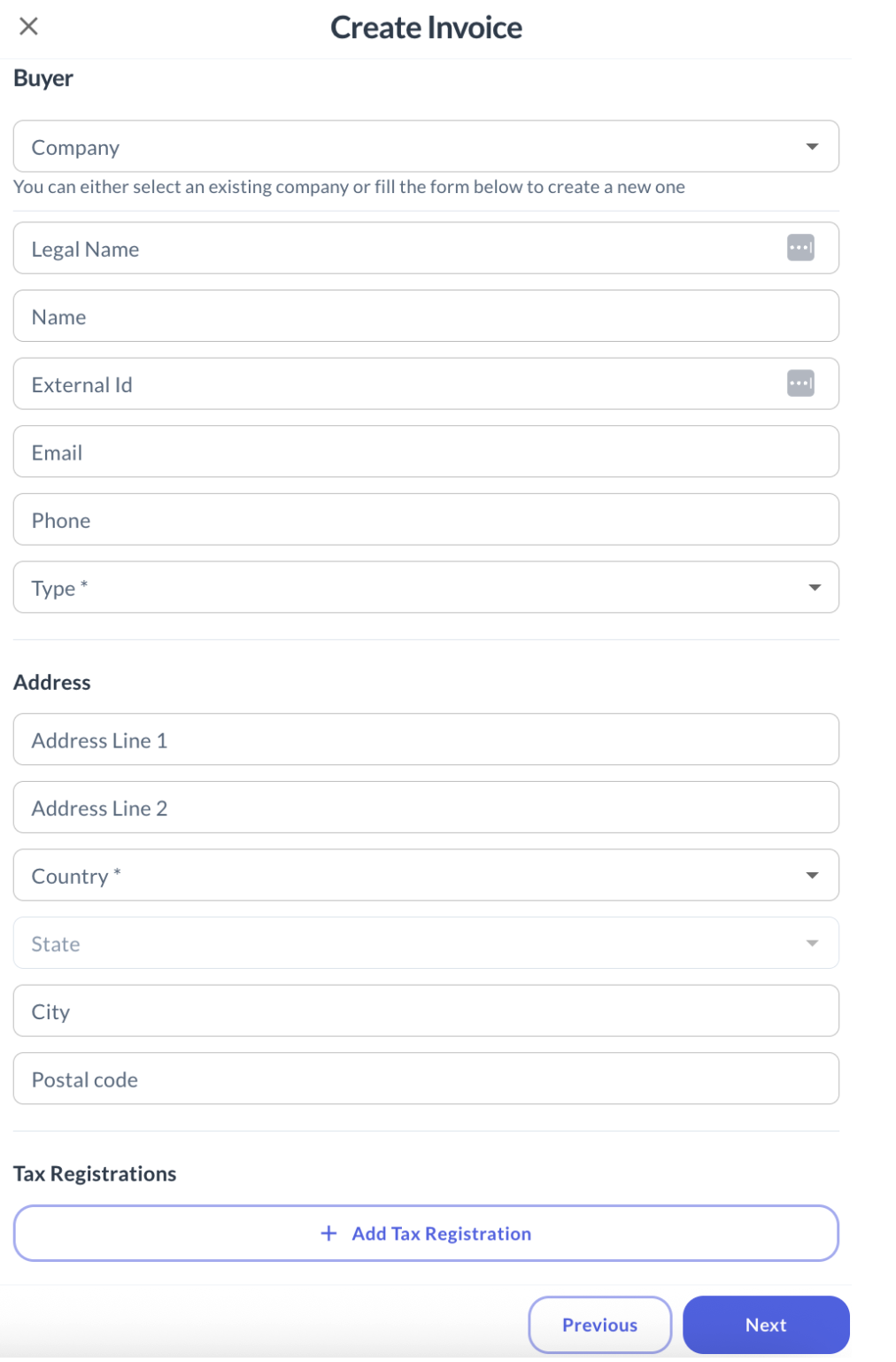
In this step you define the buyer (customer) of the invoice. You can either select an existing company or create a new one by completing the form.
Buyer – Company Details
- Legal Name: The official registered legal name of the buyer.
- Name: The commercial or display name of the buyer.
- External ID: Buyer’s external identifier (ERP / internal system ID), if available.
- Email: Buyer’s contact email: If you define a real email address, the invoice will be sent to you buyer
- Phone: Buyer’s contact phone number.
- Type (Required)
- Business → Companies
- Person → Individuals
Address Information
- Address Line 1: Main street address.
- Address Line 2: Additional address details (optional).
- Country (Required): Select Colombia.
- State: Department (Departamento).
- City (Required): Must match the official Municipalities catalog. 👉 Reference: Municipalities table
- Postal Code (Required only for local buyer)
Must contain exactly 6 digits Ensure the value is valid for the selected city ⚠️ Important: City and postal code validations are enforced for DIAN compliance.
Step 5 – Tax Registrations (Buyer Tax ID)
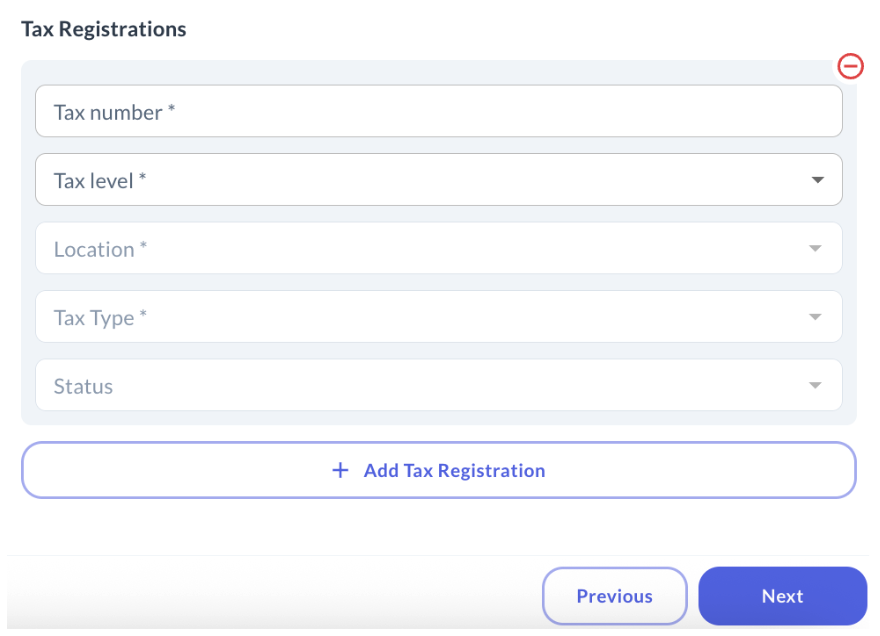
In this step you register the buyer’s tax identification. Click Add Tax Registration and complete the following fields:
Tax Registration Fields
- Tax Number (Required) Must include the DV (Dígito Verificador) Example format: 900123456-7
- Tax Level (Required): Defines the jurisdiction level of the tax ID. Usually Country for Colombia
- Location (Required) CO for country-level registrations Or a specific location if applicable
- Tax Type (Required) NIT → Colombian companies TAX_ID → Foreign companies CC → Individuals
- Status: Buyer’s tax condition (fiscal status), if applicable.
⚠️ Important: Incorrect or incomplete tax registrations may cause DIAN rejection.
Once completed:
- Review the buyer information
- Click Next to continue to Items & Taxes
Step 6 – Items
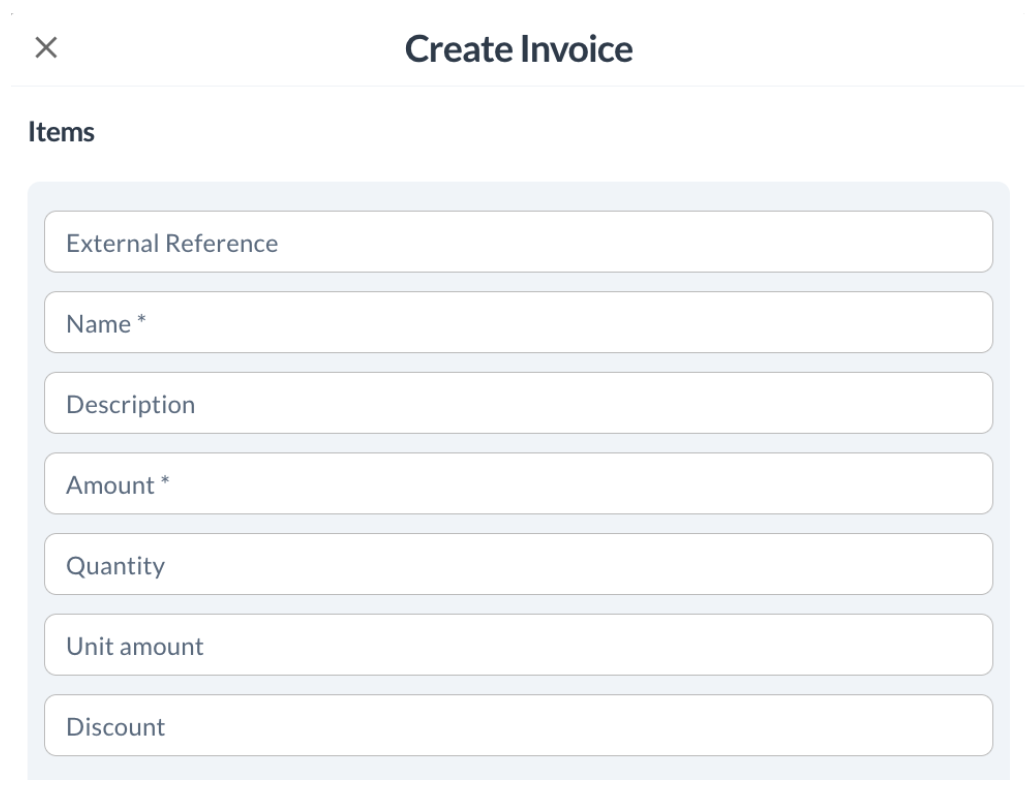
In this step you define the items (products or services) included in the invoice. Complete the following fields:
Item Fields
- External Reference: Buyer’s internal or ERP reference for the item (optional).
- Name (Required): Item or service name.
- Description: Not used for Colombia. Can be left empty.
- Quantity: Number of units.
- Unit Amount: Price per unit.
- Amount (Required): Total item amount. Formula: Amount = Quantity × Unit Amount Discount: Discount applied to the item, if any.
⚠️ Important: Ensure the amount is correct before adding taxes, as taxes are calculated based on this value.
Step 7 – Categories
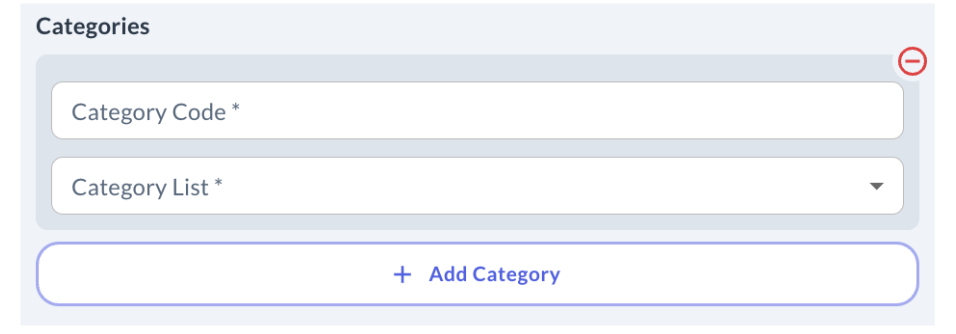
Categories are used to classify items according to predefined lists. Click Add Category and complete:
Category Fields
- Category Code (Required): Code that identifies the item or service.
- Category List (Required): The category list to which the code belongs.
You may add multiple categories per item if needed.
Step 8 – Taxes
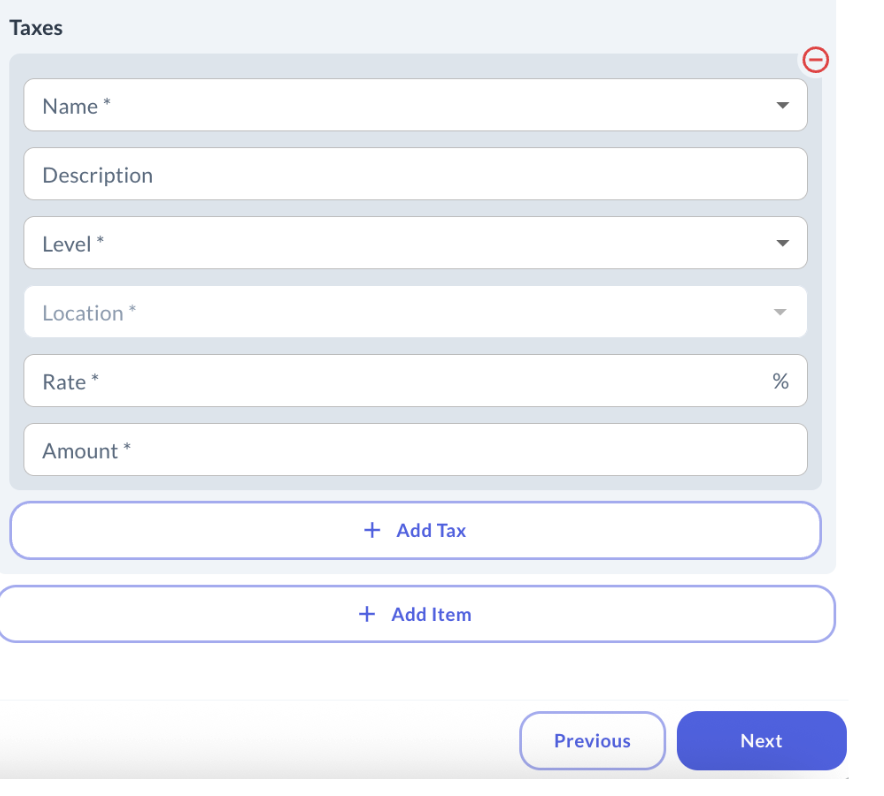
In this step you define the taxes applied to the item. Click Add Tax and complete:
Tax Fields
- Name (Required): Tax name (e.g. IVA).
- Description: Optional tax description.
- Level (Required): Tax jurisdiction level:
- Country
- State
- Municipality
- Location (Required): Tax location (e.g. Colombia or a specific municipality).
- Rate (%) (Required): Tax percentage. Example: 19 for IVA 19%.
- Amount (Required) Tax amount. Formula: Tax Amount = Item Amount × Rate
⚠️ Important: Tax configuration must match DIAN rules to avoid rejection.
Step 9 – Review & Issue Invoice
- Review the full invoice:
- Supplier
- Buyer
- Items
- Categories
- Taxes
- Totals
- Confirm all values are correct.
- Click Issue / Emit Invoice
If E-Invoice was enabled, the invoice will be:
- Sent to DIAN
- Validated and officially issued
Updated about 2 hours ago